


datagouv-mcp
Official data.gouv.fr Model Context Protocol (MCP) server that allows AI chatbots to search, explore, and analyze datasets from the French national Open Data platform, directly through conversation.
Stars: 496
datagouv-mcp is a Model Context Protocol (MCP) server designed to facilitate AI chatbots (such as Claude, ChatGPT, Gemini) in searching, exploring, and analyzing datasets from data.gouv.fr, the French national Open Data platform, through conversation. Users can ask questions like 'Quels jeux de données sont disponibles sur les prix de l'immobilier?' or 'Montre-moi les dernières données de population pour Paris' to get instant answers without manually browsing the website. The server provides tools to interact with datasets and dataservices, supporting features like searching datasets, getting dataset information, listing resources, querying resource data, and more. It also offers support for various chatbots like ChatGPT, Claude Desktop, Claude Code, Gemini CLI, Mistral Vibe CLI, AnythingLLM, VS Code, Cursor, Windsurf, and provides detailed instructions for connecting chatbots to the server.
README:


Model Context Protocol (MCP) server that allows AI chatbots (Claude, ChatGPT, Gemini, etc.) to search, explore, and analyze datasets from data.gouv.fr, the French national Open Data platform, directly through conversation.
Instead of manually browsing the website, you can simply ask questions like "Quels jeux de données sont disponibles sur les prix de l'immobilier ?" or "Montre-moi les dernières données de population pour Paris" and get instant answers.
[!TIP] Use it now: A public instance is available for everyone at https://mcp.data.gouv.fr/mcp with no access restrictions. To connect your favorite chatbot, simply follow the connection instructions below.
Use the hosted endpoint https://mcp.data.gouv.fr/mcp (recommended). If you self-host, swap in your own URL.
The MCP server configuration depends on your client. Use the appropriate configuration format for your client:
Available for paid plans only (Plus, Pro, Team, and Enterprise).
-
Access Settings: Open ChatGPT in your browser, go to
Settings, thenApps and connectors. -
Enable Dev Mode: Open
Advanced settingsand enable Developer mode. -
Add Connector: Return to
Settings>Connectors>Browse connectorsand click Add a new connector. -
Configure the connector: Set the URL to
https://mcp.data.gouv.fr/mcpand save to activate the tools.
Add the following to your Claude Desktop configuration file (typically ~/Library/Application Support/Claude/claude_desktop_config.json on MacOS, or %APPDATA%\Claude\claude_desktop_config.json on Windows):
{
  "mcpServers": {
    "datagouv": {
      "command": "npx",
      "args": [
        "mcp-remote",
        "https://mcp.data.gouv.fr/mcp"
      ]
    }
  }
}Use the claude mcp command to add the MCP server:
claude mcp add --transport http datagouv https://mcp.data.gouv.fr/mcpAdd the following to your ~/.gemini/settings.json file:
{
  "mcpServers": {
    "datagouv": {
      "httpUrl": "https://mcp.data.gouv.fr/mcp"
    }
  }
}Edit your Vibe config (default ~/.vibe/config.toml) and add the MCP server:
[[mcp_servers]]
name = "datagouv"
transport = "streamable-http"
url = "https://mcp.data.gouv.fr/mcp"
See the full Vibe MCP options in the official docs: MCP server configuration.
-
Locate the
anythingllm_mcp_servers.jsonfile in your AnythingLLM storage plugins directory:-
Mac:
~/Library/Application Support/anythingllm-desktop/storage/plugins/anythingllm_mcp_servers.json -
Linux:
~/.config/anythingllm-desktop/storage/plugins/anythingllm_mcp_servers.json -
Windows:
C:\Users\<username>\AppData\Roaming\anythingllm-desktop\storage\plugins\anythingllm_mcp_servers.json
-
Mac:
-
Add the following configuration:
{
  "mcpServers": {
    "datagouv": {
      "type": "streamable",
      "url": "https://mcp.data.gouv.fr/mcp"
    }
  }
}
For more details, see the AnythingLLM MCP documentation.
Add the following to your VS Code settings.json:
{
  "servers": {
    "datagouv": {
      "url": "https://mcp.data.gouv.fr/mcp",
      "type": "http"
    }
  }
}
Cursor supports MCP servers through its settings. To configure the server:
- Open Cursor Settings
- Search for "MCP" or "Model Context Protocol"
- Add a new MCP server with the following configuration:
{
  "mcpServers": {
    "datagouv": {
      "url": "https://mcp.data.gouv.fr/mcp",
      "transport": "http"
    }
  }
}
IBM Bob supports MCP servers through its settings. To configure the server:
- Click the setting icon in the Bob panel.
- Select the MCP tab.
- Click the appropriate button:
- Edit Global MCP: Opens the global
mcp_settings.jsonfile - Edit Project MCP: Opens the project-specific
.bob/mcp.jsonfile (Bob creates it if it does not exist)
Both files use JSON format with an mcpServers object containing named server configurations.
{
  "mcpServers": {
    "datagouv": {
      "url": "https://mcp.data.gouv.fr/mcp",
      "type": "streamable-http"
    }
  }
}Add the following to your ~/.codeium/mcp_config.json:
{
  "mcpServers": {
    "datagouv": {
      "command": "npx",
      "args": [
        "-y",
        "mcp-remote",
        "https://mcp.data.gouv.fr/mcp"
      ]
    }
  }
}
Note:
- The hosted endpoint is
https://mcp.data.gouv.fr/mcp. If you run the server yourself, replace it with your own URL (see “Run locally” below for the default local endpoint). - This MCP server only exposes read-only tools for now, so no API key is required.
Before starting, clone this repository and browse into it:
git clone [email protected]:datagouv/datagouv-mcp.git
cd datagouv-mcp
Docker is required for the recommended setup. Install it via Docker Desktop or any compatible Docker Engine before continuing.
# With default settings (port 8000, prod environment)
docker compose up -d

# With custom environment variables
MCP_PORT=8007 DATAGOUV_ENV=demo docker compose up -d

# Stop
docker compose down
Environment variables:
-
MCP_HOST: host to bind to (defaults to0.0.0.0). Set to127.0.0.1for local development to follow MCP security best practices. -
MCP_PORT: port for the MCP HTTP server (defaults to8000when unset). -
DATAGOUV_ENV:prod(default) ordemo. This controls which data.gouv.fr environement it uses the data from (https://www.data.gouv.fr or https://demo.data.gouv.fr). By default the MCP server talks to the production data.gouv.fr. SetDATAGOUV_ENV=demoif you specifically need the demo environment.
You will need uv to install dependencies and run the server.
- Install dependencies
uv sync- Prepare the environment file
Copy the example environment file to create your own .env file:
cp .env.example .envThen optionally edit .env and set the variables that matter for your run:
MCP_HOST=127.0.0.1  # (defaults to 0.0.0.0, use 127.0.0.1 for local dev)
MCP_PORT=8007  # (defaults to 8000 when unset)
DATAGOUV_ENV=prod  # Allowed values: demo | prod (defaults to prod when unset)
Load the variables with your preferred method, e.g.:
set -a && source .env && set +a- Start the HTTP MCP server
uv run main.pyFollow the steps in Connect your chatbot to the MCP server and simply swap the hosted URL for your local endpoint (default: http://127.0.0.1:${MCP_PORT:-8000}/mcp).
The MCP server is built using the official Python SDK for MCP servers and clients and uses the Streamable HTTP transport only.
STDIO and SSE are not supported.
Streamable HTTP transport (standards-compliant):
-
POST /mcp- JSON-RPC messages (client → server) -
GET /health- Simple JSON health probe ({"status":"ok","timestamp":"..."})
The MCP server provides tools to interact with data.gouv.fr datasets and dataservices.
Note: "Dataservices" are external third-party APIs (e.g., Adresse API, Sirene API) registered in the data.gouv.fr catalog. They are distinct from data.gouv.fr's own internal APIs (Main/Tabular/Metrics) which power this MCP server.
-
search_datasets- Search for datasets by keywords. Returns datasets with metadata (title, description, organization, tags, resource count).Parameters:
query(required),page(optional, default: 1),page_size(optional, default: 20, max: 100) -
get_dataset_info- Get detailed information about a specific dataset (metadata, organization, tags, dates, license, etc.).Parameters:
dataset_id(required) -
list_dataset_resources- List all resources (files) in a dataset with their metadata (format, size, type, URL).Parameters:
dataset_id(required) -
get_resource_info- Get detailed information about a specific resource (format, size, MIME type, URL, dataset association, Tabular API availability).Parameters:
resource_id(required) -
query_resource_data- Query data from a specific resource via the Tabular API. Fetches rows from a resource to answer questions.Parameters:
question(required),resource_id(required),page(optional, default: 1),page_size(optional, default: 20, max: 200)Note: Recommended workflow: 1) Use
search_datasetsto find the dataset, 2) Uselist_dataset_resourcesto see available resources, 3) Usequery_resource_datawith defaultpage_size(20) to preview data structure. For small datasets (<500 rows), increasepage_sizeor paginate. For large datasets (>1000 rows), usedownload_and_parse_resourceinstead. Works for CSV/XLS resources within Tabular API size limits (CSV ≤ 100 MB, XLSX ≤ 12.5 MB). -
download_and_parse_resource- Download and parse a resource that is not accessible via Tabular API (files too large, formats not supported, external URLs).Parameters:
resource_id(required),max_rows(optional, default: 20),max_size_mb(optional, default: 500)Supported formats: CSV, CSV.GZ, JSON, JSONL. Useful for files exceeding Tabular API limits or formats not supported by Tabular API. Start with default max_rows (20) to preview, then call again with higher max_rows if you need all data.
-
search_dataservices- Search for dataservices (APIs) registered on data.gouv.fr by keywords. Returns dataservices with metadata (title, description, organization, base API URL, tags).Parameters:
query(required),page(optional, default: 1),page_size(optional, default: 20, max: 100) -
get_dataservice_info- Get detailed metadata about a specific dataservice (title, description, organization, base API URL, OpenAPI spec URL, license, dates, related datasets).Parameters:
dataservice_id(required) -
get_dataservice_openapi_spec- Fetch and summarize the OpenAPI/Swagger specification for a dataservice. Returns a concise overview of available endpoints with their parameters.Parameters:
dataservice_id(required)Note: Recommended workflow: 1) Use
search_dataservicesto find the API, 2) Useget_dataservice_infoto get its metadata and documentation URL, 3) Useget_dataservice_openapi_specto understand available endpoints and parameters, 4) Call the API using thebase_api_urlper the spec.
-
get_metrics- Get metrics (visits, downloads) for a dataset and/or a resource.Parameters:
dataset_id(optional),resource_id(optional),limit(optional, default: 12, max: 100)Returns monthly statistics including visits and downloads, sorted by month in descending order (most recent first). At least one of
dataset_idorresource_idmust be provided. Note: This tool only works with the production environment (DATAGOUV_ENV=prod). The Metrics API does not have a demo/preprod environment.
Run the tests with pytest (these cover helper modules; the MCP server wiring is best exercised via the MCP Inspector):
# Run all tests
uv run pytest

# Run with verbose output
uv run pytest -v

# Run specific test file
uv run pytest tests/test_tabular_api.py

# Run with custom resource ID
RESOURCE_ID=3b6b2281-b9d9-4959-ae9d-c2c166dff118 uv run pytest tests/test_tabular_api.py

# Run with prod environment
DATAGOUV_ENV=prod uv run pytestUse the official MCP Inspector to interactively test the server tools and resources.
Prerequisites:
- Node.js with
npxavailable
Steps:
- Start the MCP server (see above)
- In another terminal, launch the inspector:
Adjust the URL if you exposed the server on another host/port.
npx @modelcontextprotocol/inspector --http-url "http://127.0.0.1:${MCP_PORT}/mcp"
We welcome contributions! To keep the project stable and reviews manageable, please observe these rules before submitting:
- Keep it small: We strictly follow a 1 feature = 1 PR workflow.
- Human review required: Do not submit raw AI-generated code. All code must be reviewed and tested by a human prior to submission.
We use a standard review-and-deploy process:
-
Submit a PR: Propose your changes via a Pull Request against the
mainbranch. - Review: All PRs must be reviewed and approved by a maintainer before merging.
-
Automated Deployment: Once merged into
main, changes will be deployed to:- Pre-production for final validation
- Production
This project follows PEP 8 style guidelines using Ruff for linting and formatting, and ty for type checking.
Either running these commands manually or installing the pre-commit hook is required before submitting contributions.
# Lint (including import sorting) and format code
uv run ruff check --fix && uv run ruff format

# Type check (ty)
uv run ty checkThis repository uses a pre-commit hook which lint and format code before each commit. Installing the pre-commit hook is strongly recommended so the checks run automatically.
Install pre-commit hooks:
uv run pre-commit installThe pre-commit hook that automatically:
- Check YAML syntax
- Fix end-of-file issues
- Remove trailing whitespace
- Check for large files
- Run Ruff linting and formatting
The release process uses the tag_version.sh script to create git tags, GitHub releases and update CHANGELOG.md automatically. Package version numbers are automatically derived from git tags using setuptools_scm, so no manual version updates are needed in pyproject.toml.
Prerequisites: GitHub CLI must be installed and authenticated, and you must be on the main branch with a clean working directory.
# Create a new release
./tag_version.sh <version>

# Example
./tag_version.sh 2.5.0

# Dry run to see what would happen
./tag_version.sh 2.5.0 --dry-run
The script automatically:
- Extracts commits since the last tag and formats them for CHANGELOG.md
- Identifies breaking changes (commits with
!:in the subject) - Creates a git tag and pushes it to the remote repository
- Creates a GitHub release with the changelog content
This project is licensed under the MIT License - see the LICENSE file for details.
For Tasks:
Click tags to check more tools for each tasksFor Jobs:
Alternative AI tools for datagouv-mcp
Similar Open Source Tools
datagouv-mcp
datagouv-mcp is a Model Context Protocol (MCP) server designed to facilitate AI chatbots (such as Claude, ChatGPT, Gemini) in searching, exploring, and analyzing datasets from data.gouv.fr, the French national Open Data platform, through conversation. Users can ask questions like 'Quels jeux de données sont disponibles sur les prix de l'immobilier?' or 'Montre-moi les dernières données de population pour Paris' to get instant answers without manually browsing the website. The server provides tools to interact with datasets and dataservices, supporting features like searching datasets, getting dataset information, listing resources, querying resource data, and more. It also offers support for various chatbots like ChatGPT, Claude Desktop, Claude Code, Gemini CLI, Mistral Vibe CLI, AnythingLLM, VS Code, Cursor, Windsurf, and provides detailed instructions for connecting chatbots to the server.
Lumos
Lumos is a Chrome extension powered by a local LLM co-pilot for browsing the web. It allows users to summarize long threads, news articles, and technical documentation. Users can ask questions about reviews and product pages. The tool requires a local Ollama server for LLM inference and embedding database. Lumos supports multimodal models and file attachments for processing text and image content. It also provides options to customize models, hosts, and content parsers. The extension can be easily accessed through keyboard shortcuts and offers tools for automatic invocation based on prompts.
shortest
Shortest is an AI-powered natural language end-to-end testing framework built on Playwright. It provides a seamless testing experience by allowing users to write tests in natural language and execute them using Anthropic Claude API. The framework also offers GitHub integration with 2FA support, making it suitable for testing web applications with complex authentication flows. Shortest simplifies the testing process by enabling users to run tests locally or in CI/CD pipelines, ensuring the reliability and efficiency of web applications.
langserve
LangServe helps developers deploy `LangChain` runnables and chains as a REST API. This library is integrated with FastAPI and uses pydantic for data validation. In addition, it provides a client that can be used to call into runnables deployed on a server. A JavaScript client is available in LangChain.js.
text-extract-api
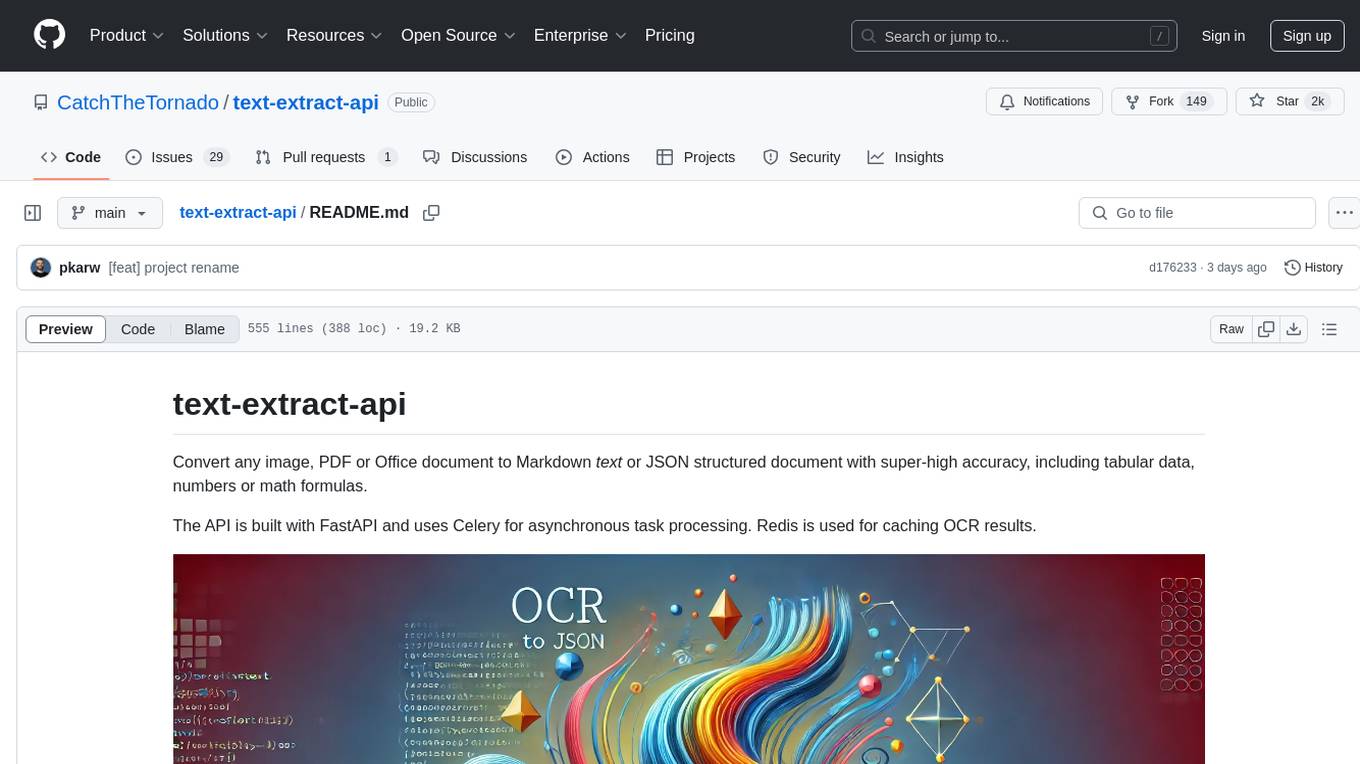
The text-extract-api is a powerful tool that allows users to convert images, PDFs, or Office documents to Markdown text or JSON structured documents with high accuracy. It is built using FastAPI and utilizes Celery for asynchronous task processing, with Redis for caching OCR results. The tool provides features such as PDF/Office to Markdown and JSON conversion, improving OCR results with LLama, removing Personally Identifiable Information from documents, distributed queue processing, caching using Redis, switchable storage strategies, and a CLI tool for task management. Users can run the tool locally or on cloud services, with support for GPU processing. The tool also offers an online demo for testing purposes.
context7
Context7 is a powerful tool for analyzing and visualizing data in various formats. It provides a user-friendly interface for exploring datasets, generating insights, and creating interactive visualizations. With advanced features such as data filtering, aggregation, and customization, Context7 is suitable for both beginners and experienced data analysts. The tool supports a wide range of data sources and formats, making it versatile for different use cases. Whether you are working on exploratory data analysis, data visualization, or data storytelling, Context7 can help you uncover valuable insights and communicate your findings effectively.
golf
Golf is a simple command-line tool for calculating the distance between two geographic coordinates. It uses the Haversine formula to accurately determine the distance between two points on the Earth's surface. This tool is useful for developers working on location-based applications or projects that require distance calculations. With Golf, users can easily input latitude and longitude coordinates and get the precise distance in kilometers or miles. The tool is lightweight, easy to use, and can be integrated into various programming workflows.
consult-llm-mcp
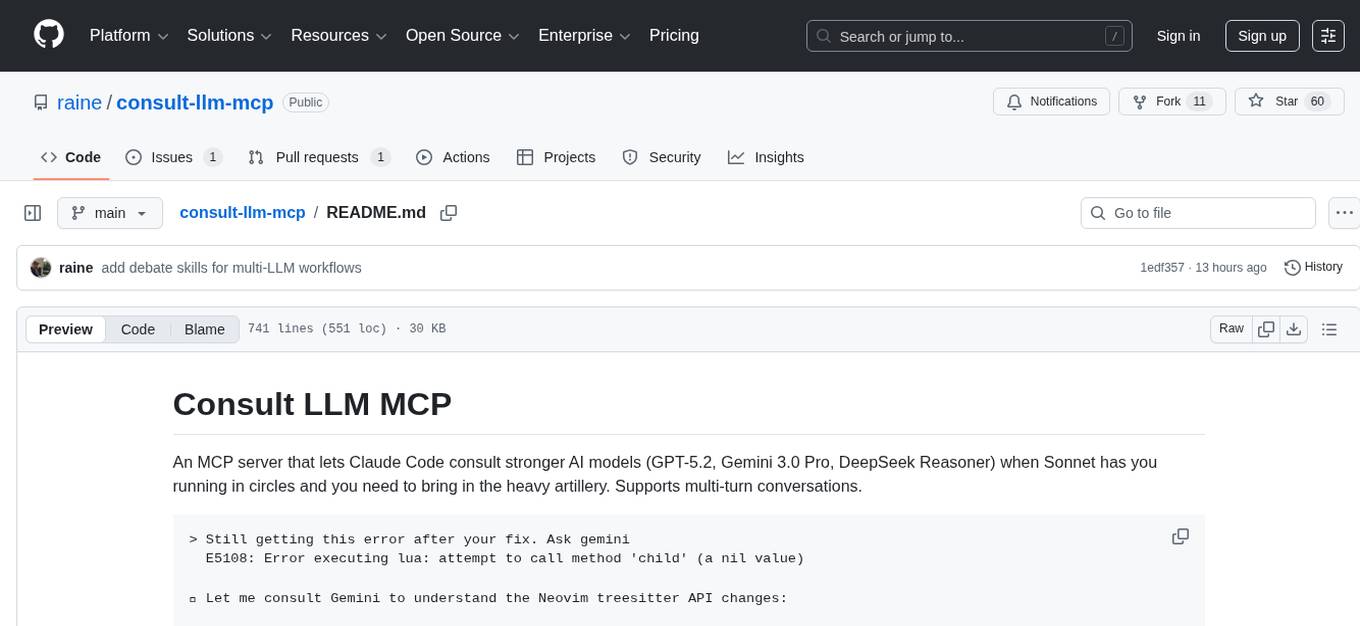
Consult LLM MCP is an MCP server that enables users to consult powerful AI models like GPT-5.2, Gemini 3.0 Pro, and DeepSeek Reasoner for complex problem-solving. It supports multi-turn conversations, direct queries with optional file context, git changes inclusion for code review, comprehensive logging with cost estimation, and various CLI modes for Gemini and Codex. The tool is designed to simplify the process of querying AI models for assistance in resolving coding issues and improving code quality.
MCPSharp
MCPSharp is a .NET library that helps build Model Context Protocol (MCP) servers and clients for AI assistants and models. It allows creating MCP-compliant tools, connecting to existing MCP servers, exposing .NET methods as MCP endpoints, and handling MCP protocol details seamlessly. With features like attribute-based API, JSON-RPC support, parameter validation, and type conversion, MCPSharp simplifies the development of AI capabilities in applications through standardized interfaces.
repomix
Repomix is a powerful tool that packs your entire repository into a single, AI-friendly file. It is designed to format your codebase for easy understanding by AI tools like Large Language Models (LLMs), Claude, ChatGPT, and Gemini. Repomix offers features such as AI optimization, token counting, simplicity in usage, customization options, Git awareness, and security-focused checks using Secretlint. It allows users to pack their entire repository or specific directories/files using glob patterns, and even supports processing remote Git repositories. The tool generates output in plain text, XML, or Markdown formats, with options for including/excluding files, removing comments, and performing security checks. Repomix also provides a global configuration option, custom instructions for AI context, and a security check feature to detect sensitive information in files.
lollms
LoLLMs Server is a text generation server based on large language models. It provides a Flask-based API for generating text using various pre-trained language models. This server is designed to be easy to install and use, allowing developers to integrate powerful text generation capabilities into their applications.
pyomop
pyomop is a versatile tool designed as an OMOP Swiss Army Knife for working with OHDSI OMOP Common Data Model (CDM) v5.4 or v6 compliant databases using SQLAlchemy as the ORM. It supports converting query results to pandas DataFrames for machine learning pipelines and provides utilities for working with OMOP vocabularies. The tool is lightweight, easy-to-use, and can be used both as a command-line tool and as an imported library in code. It supports SQLite, PostgreSQL, and MySQL databases, LLM-based natural language queries, FHIR to OMOP conversion utilities, and executing QueryLibrary.
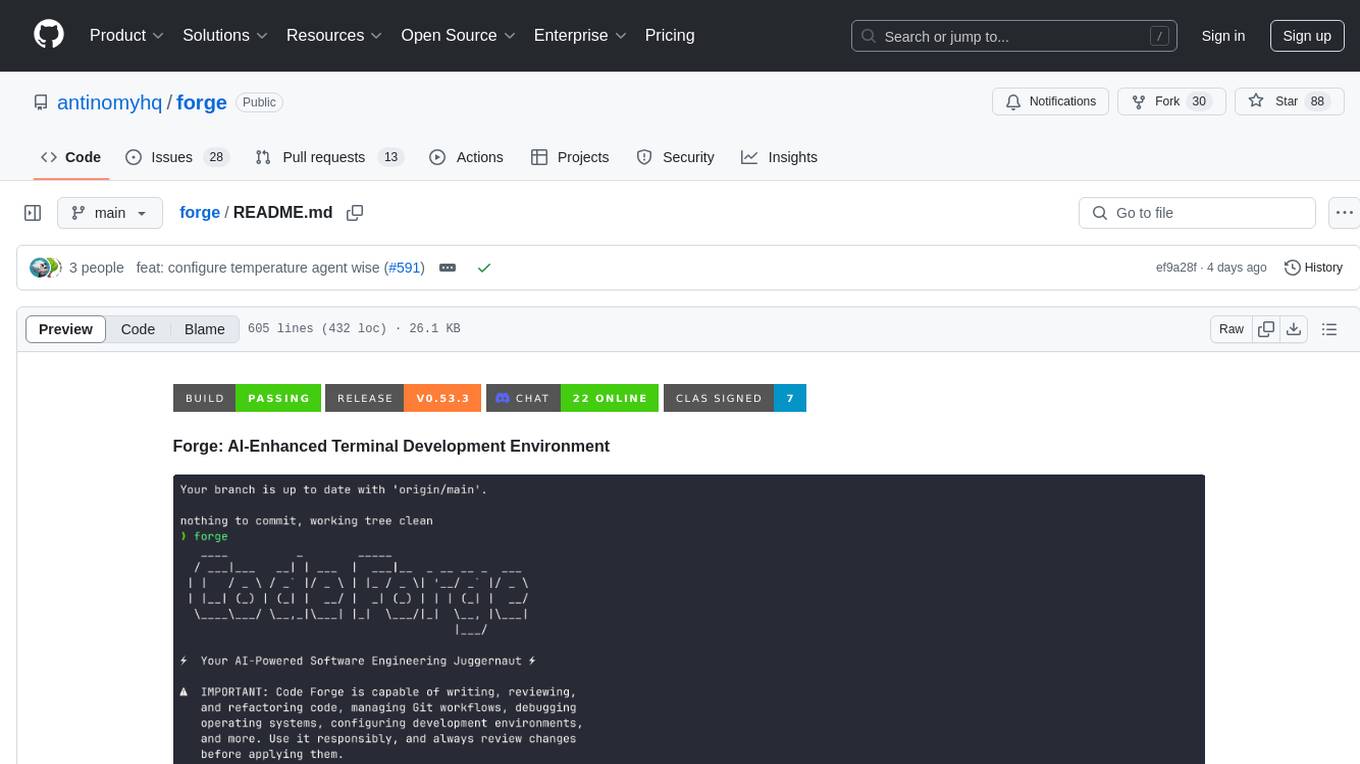
forge
Forge is a powerful open-source tool for building modern web applications. It provides a simple and intuitive interface for developers to quickly scaffold and deploy projects. With Forge, you can easily create custom components, manage dependencies, and streamline your development workflow. Whether you are a beginner or an experienced developer, Forge offers a flexible and efficient solution for your web development needs.
llm-vscode
llm-vscode is an extension designed for all things LLM, utilizing llm-ls as its backend. It offers features such as code completion with 'ghost-text' suggestions, the ability to choose models for code generation via HTTP requests, ensuring prompt size fits within the context window, and code attribution checks. Users can configure the backend, suggestion behavior, keybindings, llm-ls settings, and tokenization options. Additionally, the extension supports testing models like Code Llama 13B, Phind/Phind-CodeLlama-34B-v2, and WizardLM/WizardCoder-Python-34B-V1.0. Development involves cloning llm-ls, building it, and setting up the llm-vscode extension for use.
lollms_legacy
Lord of Large Language Models (LoLLMs) Server is a text generation server based on large language models. It provides a Flask-based API for generating text using various pre-trained language models. This server is designed to be easy to install and use, allowing developers to integrate powerful text generation capabilities into their applications. The tool supports multiple personalities for generating text with different styles and tones, real-time text generation with WebSocket-based communication, RESTful API for listing personalities and adding new personalities, easy integration with various applications and frameworks, sending files to personalities, running on multiple nodes to provide a generation service to many outputs at once, and keeping data local even in the remote version.
metis
Metis is an open-source, AI-driven tool for deep security code review, created by Arm's Product Security Team. It helps engineers detect subtle vulnerabilities, improve secure coding practices, and reduce review fatigue. Metis uses LLMs for semantic understanding and reasoning, RAG for context-aware reviews, and supports multiple languages and vector store backends. It provides a plugin-friendly and extensible architecture, named after the Greek goddess of wisdom, Metis. The tool is designed for large, complex, or legacy codebases where traditional tooling falls short.
For similar tasks
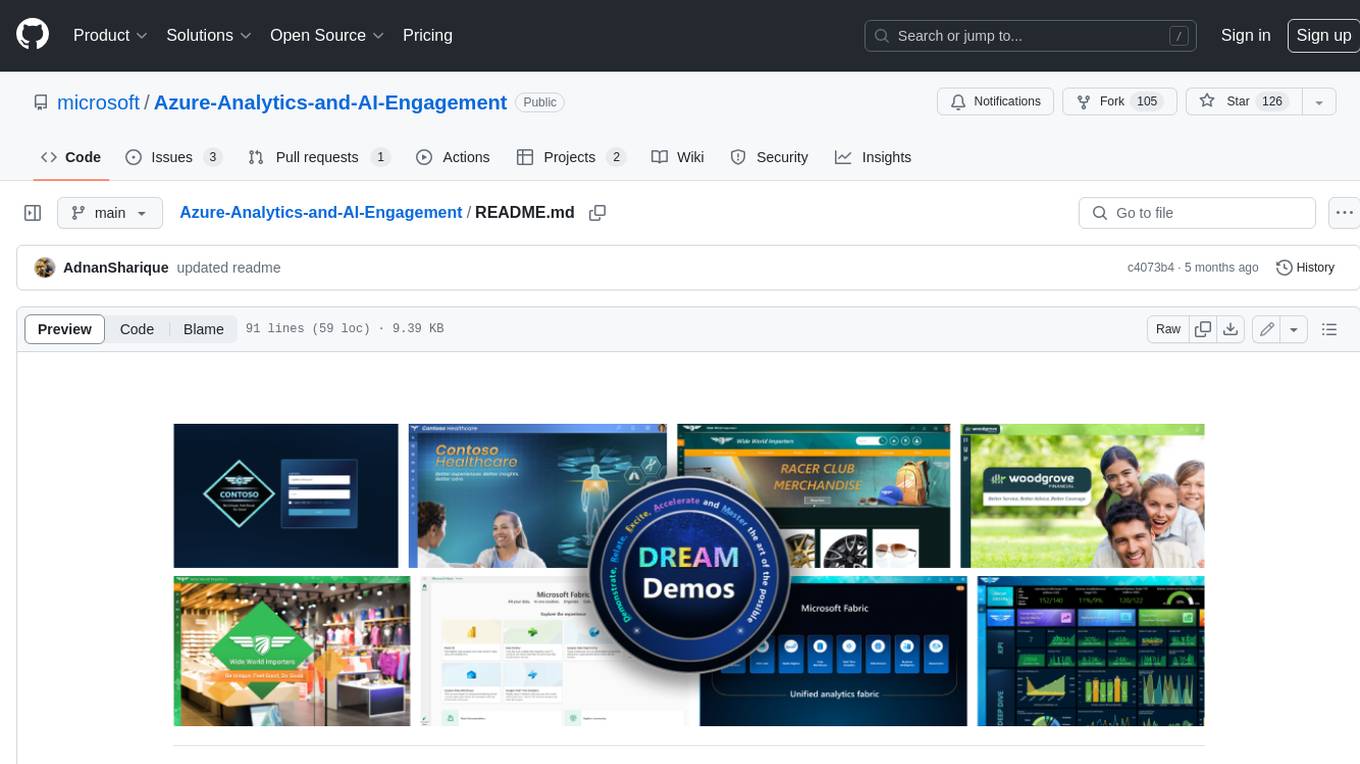
Azure-Analytics-and-AI-Engagement
The Azure-Analytics-and-AI-Engagement repository provides packaged Industry Scenario DREAM Demos with ARM templates (Containing a demo web application, Power BI reports, Synapse resources, AML Notebooks etc.) that can be deployed in a customer’s subscription using the CAPE tool within a matter of few hours. Partners can also deploy DREAM Demos in their own subscriptions using DPoC.
sorrentum
Sorrentum is an open-source project that aims to combine open-source development, startups, and brilliant students to build machine learning, AI, and Web3 / DeFi protocols geared towards finance and economics. The project provides opportunities for internships, research assistantships, and development grants, as well as the chance to work on cutting-edge problems, learn about startups, write academic papers, and get internships and full-time positions at companies working on Sorrentum applications.
tidb
TiDB is an open-source distributed SQL database that supports Hybrid Transactional and Analytical Processing (HTAP) workloads. It is MySQL compatible and features horizontal scalability, strong consistency, and high availability.

zep-python
Zep is an open-source platform for building and deploying large language model (LLM) applications. It provides a suite of tools and services that make it easy to integrate LLMs into your applications, including chat history memory, embedding, vector search, and data enrichment. Zep is designed to be scalable, reliable, and easy to use, making it a great choice for developers who want to build LLM-powered applications quickly and easily.
telemetry-airflow
This repository codifies the Airflow cluster that is deployed at workflow.telemetry.mozilla.org (behind SSO) and commonly referred to as "WTMO" or simply "Airflow". Some links relevant to users and developers of WTMO: * The `dags` directory in this repository contains some custom DAG definitions * Many of the DAGs registered with WTMO don't live in this repository, but are instead generated from ETL task definitions in bigquery-etl * The Data SRE team maintains a WTMO Developer Guide (behind SSO)
mojo
Mojo is a new programming language that bridges the gap between research and production by combining Python syntax and ecosystem with systems programming and metaprogramming features. Mojo is still young, but it is designed to become a superset of Python over time.
pandas-ai
PandasAI is a Python library that makes it easy to ask questions to your data in natural language. It helps you to explore, clean, and analyze your data using generative AI.
databend
Databend is an open-source cloud data warehouse that serves as a cost-effective alternative to Snowflake. With its focus on fast query execution and data ingestion, it's designed for complex analysis of the world's largest datasets.
For similar jobs
assistant-ui
assistant-ui is a set of React components for AI chat. It provides a collection of components that can be easily integrated into projects to create AI chat interfaces for Discord, websites, and demos. The components are designed to streamline the process of setting up AI chat functionality in React applications, making it easier for developers to incorporate AI chat features into their projects.
Simulator-Controller
Simulator Controller is a modular administration and controller application for Sim Racing, featuring a comprehensive plugin automation framework for external controller hardware. It includes voice chat capable Assistants like Virtual Race Engineer, Race Strategist, Race Spotter, and Driving Coach. The tool offers features for setup, strategy development, monitoring races, and more. Developed in AutoHotkey, it supports various simulation games and integrates with third-party applications for enhanced functionality.
RirikoBot
RirikoBot is a powerful AI-powered Discord bot with features like Twitch Live Notifier, Giveaways, OpenAI, Stable Diffusion, Moderations, Anime / Manga Finder, and more. It is based on Discord.js v14 and can be hosted on a PC or a Server. Users can interact with the bot through various commands to access different functionalities.
douyin-chatgpt-bot
Douyin ChatGPT Bot is an AI-driven system for automatic replies on Douyin, including comment and private message replies. It offers features such as comment filtering, customizable robot responses, and automated account management. The system aims to enhance user engagement and brand image on the Douyin platform, providing a seamless experience for managing interactions with followers and potential customers.
fridon-ai
FridonAI is an open-source project offering AI-powered tools for cryptocurrency analysis and blockchain operations. It includes modules like FridonAnalytics for price analysis, FridonSearch for technical indicators, FridonNotifier for custom alerts, FridonBlockchain for blockchain operations, and FridonChat as a unified chat interface. The platform empowers users to create custom AI chatbots, access crypto tools, and interact effortlessly through chat. The core functionality is modular, with plugins, tools, and utilities for easy extension and development. FridonAI implements a scoring system to assess user interactions and incentivize engagement. The application uses Redis extensively for communication and includes a Nest.js backend for system operations.
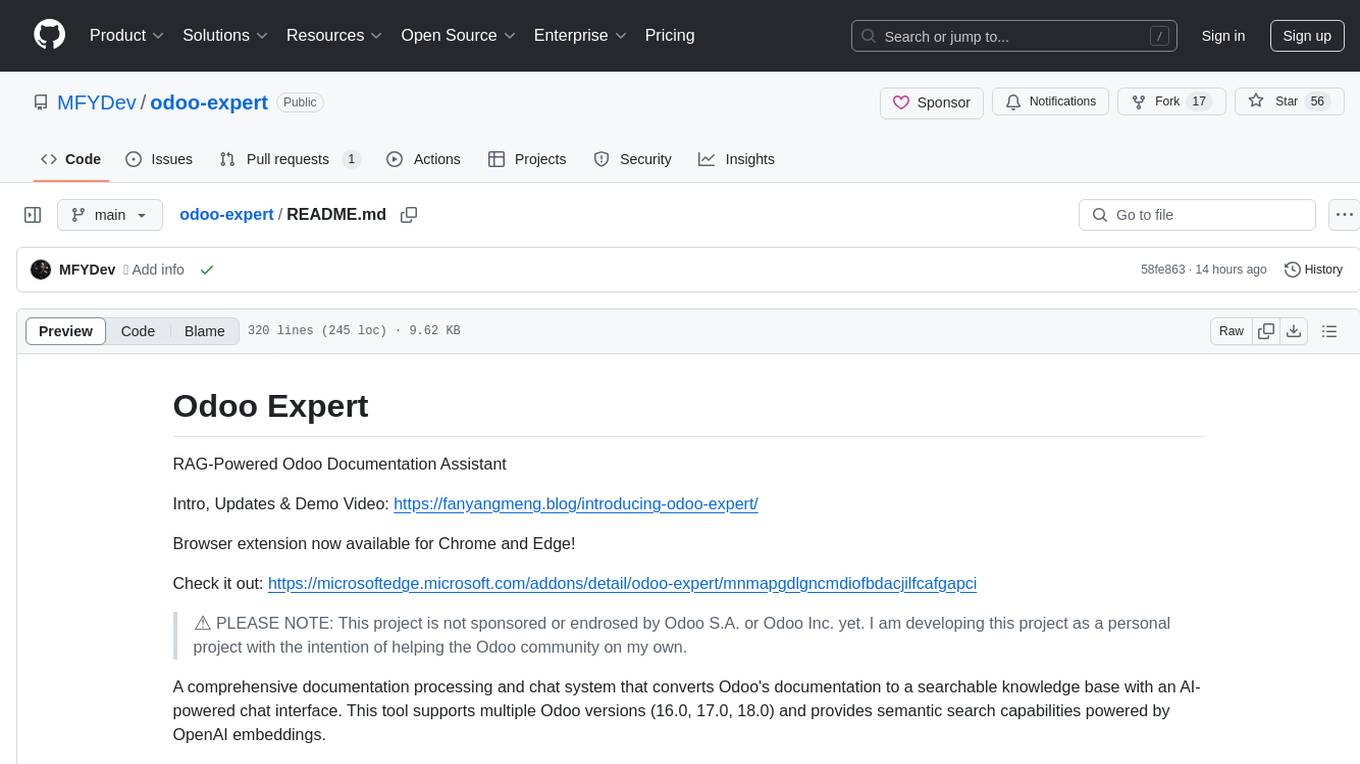
odoo-expert
RAG-Powered Odoo Documentation Assistant is a comprehensive documentation processing and chat system that converts Odoo's documentation to a searchable knowledge base with an AI-powered chat interface. It supports multiple Odoo versions (16.0, 17.0, 18.0) and provides semantic search capabilities powered by OpenAI embeddings. The tool automates the conversion of RST to Markdown, offers real-time semantic search, context-aware AI-powered chat responses, and multi-version support. It includes a Streamlit-based web UI, REST API for programmatic access, and a CLI for document processing and chat. The system operates through a pipeline of data processing steps and an interface layer for UI and API access to the knowledge base.
typedai
TypedAI is a TypeScript-first AI platform designed for developers to create and run autonomous AI agents, LLM based workflows, and chatbots. It offers advanced autonomous agents, software developer agents, pull request code review agent, AI chat interface, Slack chatbot, and supports various LLM services. The platform features configurable Human-in-the-loop settings, functional callable tools/integrations, CLI and Web UI interface, and can be run locally or deployed on the cloud with multi-user/SSO support. It leverages the Python AI ecosystem through executing Python scripts/packages and provides flexible run/deploy options like single user mode, Firestore & Cloud Run deployment, and multi-user SSO enterprise deployment. TypedAI also includes UI examples, code examples, and automated LLM function schemas for seamless development and execution of AI workflows.
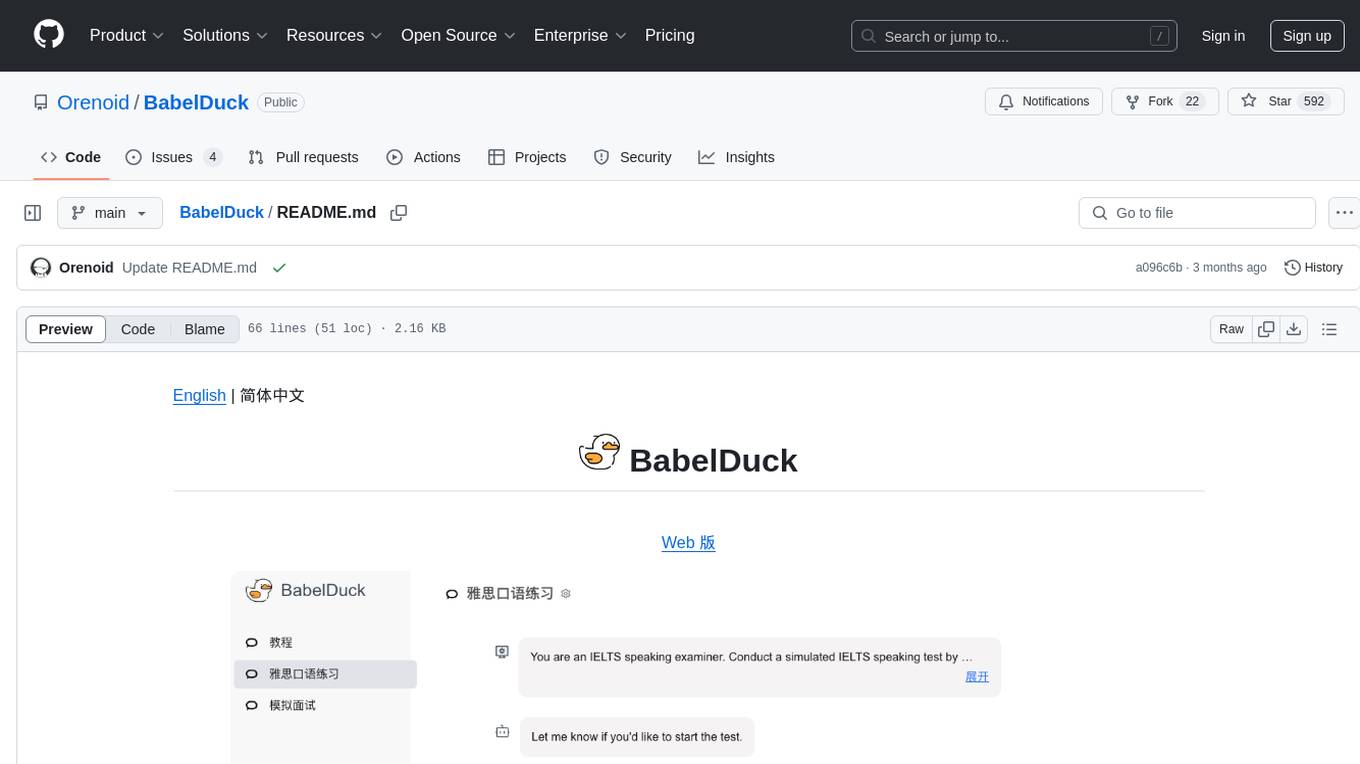
BabelDuck
BabelDuck is a highly customizable AI oral conversation practice application for language learners at all levels, with a focus on being more beginner-friendly. It aims to minimize the threshold and mental burden of oral expression practice. The tool supports various AI conversation features such as managing multiple dialogues, customizing system prompts, and providing suggestions for grammar, translation, or expression refinement without interrupting the current conversation. Users can seek further discussion through sub-dialogues when in doubt about AI suggestions, seamlessly returning to the original conversation afterward. BabelDuck also offers voice input and output, integrates browser-built text-to-speech, and Azure TTS, and supports different dialogue preferences, data stored locally for user privacy, multilingual interface, and built-in tutorials.