


tambourine-voice
Your personal voice interface for any app. Speak naturally and your words appear wherever your cursor is, with fully customizable AI voice dictation. Open source alternative to Wispr Flow.
Stars: 258
Tambourine is a personal voice interface tool that allows users to speak naturally and have their words appear wherever the cursor is. It is powered by customizable AI voice dictation, providing a universal voice-to-text interface for emails, messages, documents, code editors, and terminals. Users can capture ideas quickly, type at the speed of thought, and benefit from AI formatting that cleans up speech, adds punctuation, and applies personal dictionaries. Tambourine offers full control and transparency, with the ability to customize AI providers, formatting, and extensions. The tool supports dual-mode recording, real-time speech-to-text, LLM text formatting, context-aware formatting, customizable prompts, and more, making it a versatile solution for dictation and transcription tasks.
README:





Your personal voice interface for any app. Speak naturally and your words appear wherever your cursor is, powered by customizable AI voice dictation.
Open-source alternative to Wispr Flow, Superwhisper, and Willow.
🚀 Hosted Service Coming Soon! Join the waitlist to use Tambourine without running the server yourself.


Your voice, any app. Tambourine gives you a universal voice-to-text interface that works everywhere: emails, messages, documents, code editors, terminals. Press a hotkey, speak, and your words are typed at your cursor. No copy-pasting, no app switching, no limitations.
Speak at the speed of thought. Typing averages 40-50 wpm, but speaking averages 130-160 wpm. Capture ideas before they slip away, and give your hands a break from the keyboard.
AI that understands you. Unlike raw transcription, Tambourine uses AI to format your speech into clean text—removing filler words, adding punctuation, and applying your personal dictionary for technical terms and proper nouns.
Why not native dictation? Built-in dictation is not personalized but Tambourine can be customized to your speaking and writing style, and with a personal dictionary for uncommon terms.
Why not proprietary tools? Unlike Wispr Flow or Superwhisper, this project gives you full control and transparency.
Fully customizable. This is your voice interface, built your way:
- Choose your AI providers — Pick your STT (Cartesia, Deepgram, AssemblyAI, Speechmatics, Azure, AWS, Google, Groq, OpenAI, Nemotron) and LLM (Cerebras, OpenAI, Anthropic, Gemini, Groq, OpenRouter), run fully local with Whisper and Ollama, or add more from Pipecat's supported services
- Customize the formatting — Modify prompts, add custom rules, build your personal dictionary
- Extend freely — Built on Pipecat's modular pipeline, fully open-source
| Platform | Compatibility |
|---|---|
| Windows | ✅ |
| macOS | ✅ |
| Linux | |
| Android | ❌ |
| iOS | ❌ |
-
Dual-Mode Recording
- Hold-to-record:
Ctrl+Alt+`- Hold to record, release to stop - Toggle mode:
Ctrl+Alt+Space- Press to start, press again to stop
- Hold-to-record:
- Real-time Speech-to-Text - Fast transcription with configurable STT providers
- LLM Text Formatting - Removes filler words, adds punctuation using configurable LLM
- Context-Aware Formatting - Automatically detect which application is focused and tailor formatting accordingly. Email clients get proper salutations and sign-offs, messaging apps get casual formatting, code editors get syntax-aware output with proper casing and punctuation.
- Customizable Prompts - Edit formatting rules, enable advanced features, add personal dictionary
- In-App Provider Selection - Switch STT and LLM providers without restarting
- Automatic Typing - Input text directly at focused position
- Recording Overlay - Floating visual indicator
- Transcription History - View and copy previous dictations
-
Paste Last Transcription - Re-type previous dictation with
Ctrl+Alt+. - Auto-Mute Audio - Automatically mute system audio while dictating (Windows/macOS)
- Misc. - System tray integration, microphone selection, sound feedback, configure hotkeys
- Voice-Driven Text Modification - Highlight existing text and describe how to modify it. Select a paragraph and say "make this more formal" or "fix the grammar" to transform text in place.
- Voice Shortcuts - Create custom triggers that expand to full formatted text. Say "insert meeting link" to paste your scheduling URL, or "sign off" for your email signature.
- Auto-Learning Dictionary - Automatically learn new words, names, and terminology from your usage patterns rather than requiring manual dictionary entries.
- Observability and Evaluation - Integrate tooling from Pipecat and other voice agent frameworks to track transcription quality, latency metrics, and formatting accuracy. Use insights to continuously optimize your personal dictation workflow.
- Hosted Service - Optional cloud-hosted backend so you can use Tambourine without running the Python server locally.
┌─────────────────────────────────────────────────────────────┐
│                      Tauri App (app/)                       │
│  - Global hotkeys (Ctrl+Alt+Space, Ctrl+Alt+`)              │
│  - Rust backend for keyboard and audio controls             │
│  - React frontend with SmallWebRTC client                   │
│  - System tray with show/hide toggle                        │
└─────────────────────────────┬───────────────────────────────┘
                              │
                          API :8765
                              ▼
┌─────────────────────────────────────────────────────────────┐
│                  Python Server (server/)                    │
│  - Pipecat SmallWebRTC for audio streaming                  │
│  - STT providers (Cartesia, Deepgram, Groq, and more)       │
│  - LLM formatting (Cerebras, OpenAI, Anthropic, and more)   │
│  - Runtime config via WebRTC data channel (RTVI protocol)   │
│  - Returns cleaned text to app                              │
└─────────────────────────────────────────────────────────────┘
- Rust
- Node.js
- pnpm
- Python 3.13+
- uv (Python package manager)
sudo apt-get install libwebkit2gtk-4.1-dev build-essential curl wget file \
libxdo-dev libssl-dev libayatana-appindicator3-dev librsvg2-dev libgtk-3-devWhen you first use Tambourine, your operating system will prompt you to grant microphone access. Accept this permission to enable voice dictation.
On macOS, Tambourine needs accessibility permissions to type text at your cursor position.
- Running the built app: Grant accessibility access to "Tambourine"
-
Running in development: Grant accessibility access to the application you run the code from:
- If running from VS Code: Add "Visual Studio Code"
- If running from Terminal: Add "Terminal" (or your terminal app like iTerm2)
⚠️ Build in Progress This project is under active development. Core features work well, but expect breaking changes to the code, architecture, and configuration as the project evolves.
Choose your providers (at least one STT and one LLM required):
Note: The following are examples of providers with generous free tiers. Tambourine supports many more providers with paid API keys—see
server/.env.examplefor the full list.
| Provider | Type | Free Tier | Sign Up |
|---|---|---|---|
| Cartesia | STT | 3 hours/month | cartesia.ai |
| Cerebras | LLM | 10K tokens/day | cloud.cerebras.ai |
| Gemini | LLM | 1,500 requests/day (1M tokens/min burst) | aistudio.google.com |
| Groq | Both | Model-specific (100K-500K tokens/day) | console.groq.com |
For fully local deployment:
- Set
OLLAMA_BASE_URL=http://localhost:11434in.env - Set
WHISPER_ENABLED=truefor local STT - Optional: set
WHISPER_DEVICE(cpuorcuda),WHISPER_MODEL(for exampletiny,base,small,medium,large), andWHISPER_COMPUTE_TYPE(for exampleint8,float16)
cd server

# Copy environment template and add your API keys
cp .env.example .env

# Install dependencies
uv sync

# Start the server
uv run python main.pycd app
# Install dependencies
pnpm install
# Start development mode
pnpm dev- Start the server first (
uv run python main.py) - Start the app (
pnpm dev) - Use either shortcut:
-
Toggle: Press
Ctrl+Alt+Spaceto start, press again to stop -
Hold: Hold
Ctrl+Alt+`while speaking, release to stop
-
Toggle: Press
- Your cleaned text is typed at your cursor
cd server

# Start server (default: 127.0.0.1:8765)
uv run python main.py

# Start with custom host/port
uv run python main.py --host 0.0.0.0 --port 9000

# Enable verbose logging
uv run python main.py --verboseRun the server in Docker instead of installing Python dependencies locally. Server requires host networking due to RTP/WebRTC random UDP port assignments.
To use GPU acceleration for a locally hosted Whisper model, set up GPU access for your container daemon:
https://docs.nvidia.com/datacenter/cloud-native/container-toolkit/latest/install-guide.html#installing-with-yum-or-dnf https://podman-desktop.io/docs/podman/gpu
cd server

# Copy environment template and add your API keys
cp .env.example .env

# Build and start the container
docker compose up --build -d

# View logs
docker compose logs -f

# Stop the container
docker compose down

# Update to latest code
docker compose down && docker compose up --build -d
The .env file is read at runtime (not baked into the image), so your API keys stay secure.
If the container shows as running and logs print Tambourine Server Ready!, but the client still cannot connect (or http://127.0.0.1:8765/health fails from your host), verify that host networking is actually enabled/supported by your Docker runtime.
This project uses network_mode: "host" in server/docker-compose.yml for WebRTC/RTP reliability. If host networking is disabled in your Docker setup, the container can appear healthy while still being unreachable from the app.
If you see CDI device injection failed: unresolvable CDI devices nvidia.com/gpu=all, your runtime is likely trying to use the Podman GPU stanza with Docker. In server/docker-compose.yml, keep the GPU block that matches your runtime and disable the other one.
cd app

# Development
pnpm check         # Run all checks (lint + typecheck + knip + test + cargo)
pnpm dev           # Start Tauri app in dev mode

# Production Build
pnpm build # Build for current platformThe server exposes HTTP endpoints on port 8765 (default). Sample endpoints:
-
GET /health- Health check for container orchestration -
GET /api/providers- List available STT and LLM providers
See server/main.py and server/api/config_api.py for all endpoints. All endpoints are rate-limited.
Copy .env.example to .env and add API keys for at least one STT and one LLM provider. See the example file for all supported providers including Deepgram, Cartesia, OpenAI, Anthropic, Cerebras, Groq, AWS, and more. Additional Pipecat-supported providers can be added easily.
You can optionally configure Silero VAD parameters via environment variables (see server/.env.example for VAD_CONFIDENCE, VAD_START_SECS, VAD_STOP_SECS, and VAD_MIN_VOLUME).
The app connects to http://127.0.0.1:8765 by default via WebRTC. Settings are persisted locally and include:
- Providers - Select active STT and LLM providers from available options
- Audio - Microphone selection, sound feedback, auto-mute during recording
- Hotkeys - Customize toggle and hold-to-record shortcuts
-
LLM Formatting Prompt - Three customizable sections:
- Core Formatting Rules - Filler word removal, punctuation, capitalization
- Advanced Features - Backtrack corrections ("scratch that"), list formatting
- Personal Dictionary - Custom words
Tambourine supports exporting and importing your configuration data, making it easy to backup settings, share configurations, or try community examples.
Go to Settings > Data Management and click the export button. Select a folder and Tambourine exports 5 files:
| File | Description |
|---|---|
tambourine-settings.json |
App settings (hotkeys, providers, audio preferences) |
tambourine-history.json |
Transcription history entries |
tambourine-prompt-main.md |
Core formatting rules |
tambourine-prompt-advanced.md |
Advanced features (backtrack corrections, list formatting) |
tambourine-prompt-dictionary.md |
Personal dictionary for custom terminology |
Click the import button in Settings > Data Management and select one or more files (.json or .md). Tambourine auto-detects file types from their content.
For history imports, you can choose a merge strategy:
- Merge (skip duplicates) - Add new entries, skip existing ones
- Merge (keep all) - Append all imported entries
- Replace - Delete existing history and use imported entries
The examples/ folder contains ready-to-use prompt configurations for different use cases.
To use an example:
- Open Settings > Data Management
- Click the import button
- Navigate to
examples/<example-name>/ - Select all three
.mdfiles - Click Open
Your prompts will be updated immediately. You can further customize them in Settings > LLM Formatting Prompt.
- Desktop App: Rust, Tauri
- Frontend: TypeScript, React, Vite
- UI: Mantine, Tailwind CSS
- State Management: Zustand, Tanstack Query, XState
- Backend: Python, FastAPI
- Voice Pipeline: Pipecat
- Communications: WebRTC
- Validation: Zod, Pydantic
- Code Quality: Biome, Ruff, Ty, Clippy
Built with Tauri for the cross-platform desktop app and Pipecat for the modular voice AI pipeline.
See CONTRIBUTING.md for development setup and guidelines.
If you find Tambourine useful, here are ways to support the project:
- Star the repo — It helps others discover the project and motivates development
- Report issues — Found a bug or have a feature request? Open an issue
- Join Discord — Connect with the community for help and discussions in our Discord server
- Contribute — Check out CONTRIBUTING.md for guidelines on how to contribute
For Tasks:
Click tags to check more tools for each tasksFor Jobs:
Alternative AI tools for tambourine-voice
Similar Open Source Tools
tambourine-voice
Tambourine is a personal voice interface tool that allows users to speak naturally and have their words appear wherever the cursor is. It is powered by customizable AI voice dictation, providing a universal voice-to-text interface for emails, messages, documents, code editors, and terminals. Users can capture ideas quickly, type at the speed of thought, and benefit from AI formatting that cleans up speech, adds punctuation, and applies personal dictionaries. Tambourine offers full control and transparency, with the ability to customize AI providers, formatting, and extensions. The tool supports dual-mode recording, real-time speech-to-text, LLM text formatting, context-aware formatting, customizable prompts, and more, making it a versatile solution for dictation and transcription tasks.
Archon
Archon is an AI meta-agent designed to autonomously build, refine, and optimize other AI agents. It serves as a practical tool for developers and an educational framework showcasing the evolution of agentic systems. Through iterative development, Archon demonstrates the power of planning, feedback loops, and domain-specific knowledge in creating robust AI agents.
vibe-remote
Vibe Remote is a tool that allows developers to code using AI agents through Slack or Discord, eliminating the need for a laptop or IDE. It provides a seamless experience for coding tasks, enabling users to interact with AI agents in real-time, delegate tasks, and monitor progress. The tool supports multiple coding agents, offers a setup wizard for easy installation, and ensures security by running locally on the user's machine. Vibe Remote enhances productivity by reducing context-switching and enabling parallel task execution within isolated workspaces.
astrsk
astrsk is a tool that pushes the boundaries of AI storytelling by offering advanced AI agents, customizable response formatting, and flexible prompt editing for immersive roleplaying experiences. It provides complete AI agent control, a visual flow editor for conversation flows, and ensures 100% local-first data storage. The tool is true cross-platform with support for various AI providers and modern technologies like React, TypeScript, and Tailwind CSS. Coming soon features include cross-device sync, enhanced session customization, and community features.
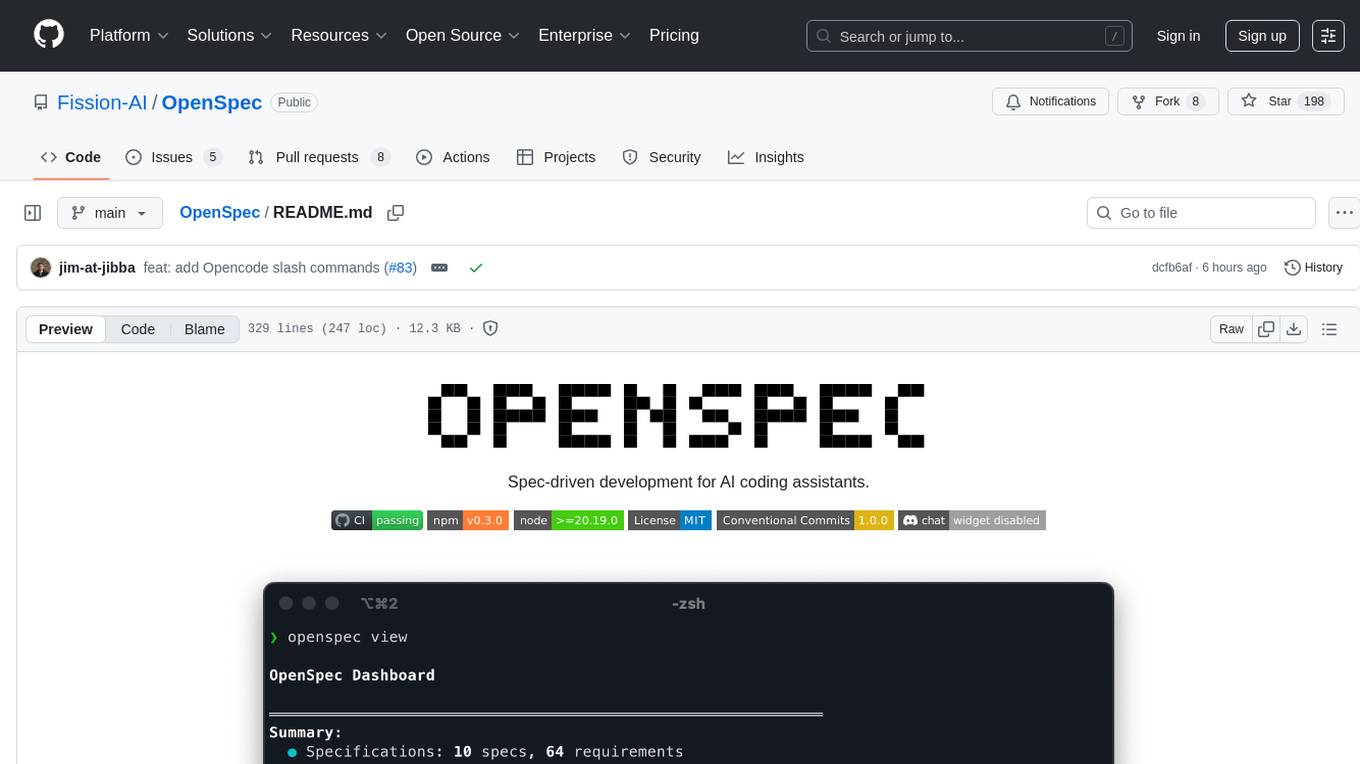
OpenSpec
OpenSpec is a tool for spec-driven development, aligning humans and AI coding assistants to agree on what to build before any code is written. It adds a lightweight specification workflow that ensures deterministic, reviewable outputs without the need for API keys. With OpenSpec, stakeholders can draft change proposals, review and align with AI assistants, implement tasks based on agreed specs, and archive completed changes for merging back into the source-of-truth specs. It works seamlessly with existing AI tools, offering shared visibility into proposed, active, or archived work.
shannon
Shannon is an AI pentester that delivers actual exploits, not just alerts. It autonomously hunts for attack vectors in your code, then uses its built-in browser to execute real exploits, such as injection attacks, and auth bypass, to prove the vulnerability is actually exploitable. Shannon closes the security gap by acting as your on-demand whitebox pentester, providing concrete proof of vulnerabilities to let you ship with confidence. It is a core component of the Keygraph Security and Compliance Platform, automating penetration testing and compliance journey. Shannon Lite achieves a 96.15% success rate on a hint-free, source-aware XBOW benchmark.
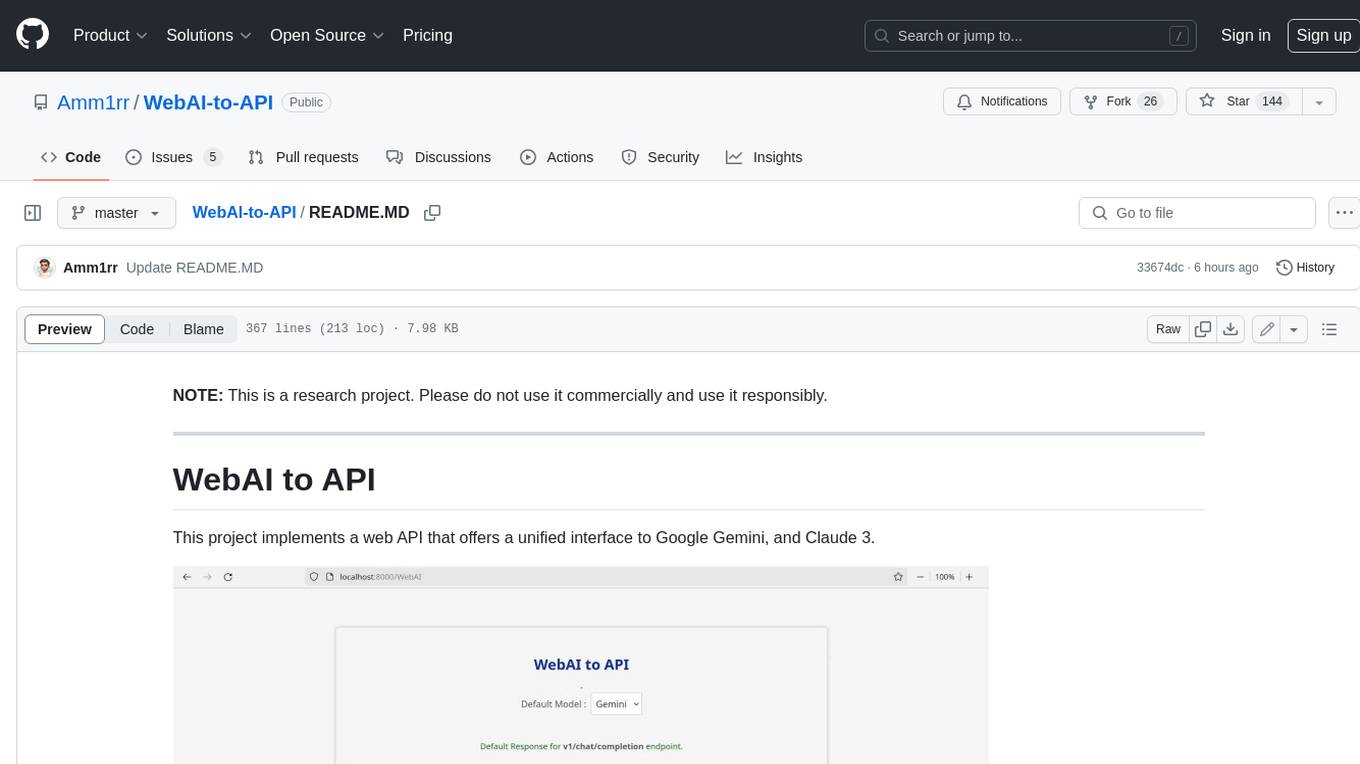
WebAI-to-API
This project implements a web API that offers a unified interface to Google Gemini and Claude 3. It provides a self-hosted, lightweight, and scalable solution for accessing these AI models through a streaming API. The API supports both Claude and Gemini models, allowing users to interact with them in real-time. The project includes a user-friendly web UI for configuration and documentation, making it easy to get started and explore the capabilities of the API.
multi-agent-shogun
multi-agent-shogun is a system that runs multiple AI coding CLI instances simultaneously, orchestrating them like a feudal Japanese army. It supports Claude Code, OpenAI Codex, GitHub Copilot, and Kimi Code. The system allows you to command your AI army with zero coordination cost, enabling parallel execution, non-blocking workflow, cross-session memory, event-driven communication, and full transparency. It also features skills discovery, phone notifications, pane border task display, shout mode, and multi-CLI support.
probe
Probe is an AI-friendly, fully local, semantic code search tool designed to power the next generation of AI coding assistants. It combines the speed of ripgrep with the code-aware parsing of tree-sitter to deliver precise results with complete code blocks, making it perfect for large codebases and AI-driven development workflows. Probe is fully local, keeping code on the user's machine without relying on external APIs. It supports multiple languages, offers various search options, and can be used in CLI mode, MCP server mode, AI chat mode, and web interface. The tool is designed to be flexible, fast, and accurate, providing developers and AI models with full context and relevant code blocks for efficient code exploration and understanding.
aiconfigurator
The `aiconfigurator` tool assists in finding a strong starting configuration for disaggregated serving in AI deployments. It helps optimize throughput at a given latency by evaluating thousands of configurations based on model, GPU count, and GPU type. The tool models LLM inference using collected data for a target machine and framework, running via CLI and web app. It generates configuration files for deployment with Dynamo, offering features like customized configuration, all-in-one automation, and tuning with advanced features. The tool estimates performance by breaking down LLM inference into operations, collecting operation execution times, and searching for strong configurations. Supported features include models like GPT and operations like attention, KV cache, GEMM, AllReduce, embedding, P2P, element-wise, MoE, MLA BMM, TRTLLM versions, and parallel modes like tensor-parallel and pipeline-parallel.
LangGraph-Expense-Tracker
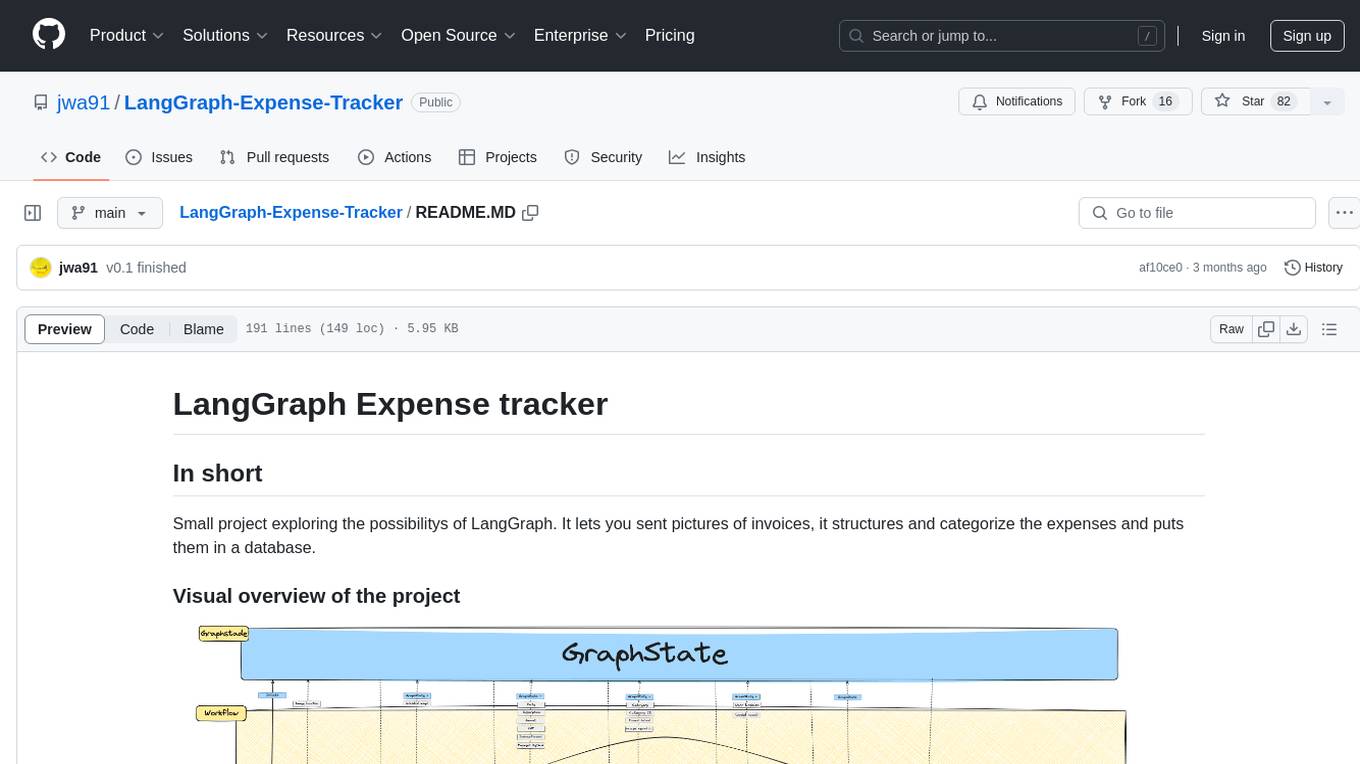
LangGraph Expense tracker is a small project that explores the possibilities of LangGraph. It allows users to send pictures of invoices, which are then structured and categorized into expenses and stored in a database. The project includes functionalities for invoice extraction, database setup, and API configuration. It consists of various modules for categorizing expenses, creating database tables, and running the API. The database schema includes tables for categories, payment methods, and expenses, each with specific columns to track transaction details. The API documentation is available for reference, and the project utilizes LangChain for processing expense data.
BioAgents
BioAgents AgentKit is an advanced AI agent framework tailored for biological and scientific research. It offers powerful conversational AI capabilities with specialized knowledge in biology, life sciences, and scientific research methodologies. The framework includes state-of-the-art analysis agents, configurable research agents, and a variety of specialized agents for tasks such as file parsing, research planning, literature search, data analysis, hypothesis generation, research reflection, and user-facing responses. BioAgents also provides support for LLM libraries, multiple search backends for literature agents, and two backends for data analysis. The project structure includes backend source code, services for chat, job queue system, real-time notifications, and JWT authentication, as well as a frontend UI built with Preact.
conduit
Conduit is an open-source, cross-platform mobile application for Open-WebUI, providing a native mobile experience for interacting with your self-hosted AI infrastructure. It supports real-time chat, model selection, conversation management, markdown rendering, theme support, voice input, file uploads, multi-modal support, secure storage, folder management, and tools invocation. Conduit offers multiple authentication flows and follows a clean architecture pattern with Riverpod for state management, Dio for HTTP networking, WebSocket for real-time streaming, and Flutter Secure Storage for credential management.

rlama
RLAMA is a powerful AI-driven question-answering tool that seamlessly integrates with local Ollama models. It enables users to create, manage, and interact with Retrieval-Augmented Generation (RAG) systems tailored to their documentation needs. RLAMA follows a clean architecture pattern with clear separation of concerns, focusing on lightweight and portable RAG capabilities with minimal dependencies. The tool processes documents, generates embeddings, stores RAG systems locally, and provides contextually-informed responses to user queries. Supported document formats include text, code, and various document types, with troubleshooting steps available for common issues like Ollama accessibility, text extraction problems, and relevance of answers.
nono
nono is a secure, kernel-enforced capability shell for running AI agents and any POSIX style process. It leverages OS security primitives to create an environment where unauthorized operations are structurally impossible. It provides protections against destructive commands and securely stores API keys, tokens, and secrets. The tool is agent-agnostic, works with any AI agent or process, and blocks dangerous commands by default. It follows a capability-based security model with defense-in-depth, ensuring secure execution of commands and protecting sensitive data.
For similar tasks
tambourine-voice
Tambourine is a personal voice interface tool that allows users to speak naturally and have their words appear wherever the cursor is. It is powered by customizable AI voice dictation, providing a universal voice-to-text interface for emails, messages, documents, code editors, and terminals. Users can capture ideas quickly, type at the speed of thought, and benefit from AI formatting that cleans up speech, adds punctuation, and applies personal dictionaries. Tambourine offers full control and transparency, with the ability to customize AI providers, formatting, and extensions. The tool supports dual-mode recording, real-time speech-to-text, LLM text formatting, context-aware formatting, customizable prompts, and more, making it a versatile solution for dictation and transcription tasks.
Mindolph
Mindolph is an open source personal knowledge management software for all desktop platforms. It allows users to create and manage their own files in separate workspaces with saving in their local storage, organize their files as a tree in their workspaces, and have multiple tabs for opening files instead of a single file window. Mindolph supports Mind Map, Markdown, PlantUML, CSV sheet, and plain text file formats. It also has features such as quickly navigating to files and searching text in files under a specific folder, editing mind maps easily and quickly with key shortcuts, supporting themes and providing some pre-defined themes, importing from other mind map formats, and exporting to other file formats.
AppFlowy
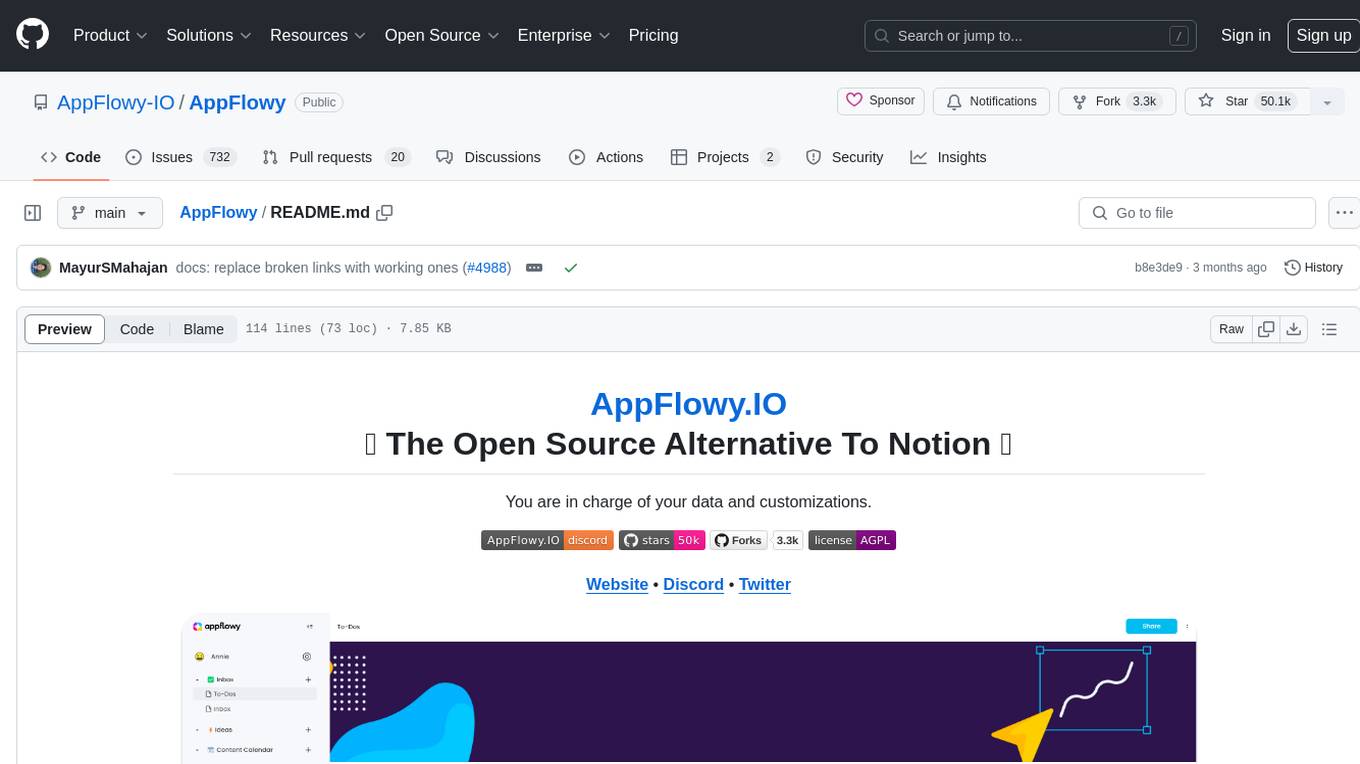
AppFlowy.IO is an open-source alternative to Notion, providing users with control over their data and customizations. It aims to offer functionality, data security, and cross-platform native experience to individuals, as well as building blocks and collaboration infra services to enterprises and hackers. The tool is built with Flutter and Rust, supporting multiple platforms and emphasizing long-term maintainability. AppFlowy prioritizes data privacy, reliable native experience, and community-driven extensibility, aiming to democratize the creation of complex workplace management tools.
mo-ai-studio
Mo AI Studio is an enterprise-level AI agent running platform that enables the operation of customized intelligent AI agents with system-level capabilities. It supports various IDEs and programming languages, allows modification of multiple files with reasoning, cross-project context modifications, customizable agents, system-level file operations, document writing, question answering, knowledge sharing, and flexible output processors. The platform also offers various setters and a custom component publishing feature. Mo AI Studio is a fusion of artificial intelligence and human creativity, designed to bring unprecedented efficiency and innovation to enterprises.
moling
MoLing is a computer-use and browser-use MCP Server that implements system interaction through operating system APIs, enabling file system operations such as reading, writing, merging, statistics, and aggregation, as well as the ability to execute system commands. It is a dependency-free local office automation assistant. Requiring no installation of any dependencies, MoLing can be run directly and is compatible with multiple operating systems, including Windows, Linux, and macOS. This eliminates the hassle of dealing with environment conflicts involving Node.js, Python, Docker, and other development environments. Command-line operations are dangerous and should be used with caution. MoLing supports features like file system operations, command-line terminal execution, browser control powered by 'github.com/chromedp/chromedp', and future plans for personal PC data organization, document writing assistance, schedule planning, and life assistant features. MoLing has been tested on macOS but may have issues on other operating systems.
For similar jobs
ChatFAQ
ChatFAQ is an open-source comprehensive platform for creating a wide variety of chatbots: generic ones, business-trained, or even capable of redirecting requests to human operators. It includes a specialized NLP/NLG engine based on a RAG architecture and customized chat widgets, ensuring a tailored experience for users and avoiding vendor lock-in.
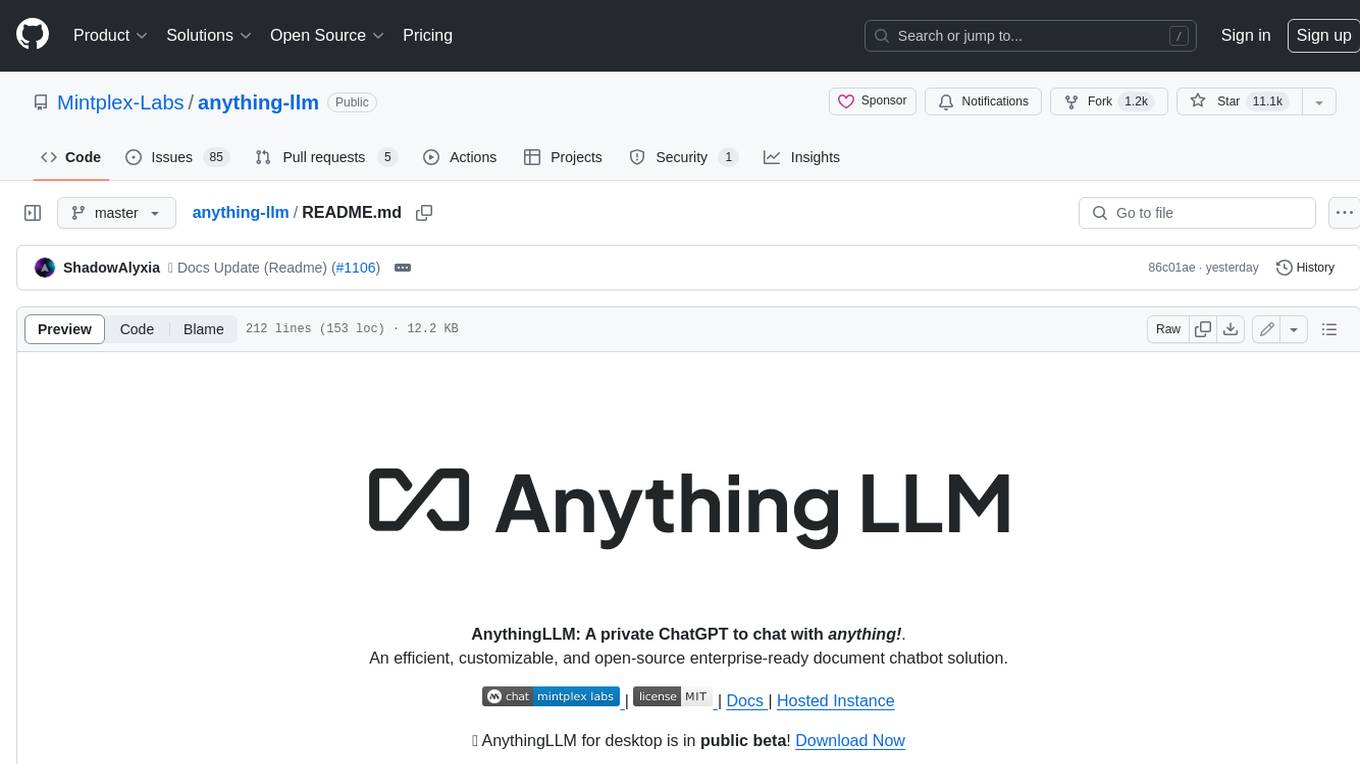
anything-llm
AnythingLLM is a full-stack application that enables you to turn any document, resource, or piece of content into context that any LLM can use as references during chatting. This application allows you to pick and choose which LLM or Vector Database you want to use as well as supporting multi-user management and permissions.
ai-guide
This guide is dedicated to Large Language Models (LLMs) that you can run on your home computer. It assumes your PC is a lower-end, non-gaming setup.
classifai
Supercharge WordPress Content Workflows and Engagement with Artificial Intelligence. Tap into leading cloud-based services like OpenAI, Microsoft Azure AI, Google Gemini and IBM Watson to augment your WordPress-powered websites. Publish content faster while improving SEO performance and increasing audience engagement. ClassifAI integrates Artificial Intelligence and Machine Learning technologies to lighten your workload and eliminate tedious tasks, giving you more time to create original content that matters.
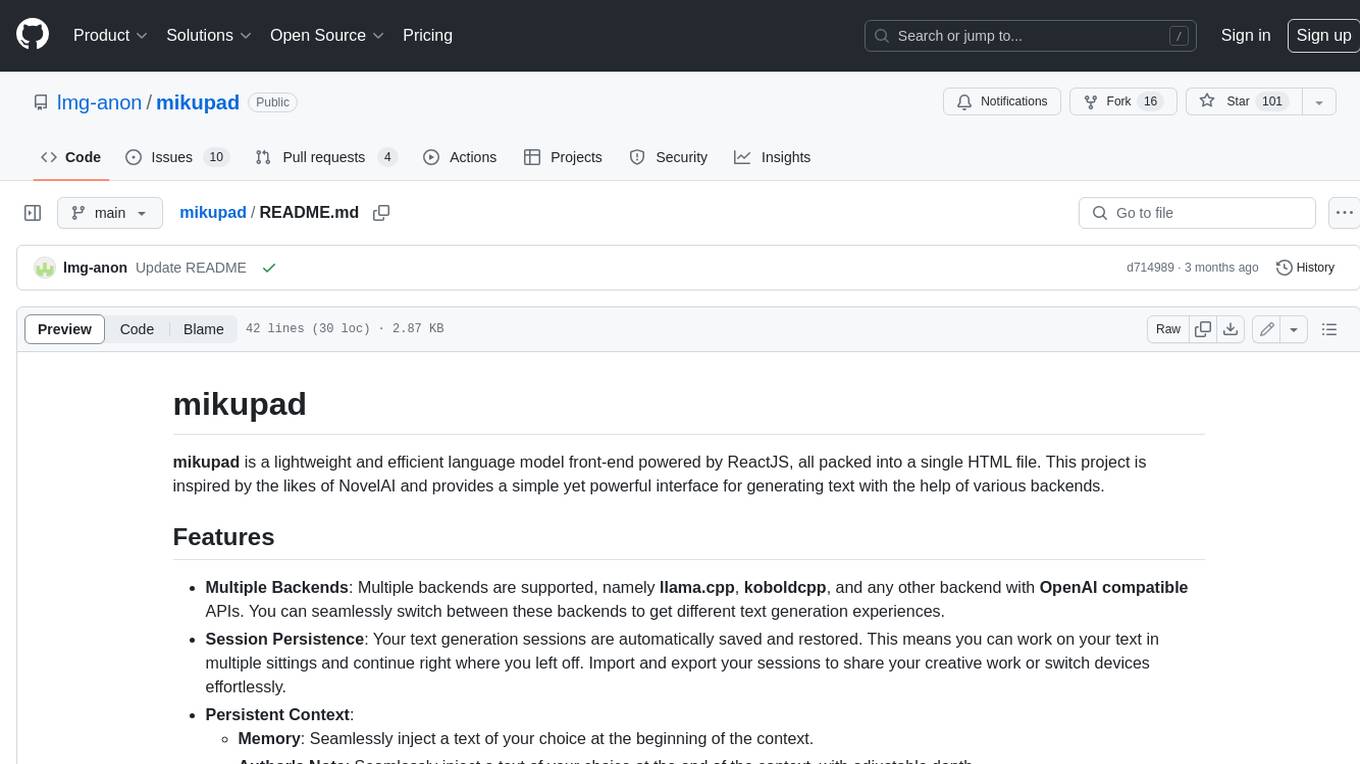
mikupad
mikupad is a lightweight and efficient language model front-end powered by ReactJS, all packed into a single HTML file. Inspired by the likes of NovelAI, it provides a simple yet powerful interface for generating text with the help of various backends.
glide
Glide is a cloud-native LLM gateway that provides a unified REST API for accessing various large language models (LLMs) from different providers. It handles LLMOps tasks such as model failover, caching, key management, and more, making it easy to integrate LLMs into applications. Glide supports popular LLM providers like OpenAI, Anthropic, Azure OpenAI, AWS Bedrock (Titan), Cohere, Google Gemini, OctoML, and Ollama. It offers high availability, performance, and observability, and provides SDKs for Python and NodeJS to simplify integration.
onnxruntime-genai
ONNX Runtime Generative AI is a library that provides the generative AI loop for ONNX models, including inference with ONNX Runtime, logits processing, search and sampling, and KV cache management. Users can call a high level `generate()` method, or run each iteration of the model in a loop. It supports greedy/beam search and TopP, TopK sampling to generate token sequences, has built in logits processing like repetition penalties, and allows for easy custom scoring.
firecrawl
Firecrawl is an API service that takes a URL, crawls it, and converts it into clean markdown. It crawls all accessible subpages and provides clean markdown for each, without requiring a sitemap. The API is easy to use and can be self-hosted. It also integrates with Langchain and Llama Index. The Python SDK makes it easy to crawl and scrape websites in Python code.