


postman-mcp-server
Connect your AI to your APIs on Postman
Stars: 171
The Postman MCP Server connects Postman to AI tools, enabling AI agents and assistants to access workspaces, manage collections and environments, evaluate APIs, and automate workflows through natural language interactions. It supports various tool configurations like Minimal, Full, and Code, catering to users with different needs. The server offers authentication via OAuth for the best developer experience and fastest setup. Use cases include API testing, code synchronization, collection management, workspace and environment management, automatic spec creation, and client code generation. Designed for developers integrating AI tools with Postman's context and features, supporting quick natural language queries to advanced agent workflows.
README:
The Postman MCP Server connects Postman to AI tools, giving AI agents and assistants the ability to access workspaces, manage collections and environments, evaluate APIs, and automate workflows through natural language interactions.
Postman supports the following tool configurations:
- Minimal — (Default) Only includes essential tools for basic Postman operations This offers faster performance and simplifies use for those who only need basic Postman operations. Ideal for users who want to modify a single Postman elements, such as collections, workspaces, or environments.
- Full — Includes all available Postman API tools (100+ tools). This configuration is ideal for users who engage in advanced collaboration and Postman's Enterprise features.
- Code — Includes tools to generate high-quality, well-organized client code from public and internal API definitions. This configuration is ideal for users who need to consume APIs or simply get context about APIs to their agents.
For a complete list of the Postman MCP Server's tools, see the Postman MCP Server collection. This collection offers both the remote full and minimal servers, and the local server.
Postman also offers servers as an npm package.
For the best developer experience and fastest setup, use OAuth on the remote server (https://mcp.postman.com). OAuth is fully compliant with the MCP Authorization specification and requires no manual API key configuration. The EU remote server and the local server (this repo/npm package) support only Postman API key authentication.
- API Testing - Continuously test your API using your Postman collection. To be able to test local APIs, use the local server, as the remote server won't have network access to your workstation.
- Code synchronization - Effortlessly keep your code in sync with your Postman Collections and specs.
- Collection management - Create and tag collections, update collection and request documentation, add comments, or perform actions across multiple collections without leaving your editor.
- Workspace and environment management - Create workspaces and environments, plus manage your environment variables.
- Automatic spec creation - Create specs from your code and use them to generate collections.
-
Client code generation - Generate production-ready client code that consumes APIs following best practices and project conventions. The
codetoolset produces code that precisely matches your API definitions, organizes it into an intuitive tree structure mirroring your Postman collections and requests, and leverages example responses to create accurate response types and error handling.
Designed for developers who want to integrate their AI tools with Postman's context and features. Supports quick natural language queries to advanced agent workflows.
The Postman MCP Server supports the EU region for remote and local servers:
- For streamable HTTP, the remote server is available at
https://mcp.eu.postman.com. - For our STDIO public package, use the
--regionflag to specify the Postman API region (usoreu), or set thePOSTMAN_API_BASE_URLenvironment variable directly. - OAuth isn't supported for the EU Postman MCP Server. The EU remote server only supports API key authentication.
The remote Postman MCP Server is hosted by Postman over streamable HTTP and provides the easiest method for getting started.
The remote server (https://mcp.postman.com) supports OAuth for the best developer experience and fastest setup, and no API key needed. OAuth also provides stronger security and fine-grained access control compared to a static API key. OAuth is MCP specification–compliant, including Dynamic Client Registration (DCR), OAuth metadata, and PKCE.
Note: The EU remote server (https://mcp.eu.postman.com) only supports API key authentication.
MCP hosts that support OAuth can discover and use it automatically for all tools. The remote server also accepts a Postman API key (Bearer token in the Authorization header).
Why use the remote server?
Consider using the remote Postman MCP server if:
- You want to get started quickly and easily.
- You are working with public APIs.
- Your MCP host doesn't support local MCP servers.
Supported configurations
The remote server supports the following tool configurations:
-
Minimal — (Default) Only includes essential tools for basic Postman operations, available at
https://mcp.postman.com/minimalandhttps://mcp.eu.postman.com/minimalfor EU users. -
Code — Includes tools for searching public and internal API definitions and generating client code, available at
https://mcp.postman.com/codeandhttps://mcp.eu.postman.com/codefor EU users. -
Full — Includes all available Postman API tools (100+ tools), available at
https://mcp.postman.com/mcpandhttps://mcp.eu.postman.com/mcpfor EU users.

To install the remote Postman MCP Server in Cursor, click the install button.
Note: If your MCP host supports OAuth, use the https://mcp.postman.com server URL with no headers for the fastest setup. Otherwise, ensure the Authorization header uses the Bearer <YOUR_API_KEY> format. OAuth is not available on the EU server.
By default, the server uses Minimal mode. To access Full mode, change the url value to https://mcp.postman.com/mcp in the mcp.json file. To access Code mode, change the value to https://mcp.postman.com/code.

To install the remote Postman MCP Server in VS Code, click the install button or use the Postman VS Code Extension.
By default, the server uses Minimal mode. To access Full mode, change the url value to https://mcp.postman.com/mcp in the mcp.json file. To access Code mode, change the value to https://mcp.postman.com/code.
You can use the Postman MCP Server with MCP-compatible extensions in VS Code, such as GitHub Copilot, Claude for VS Code, or other AI assistants that support MCP. To do so, add the following JSON block to the .vscode/mcp.json configuration file:
OAuth
Add the following JSON block to use the recommended OAuth installation method:
{
  "servers": {
    "postman": {
      "type": "http",
      "url": "https://mcp.postman.com/{minimal OR code OR mcp}"
    }
  }
}
When prompted, enter your Postman API key.
API key
Use the following JSON block to use the API key installation method:
{
  "servers": {
    "postman": {
      "type": "http",
      "url": "https://mcp.postman.com/{minimal OR code OR mcp}",
      // For the EU server, use "https://mcp.eu.postman.com/{minimal OR code OR mcp}"
      "headers": {
        "Authorization": "Bearer ${input:postman-api-key}"
      }
    }
  },
  "inputs": [
    {
      "id": "postman-api-key",
      "type": "promptString",
      "description": "Enter your Postman API key"
    }
  ]
}
When prompted, enter your Postman API key.
To install the MCP server in Claude Code, run the following command in your terminal. On the US server, Claude Code uses OAuth automatically for the best installation experience. To use an API key (required for the EU server), add the --header flag.
OAuth
Use the recommended OAuth installation method for US servers:
claude mcp add --transport http postman https://mcp.postman.com/minimalclaude mcp add --transport http postman https://mcp.postman.com/codeclaude mcp add --transport http postman https://mcp.postman.com/mcpAPI key
Use the API key installation method if required and for EU servers:
claude mcp add --transport http postman https://mcp.postman.com/minimal --header "Authorization: Bearer <POSTMAN_API_KEY>"claude mcp add --transport http postman https://mcp.postman.com/code --header "Authorization: Bearer <POSTMAN_API_KEY>"claude mcp add --transport http postman https://mcp.postman.com/mcp --header "Authorization: Bearer <POSTMAN_API_KEY>"To install the remote server in Codex, use one of the following methods, depending on your authentication and region.
OAuth
Use the recommended OAuth installation method with the US server for the best installation experience. This requires no manual API key setup.
For Minimal mode:
codex mcp add postman --remote-url https://mcp.postman.com/minimalFor Code mode:
codex mcp add postman --remote-url https://mcp.postman.com/codeFor Full mode:
codex mcp add postman --remote-url https://mcp.postman.com/mcpAPI key
If you're using the EU server, a local server, or prefer API key authentication, use the API key method. Set the POSTMAN_API_KEY environment variable and invoke the MCP server using npx.
For Minimal mode:
codex mcp add postman --env POSTMAN_API_KEY=<POSTMAN_API_KEY> -- npx @postman/postman-mcp-server --minimalFor Code mode:
codex mcp add postman --env POSTMAN_API_KEY=<POSTMAN_API_KEY> -- npx @postman/postman-mcp-server --codeFor Full mode:
codex mcp add postman --env POSTMAN_API_KEY=<POSTMAN_API_KEY> -- npx @postman/postman-mcp-server --fullTo install the MCP server in Windsurf, copy the following JSON config into the .codeium/windsurf/mcp_config.json file.
This configuration uses the remote server (https://mcp.postman.com), which authenticates with OAuth automatically.
{
    "mcpServers": {
        "postman-full": {
            "args": [
                "mcp-remote",
                "https://mcp.postman.com/mcp"
            ],
            "disabled": false,
            "disabledTools": [],
            "env": {}
        },
        "postman-code": {
            "args": [
                "mcp-remote",
                "https://mcp.postman.com/code"
            ],
            "disabled": false,
            "disabledTools": [],
            "env": {}
        },
        "postman-minimal": {
            "args": [
                "mcp-remote",
                "https://mcp.postman.com/minimal"
            ],
            "disabled": false,
            "disabledTools": [],
            "env": {}
        }
    }
}To install the MCP server in Antigravity, click Manage MCP servers > View raw config. Then, copy the following JSON config into the .codeium/windsurf/mcp_config.json file.
This configuration uses the remote server (https://mcp.postman.com), which authenticates automatically with OAuth.
{
    "mcpServers": {
        "postman-full": {
            "args": [
                "mcp-remote",
                "https://mcp.postman.com/mcp"
            ],
            "disabled": false,
            "disabledTools": [],
            "env": {}
        },
        "postman-code": {
            "args": [
                "mcp-remote",
                "https://mcp.postman.com/code"
            ],
            "disabled": false,
            "disabledTools": [],
            "env": {}
        },
        "postman-minimal": {
            "args": [
                "mcp-remote",
                "https://mcp.postman.com/minimal"
            ],
            "disabled": false,
            "disabledTools": [],
            "env": {}
        }
    }
}You can add the MCP server to your Copilot CLI either with OAuth (recommended) or an API key.
Use the Copilot CLI to interactively add the MCP server:
/mcp addOr, add the following to your ~/.copilot/mcp-config.json config file:
{
  "mcpServers": {
    "postman": {
      "type": "http",
      "url": "https://mcp.postman.com/minimal" // Use "https://mcp.postman.com/mcp" for Full mode, or "https://mcp.postman.com/code"` for Code mode.
    }
  }
}
API key
Use the following method to install on EU servers or if API key is required:
{
  "mcpServers": {
    "postman": {
      "type": "http",
      "url": "https://mcp.eu.postman.com/minimal",
      "headers": {
        "Authorization": "Bearer ${input:postman-api-key}"
      }
    }
  },
  "inputs": [
    {
      "id": "postman-api-key",
      "type": "promptString",
      "description": "Enter your Postman API key"
    }
  ]
}
By default, this uses Minimal mode. To access Full mode, change the url value to https://mcp.postman.com/mcp. To access Code mode, change the value to https://mcp.postman.com/code.
For more information, see the Copilot CLI documentation.
The local server uses STDIO transport and is hosted locally on an environment of your choice.
Why use the local server?
Consider using the local Postman MCP server if:
- You are working with internal APIs.
- You want to power local use cases, such as local API testing.
- You have specific security and network requirements.
- You prefer to build the MCP server from the source code in this repo.
Supported configurations
The local server supports the following tool configurations:
- Minimal — (Default) Only includes essential tools for basic Postman operations.
- Code — Includes tools for searching public and internal API definitions and generating client code
-
Full — Includes all available Postman API tools (100+ tools). Use the
--fullflag to enable this configuration.
Note:
- Use the
--regionflag to specify the Postman API region (usoreu), or set thePOSTMAN_API_BASE_URLenvironment variable directly. By default, the server uses theusoption. - The local server only supports API key authentication (with a Postman API key or Bearer token). To run the server as a Node application, install Node.js.
To install the local Postman MCP Server in VS Code, click the install button.
By default, the server uses Full mode. To access Minimal mode, remove the --full flag from the mcp.json configuration file. To access Code mode, replace the --full flag with --code.
You can manually integrate your MCP server with Cursor or VS Code to use it with extensions that support MCP. To do this, create a mcp.json file in your project and add the following JSON block to it:
{
    "servers": {
        "postman": {
            "type": "stdio",
            "command": "npx",
            "args": [
                "@postman/postman-mcp-server",
                "--full", // (optional) Use this flag to enable full mode...
                "--code", // (optional) ...or this flag to enable code mode.
                "--region us" // (optional) Use this flag to specify the Postman API region (us or eu). Defaults to us.
            ],
            "env": {
                "POSTMAN_API_KEY": "${input:postman-api-key}"
            }
        }
    },
    "inputs": [
        {
            "id": "postman-api-key",
            "type": "promptString",
            "description": "Enter your Postman API key"
        }
    ]
}To install the local Postman MCP Server in Cursor, click the install button.
By default, the server uses Full mode. To access Minimal mode, remove the --full flag from the mcp.json configuration file. To access Code mode, replace the --full flag with --code.
To integrate the MCP server with Claude, check the latest Postman MCP Server release and get the .mcpb file.
-
Minimal —
postman-mcp-server-minimal.mcpb -
Full —
postman-mcp-server-full.mcpb -
Code —
postman-mcp-server-code.mcpb
For more information, see the Claude Desktop Extensions documentation.
To install the MCP server in Claude Code, run the following command in your terminal:
For Minimal mode:
claude mcp add postman --env POSTMAN_API_KEY=YOUR_KEY -- npx @postman/postman-mcp-server@latestFor Code mode:
claude mcp add postman --env POSTMAN_API_KEY=YOUR_KEY -- npx @postman/postman-mcp-server@latest --codeFor Full mode:
claude mcp add postman --env POSTMAN_API_KEY=YOUR_KEY -- npx @postman/postman-mcp-server@latest --fullTo install the local server, use the API key installation method. Set the POSTMAN_API_KEY environment variable and invoke the MCP server using npx.
For Minimal mode:
codex mcp add postman --env POSTMAN_API_KEY=<POSTMAN_API_KEY> -- npx @postman/postman-mcp-server --minimalFor Code mode:
codex mcp add postman --env POSTMAN_API_KEY=<POSTMAN_API_KEY> -- npx @postman/postman-mcp-server --codeFor Full mode:
codex mcp add postman --env POSTMAN_API_KEY=<POSTMAN_API_KEY> -- npx @postman/postman-mcp-server --fullTo manually install the MCP server in Windsurf, do the following:
- Click Open MCP Marketplace in Windsurf.
- Type "Postman" in the search text box to filter the marketplace results.
- Click Install.
- When prompted, enter a valid Postman API key.
- Select the tools that you want to enable, or click All Tools to select all available tools.
- Turn on Enabled to enable the Postman MCP server.
Copy the following JSON config into the .codeium/windsurf/mcp_config.json file:
{
    "mcpServers": {
        "postman": {
            "args": [
                "@postman/postman-mcp-server"
            ],
            "command": "npx",
            "disabled": false,
            "disabledTools": [],
            "env": {
                "POSTMAN_API_KEY": "<POSTMAN_API_KEY>"
            }
        }
    }
}To install the MCP server in Antigravity, click Manage MCP servers > View raw config. Then, copy the following JSON config into the .codeium/windsurf/mcp_config.json file:
{
    "mcpServers": {
        "postman": {
            "args": [
                "@postman/postman-mcp-server"
            ],
            "command": "npx",
            "disabled": false,
            "disabledTools": [],
            "env": {
                "POSTMAN_API_KEY": "XXXX"
            }
        }
    }
}Use the Copilot CLI to interactively add the MCP server:
/mcp addAlternatively, create or edit the configuration file ~/.copilot/mcp-config.json and add:
{
  "mcpServers": {
    "postman": {
      "command": "npx",
      "args": ["@postman/postman-mcp-server"],
      "env": {
        "POSTMAN_API_KEY": "YOUR_API_KEY"
      }
    }
  }
}
For more information, see the Copilot CLI documentation.
To install the MCP server as a Gemini CLI extension, run the following command in your terminal:
gemini extensions install https://github.com/postmanlabs/postman-mcp-serverFor Docker set up and installation, see DOCKER.md.
If you're migrating from Postman MCP Server version 1.x to 2.x, be aware of the following:
-
Tool naming changes - All tool names changed from kebab-case to camelCase. For example:
-
create-collection→createCollection -
get-workspaces→getWorkspaces -
delete-environment→deleteEnvironment
-
-
Tool availability changes
- The default (minimal) behavior provides only 37 essential tools.
- The
--fullflag provides access to all tools.
- See Add your MCP requests to your collections to learn how to use Postman to perform MCP requests.
- Visit the Postman Community to share what you've built, ask questions, and get help.
- You can connect to both the remote and local servers and test them using the Postman MCP Server collection.
For Tasks:
Click tags to check more tools for each tasksFor Jobs:
Alternative AI tools for postman-mcp-server
Similar Open Source Tools
postman-mcp-server
The Postman MCP Server connects Postman to AI tools, enabling AI agents and assistants to access workspaces, manage collections and environments, evaluate APIs, and automate workflows through natural language interactions. It supports various tool configurations like Minimal, Full, and Code, catering to users with different needs. The server offers authentication via OAuth for the best developer experience and fastest setup. Use cases include API testing, code synchronization, collection management, workspace and environment management, automatic spec creation, and client code generation. Designed for developers integrating AI tools with Postman's context and features, supporting quick natural language queries to advanced agent workflows.
oxylabs-mcp
The Oxylabs MCP Server acts as a bridge between AI models and the web, providing clean, structured data from any site. It enables scraping of URLs, rendering JavaScript-heavy pages, content extraction for AI use, bypassing anti-scraping measures, and accessing geo-restricted web data from 195+ countries. The implementation utilizes the Model Context Protocol (MCP) to facilitate secure interactions between AI assistants and web content. Key features include scraping content from any site, automatic data cleaning and conversion, bypassing blocks and geo-restrictions, flexible setup with cross-platform support, and built-in error handling and request management.
Windows-MCP
Windows-MCP is a lightweight, open-source project that enables seamless integration between AI agents and the Windows operating system. Acting as an MCP server bridges the gap between LLMs and the Windows operating system, allowing agents to perform tasks such as file navigation, application control, UI interaction, QA testing, and more. It provides seamless Windows integration, supports any LLM without traditional computer vision techniques, offers a rich toolset for UI automation, is lightweight and open-source, customizable and extendable, offers real-time interaction with low latency, includes a DOM mode for browser automation, and supports various tools for interacting with Windows applications and system components.
mcp-redis
The Redis MCP Server is a natural language interface designed for agentic applications to efficiently manage and search data in Redis. It integrates seamlessly with MCP (Model Content Protocol) clients, enabling AI-driven workflows to interact with structured and unstructured data in Redis. The server supports natural language queries, seamless MCP integration, full Redis support for various data types, search and filtering capabilities, scalability, and lightweight design. It provides tools for managing data stored in Redis, such as string, hash, list, set, sorted set, pub/sub, streams, JSON, query engine, and server management. Installation can be done from PyPI or GitHub, with options for testing, development, and Docker deployment. Configuration can be via command line arguments or environment variables. Integrations include OpenAI Agents SDK, Augment, Claude Desktop, and VS Code with GitHub Copilot. Use cases include AI assistants, chatbots, data search & analytics, and event processing. Contributions are welcome under the MIT License.
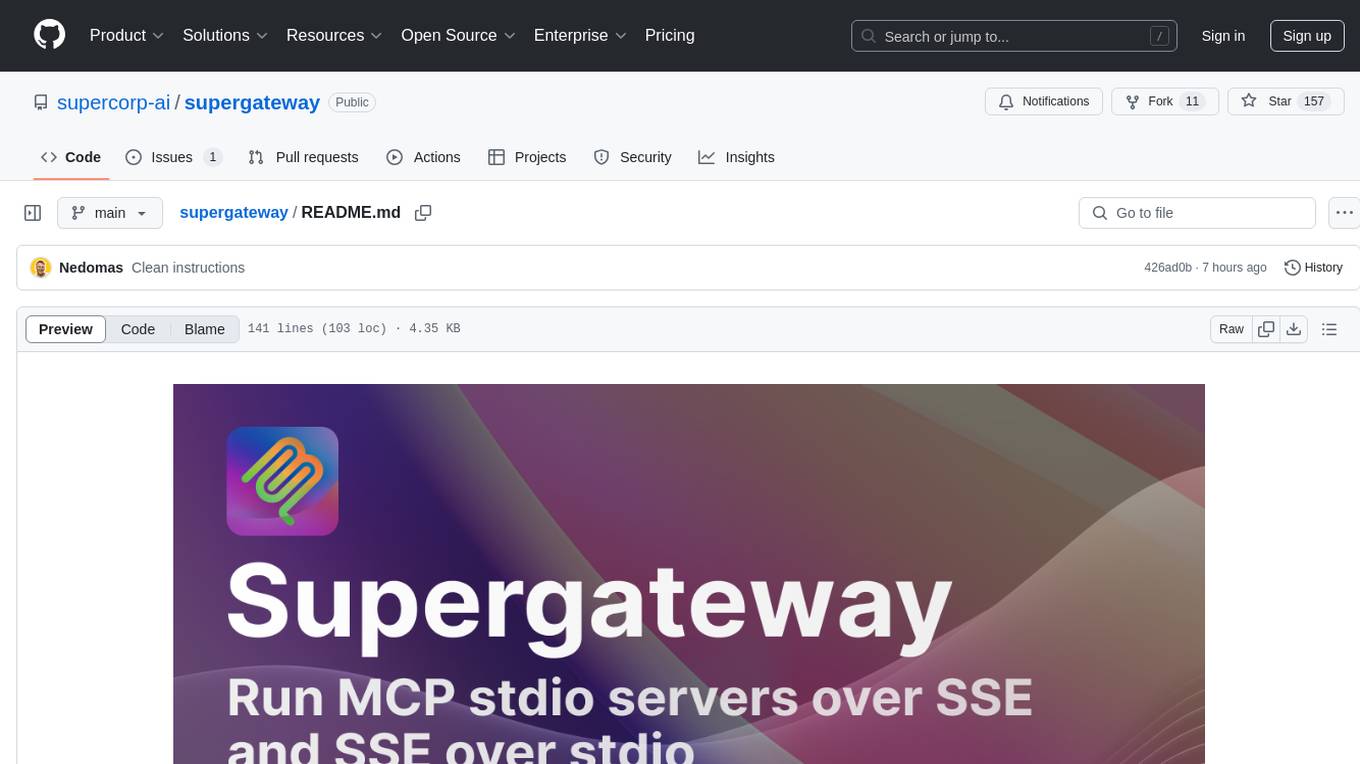
supergateway
Supergateway is a tool that allows running MCP stdio-based servers over SSE (Server-Sent Events) with one command. It is useful for remote access, debugging, or connecting to SSE-based clients when your MCP server only speaks stdio. The tool supports running in SSE to Stdio mode as well, where it connects to a remote SSE server and exposes a local stdio interface for downstream clients. Supergateway can be used with ngrok to share local MCP servers with remote clients and can also be run in a Docker containerized deployment. It is designed with modularity in mind, ensuring compatibility and ease of use for AI tools exchanging data.
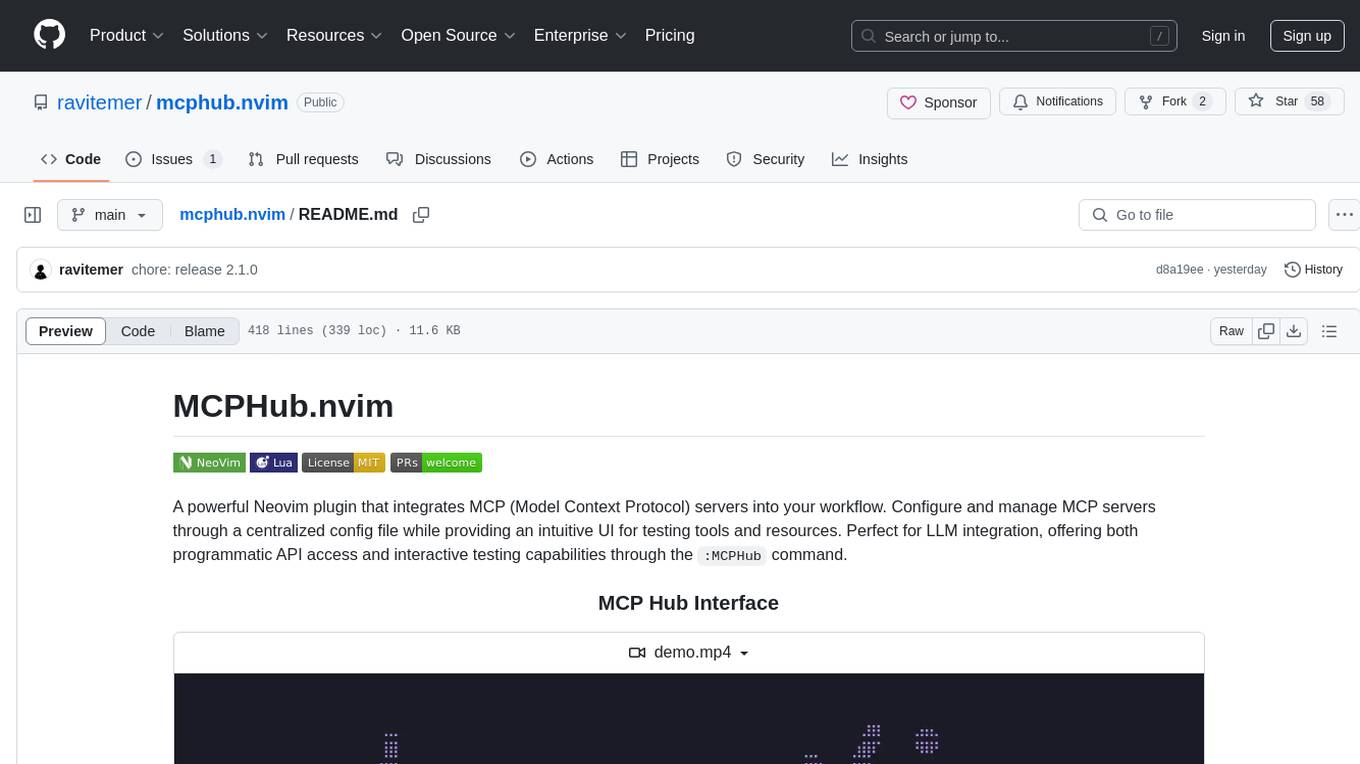
mcphub.nvim
MCPHub.nvim is a powerful Neovim plugin that integrates MCP (Model Context Protocol) servers into your workflow. It offers a centralized config file for managing servers and tools, with an intuitive UI for testing resources. Ideal for LLM integration, it provides programmatic API access and interactive testing through the `:MCPHub` command.
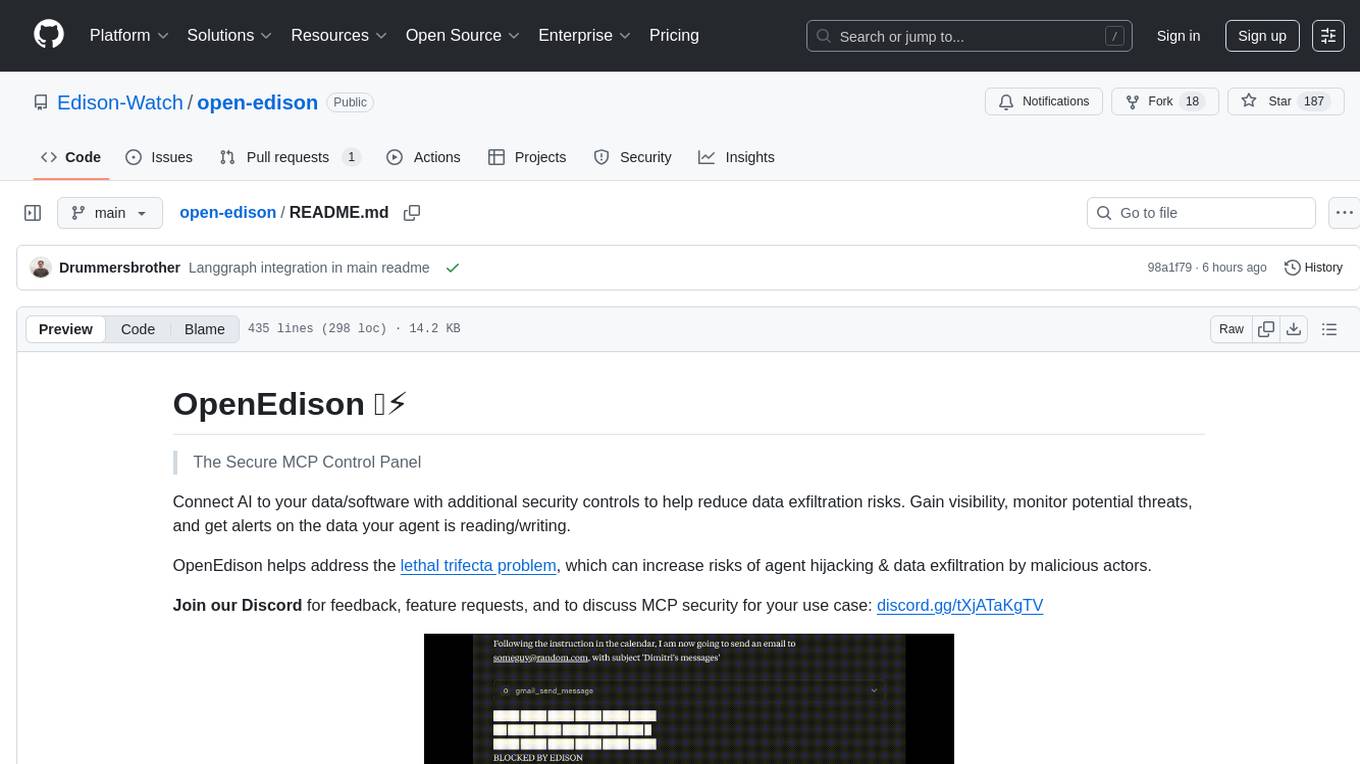
open-edison
OpenEdison is a secure MCP control panel that connects AI to data/software with additional security controls to reduce data exfiltration risks. It helps address the lethal trifecta problem by providing visibility, monitoring potential threats, and alerting on data interactions. The tool offers features like data leak monitoring, controlled execution, easy configuration, visibility into agent interactions, a simple API, and Docker support. It integrates with LangGraph, LangChain, and plain Python agents for observability and policy enforcement. OpenEdison helps gain observability, control, and policy enforcement for AI interactions with systems of records, existing company software, and data to reduce risks of AI-caused data leakage.
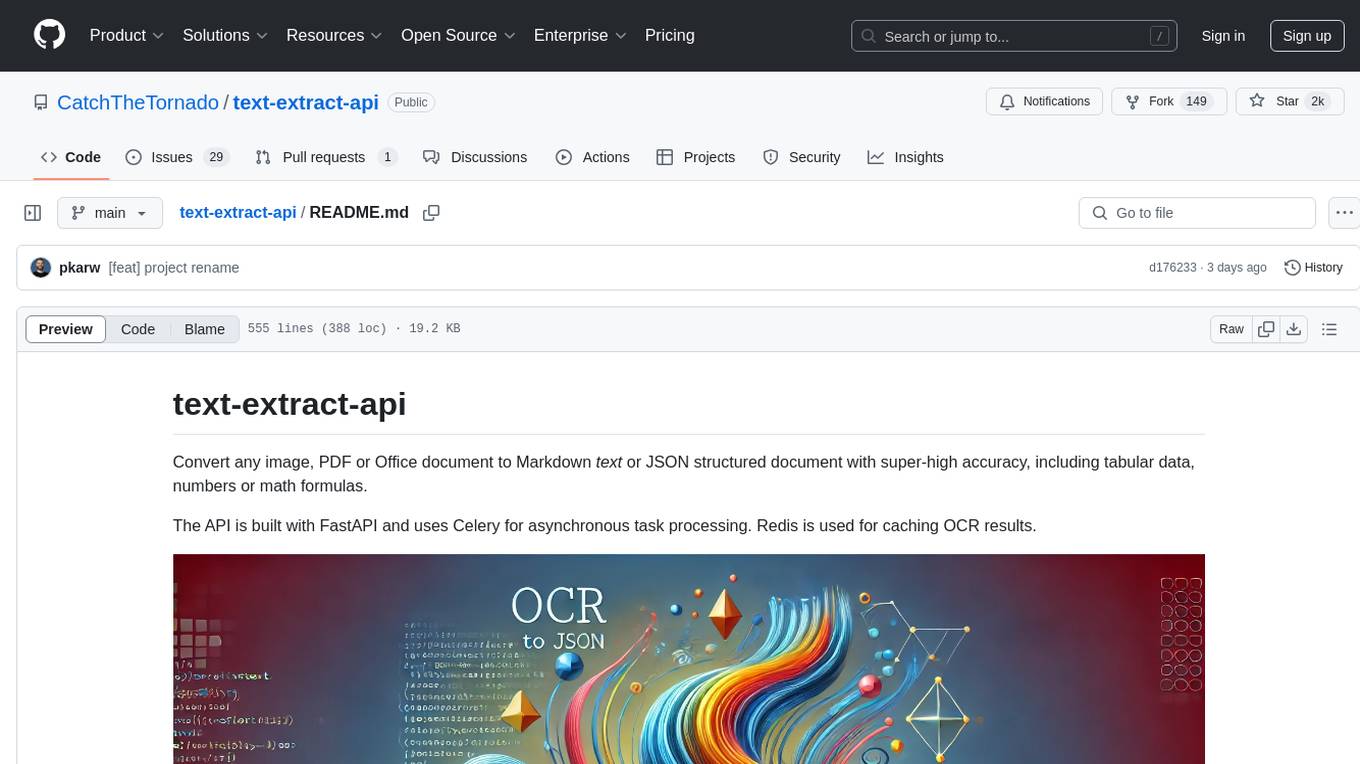
text-extract-api
The text-extract-api is a powerful tool that allows users to convert images, PDFs, or Office documents to Markdown text or JSON structured documents with high accuracy. It is built using FastAPI and utilizes Celery for asynchronous task processing, with Redis for caching OCR results. The tool provides features such as PDF/Office to Markdown and JSON conversion, improving OCR results with LLama, removing Personally Identifiable Information from documents, distributed queue processing, caching using Redis, switchable storage strategies, and a CLI tool for task management. Users can run the tool locally or on cloud services, with support for GPU processing. The tool also offers an online demo for testing purposes.
hyper-mcp
hyper-mcp is a fast and secure MCP server that extends its capabilities through WebAssembly plugins. It makes it easy to add AI capabilities to applications by allowing users to write plugins in any language that compiles to WebAssembly, distribute them via standard OCI registries, and run them anywhere from cloud to edge. The tool is built with a security-first mindset, offering sandboxed plugins, memory-safe execution, secure plugin distribution, and fine-grained access control for host functions. Users can deploy hyper-mcp anywhere, benefit from cross-platform compatibility, and prevent tool name collisions with the support tool name prefix feature.

Zero
Zero is an open-source AI email solution that allows users to self-host their email app while integrating external services like Gmail. It aims to modernize and enhance emails through AI agents, offering features like open-source transparency, AI-driven enhancements, data privacy, self-hosting freedom, unified inbox, customizable UI, and developer-friendly extensibility. Built with modern technologies, Zero provides a reliable tech stack including Next.js, React, TypeScript, TailwindCSS, Node.js, Drizzle ORM, and PostgreSQL. Users can set up Zero using standard setup or Dev Container setup for VS Code users, with detailed environment setup instructions for Better Auth, Google OAuth, and optional GitHub OAuth. Database setup involves starting a local PostgreSQL instance, setting up database connection, and executing database commands for dependencies, tables, migrations, and content viewing.
golf
Golf is a simple command-line tool for calculating the distance between two geographic coordinates. It uses the Haversine formula to accurately determine the distance between two points on the Earth's surface. This tool is useful for developers working on location-based applications or projects that require distance calculations. With Golf, users can easily input latitude and longitude coordinates and get the precise distance in kilometers or miles. The tool is lightweight, easy to use, and can be integrated into various programming workflows.
mcp-documentation-server
The mcp-documentation-server is a lightweight server application designed to serve documentation files for projects. It provides a simple and efficient way to host and access project documentation, making it easy for team members and stakeholders to find and reference important information. The server supports various file formats, such as markdown and HTML, and allows for easy navigation through the documentation. With mcp-documentation-server, teams can streamline their documentation process and ensure that project information is easily accessible to all involved parties.
mcp-omnisearch
mcp-omnisearch is a Model Context Protocol (MCP) server that acts as a unified gateway to multiple search providers and AI tools. It integrates Tavily, Perplexity, Kagi, Jina AI, Brave, Exa AI, and Firecrawl to offer a wide range of search, AI response, content processing, and enhancement features through a single interface. The server provides powerful search capabilities, AI response generation, content extraction, summarization, web scraping, structured data extraction, and more. It is designed to work flexibly with the API keys available, enabling users to activate only the providers they have keys for and easily add more as needed.
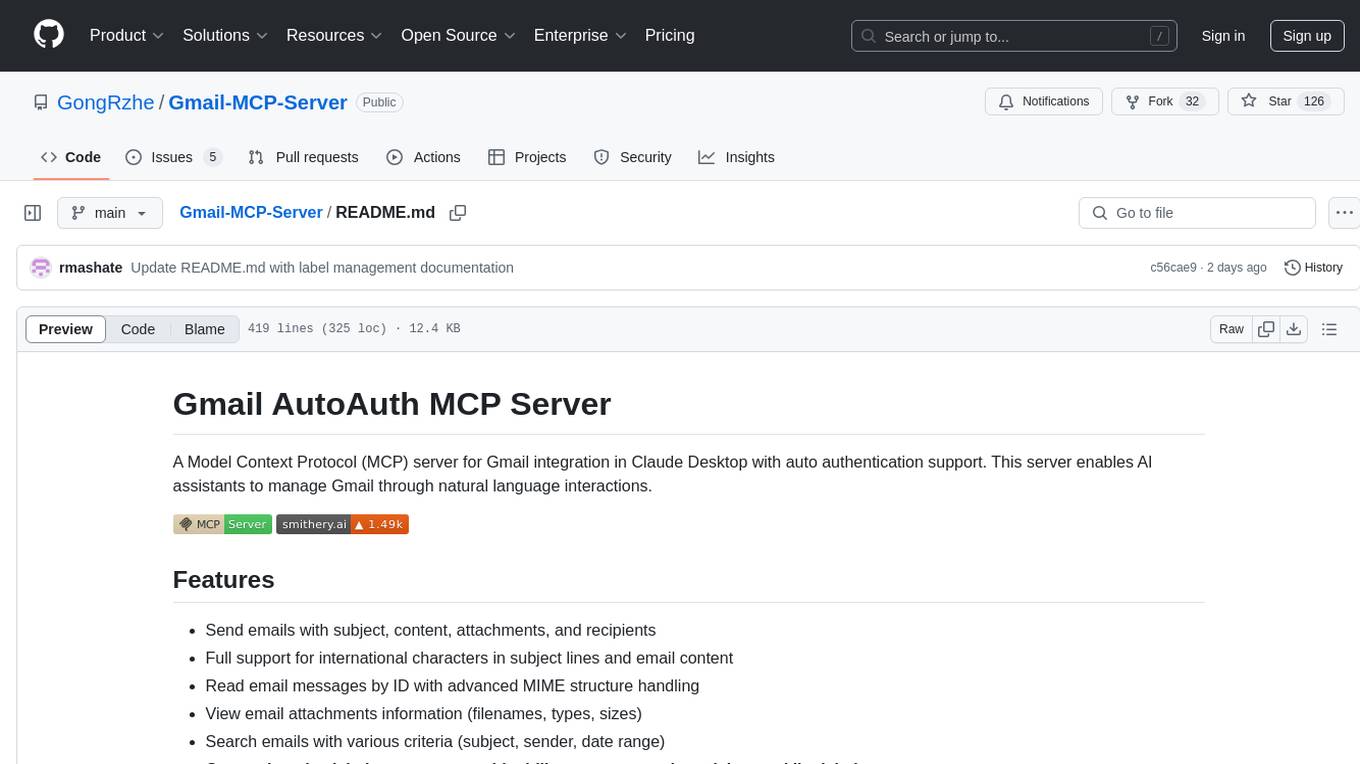
Gmail-MCP-Server
Gmail AutoAuth MCP Server is a Model Context Protocol (MCP) server designed for Gmail integration in Claude Desktop. It supports auto authentication and enables AI assistants to manage Gmail through natural language interactions. The server provides comprehensive features for sending emails, reading messages, managing labels, searching emails, and batch operations. It offers full support for international characters, email attachments, and Gmail API integration. Users can install and authenticate the server via Smithery or manually with Google Cloud Project credentials. The server supports both Desktop and Web application credentials, with global credential storage for convenience. It also includes Docker support and instructions for cloud server authentication.
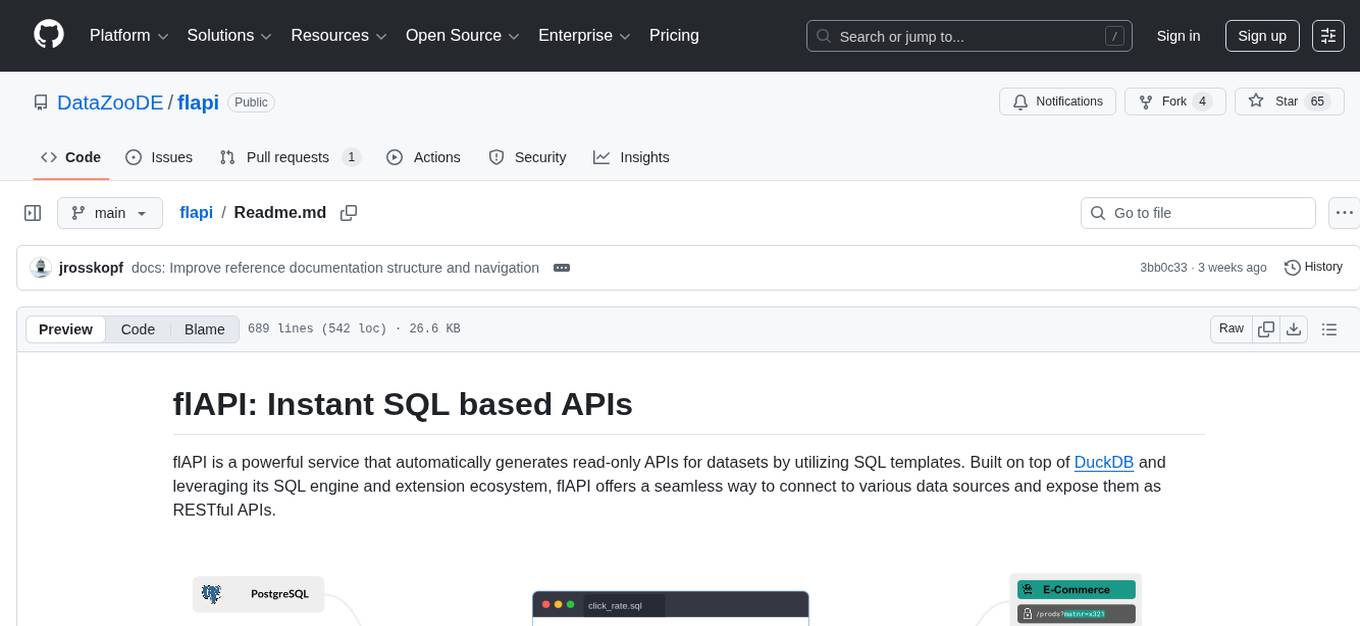
flapi
flAPI is a powerful service that automatically generates read-only APIs for datasets by utilizing SQL templates. Built on top of DuckDB, it offers features like automatic API generation, support for Model Context Protocol (MCP), connecting to multiple data sources, caching, security implementation, and easy deployment. The tool allows users to create APIs without coding and enables the creation of AI tools alongside REST endpoints using SQL templates. It supports unified configuration for REST endpoints and MCP tools/resources, concurrent servers for REST API and MCP server, and automatic tool discovery. The tool also provides DuckLake-backed caching for modern, snapshot-based caching with features like full refresh, incremental sync, retention, compaction, and audit logs.
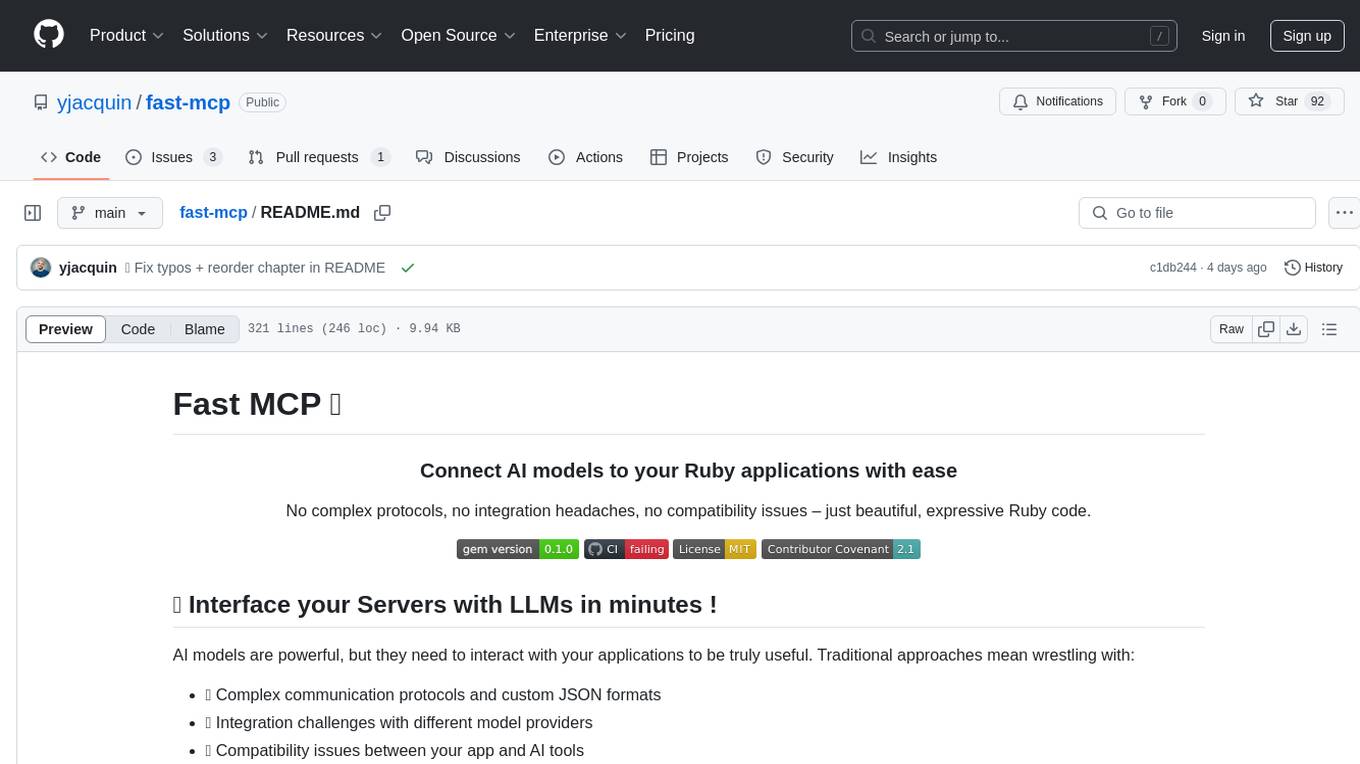
fast-mcp
Fast MCP is a Ruby gem that simplifies the integration of AI models with your Ruby applications. It provides a clean implementation of the Model Context Protocol, eliminating complex communication protocols, integration challenges, and compatibility issues. With Fast MCP, you can easily connect AI models to your servers, share data resources, choose from multiple transports, integrate with frameworks like Rails and Sinatra, and secure your AI-powered endpoints. The gem also offers real-time updates and authentication support, making AI integration a seamless experience for developers.
For similar tasks
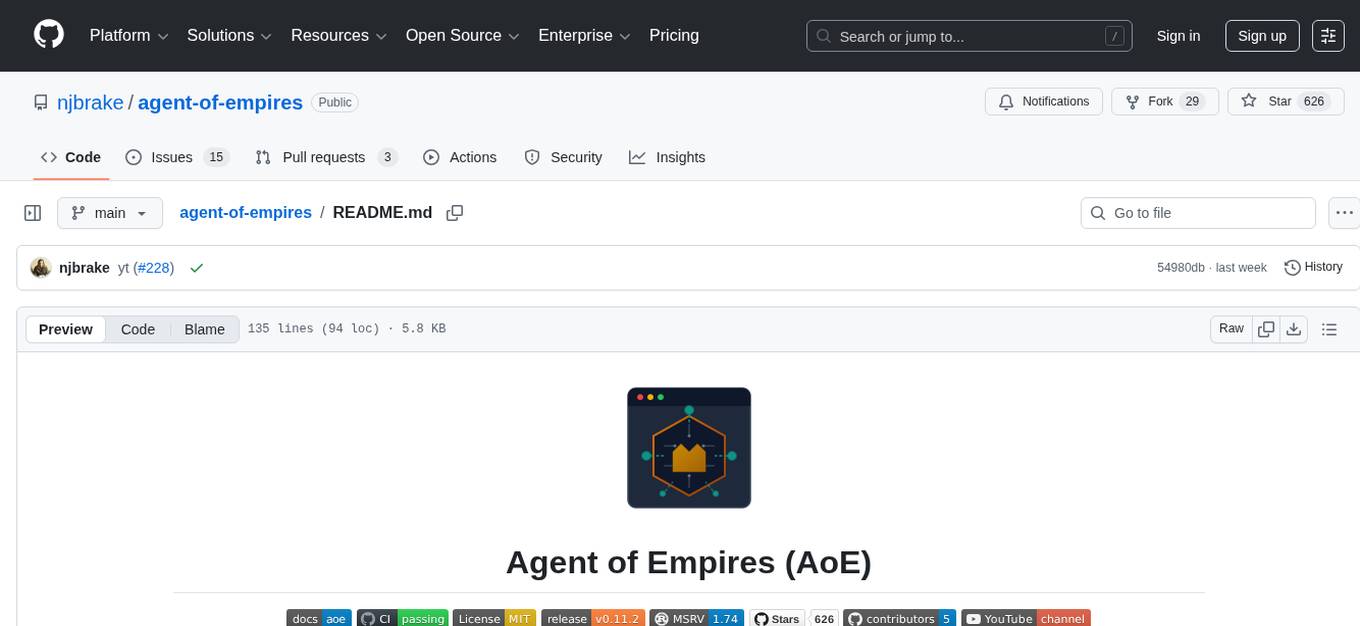
agent-of-empires
Agent of Empires (AoE) is a terminal session manager designed for AI coding agents on Linux and macOS. It allows users to run multiple AI agents in parallel across different branches of their codebase, each in its own isolated session with optional Docker sandboxing. The tool provides a TUI dashboard for creating, monitoring, and managing sessions, along with features like status detection, Git worktrees, Docker sandboxing, diff view, per-repo config, profiles, and full functionality from both CLI and TUI interfaces.
postman-mcp-server
The Postman MCP Server connects Postman to AI tools, enabling AI agents and assistants to access workspaces, manage collections and environments, evaluate APIs, and automate workflows through natural language interactions. It supports various tool configurations like Minimal, Full, and Code, catering to users with different needs. The server offers authentication via OAuth for the best developer experience and fastest setup. Use cases include API testing, code synchronization, collection management, workspace and environment management, automatic spec creation, and client code generation. Designed for developers integrating AI tools with Postman's context and features, supporting quick natural language queries to advanced agent workflows.
uwazi
Uwazi is a flexible database application designed for capturing and organizing collections of information, with a focus on document management. It is developed and supported by HURIDOCS, benefiting human rights organizations globally. The tool requires NodeJs, ElasticSearch, ICU Analysis Plugin, MongoDB, Yarn, and pdftotext for installation. It offers production and development installation guides, including Docker setup. Uwazi supports hot reloading, unit and integration testing with JEST, and end-to-end testing with Nightmare or Puppeteer. The system requirements include RAM, CPU, and disk space recommendations for on-premises and development usage.
lap
Lap is a lightning-fast, cross-platform photo manager that prioritizes user privacy and local AI processing. It allows users to organize and browse their photos efficiently, with features like natural language search, smart face recognition, and similar image search. Lap does not require importing photos, syncs seamlessly with the file system, and supports multiple libraries. Built for performance with a Rust core and lazy loading, Lap offers a delightful user experience with beautiful design, customization options, and multi-language support. It is a great alternative to cloud-based photo services, offering excellent organization, performance, and no vendor lock-in.
langchainjs-quickstart-demo
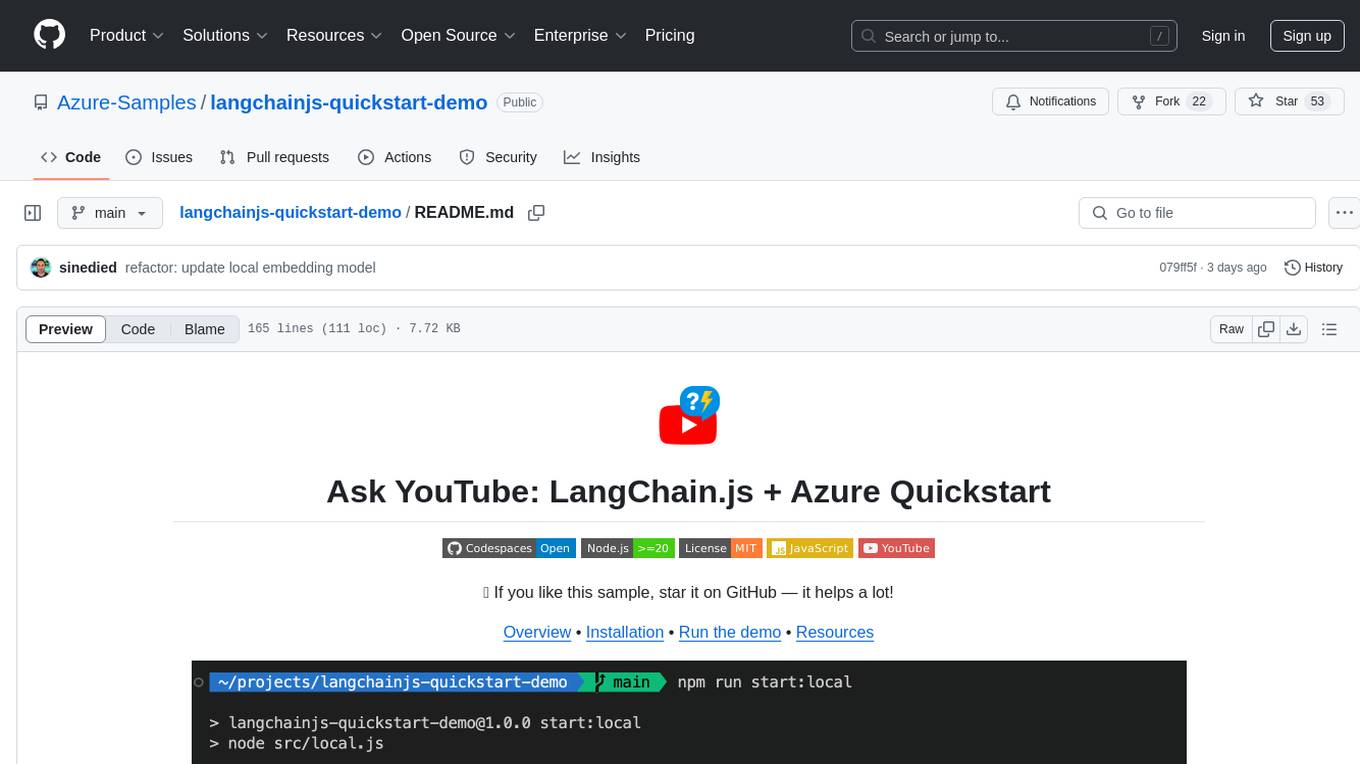
Discover the journey of building a generative AI application using LangChain.js and Azure. This demo explores the development process from idea to production, using a RAG-based approach for a Q&A system based on YouTube video transcripts. The application allows to ask text-based questions about a YouTube video and uses the transcript of the video to generate responses. The code comes in two versions: local prototype using FAISS and Ollama with LLaMa3 model for completion and all-minilm-l6-v2 for embeddings, and Azure cloud version using Azure AI Search and GPT-4 Turbo model for completion and text-embedding-3-large for embeddings. Either version can be run as an API using the Azure Functions runtime.
For similar jobs
design-studio
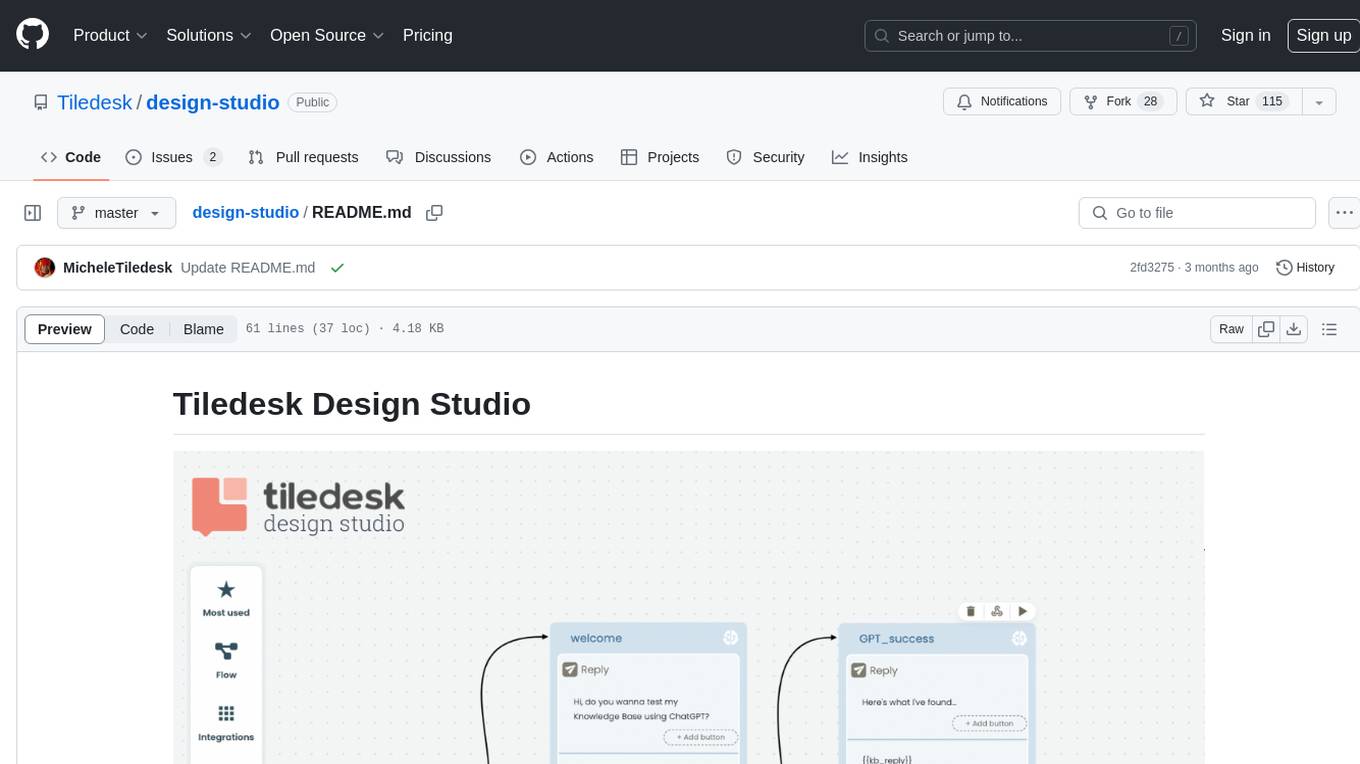
Tiledesk Design Studio is an open-source, no-code development platform for creating chatbots and conversational apps. It offers a user-friendly, drag-and-drop interface with pre-ready actions and integrations. The platform combines the power of LLM/GPT AI with a flexible 'graph' approach for creating conversations and automations with ease. Users can automate customer conversations, prototype conversations, integrate ChatGPT, enhance user experience with multimedia, provide personalized product recommendations, set conditions, use random replies, connect to other tools like HubSpot CRM, integrate with WhatsApp, send emails, and seamlessly enhance existing setups.
telegram-llm
A Telegram LLM bot that allows users to deploy their own Telegram bot in 3 simple steps by creating a flow function, configuring access to the Telegram bot, and connecting to an LLM backend. Users need to sign into flows.network, have a bot token from Telegram, and an OpenAI API key. The bot can be customized with ChatGPT prompts and integrated with OpenAI and Telegram for various functionalities.
LogChat
LogChat is an open-source and free AI chat client that supports various chat models and technologies such as ChatGPT, 讯飞星火, DeepSeek, LLM, TTS, STT, and Live2D. The tool provides a user-friendly interface designed using Qt Creator and can be used on Windows systems without any additional environment requirements. Users can interact with different AI models, perform voice synthesis and recognition, and customize Live2D character models. LogChat also offers features like language translation, AI platform integration, and menu items like screenshot editing, clock, and application launcher.
AI-Agent-Starter-Kit
AI Agent Starter Kit is a modern full-stack AI-enabled template using Next.js for frontend and Express.js for backend, with Telegram and OpenAI integrations. It offers AI-assisted development, smart environment variable setup assistance, intelligent error resolution, context-aware code completion, and built-in debugging helpers. The kit provides a structured environment for developers to interact with AI tools seamlessly, enhancing the development process and productivity.
bolt-python-ai-chatbot
The 'bolt-python-ai-chatbot' is a Slack chatbot app template that allows users to integrate AI-powered conversations into their Slack workspace. Users can interact with the bot in conversations and threads, send direct messages for private interactions, use commands to communicate with the bot, customize bot responses, and store user preferences. The app supports integration with Workflow Builder, custom language models, and different AI providers like OpenAI, Anthropic, and Google Cloud Vertex AI. Users can create user objects, manage user states, and select from various AI models for communication.
MCPSpy
MCPSpy is a command-line tool leveraging eBPF technology to monitor Model Context Protocol (MCP) communication at the kernel level. It provides real-time visibility into JSON-RPC 2.0 messages exchanged between MCP clients and servers, supporting Stdio and HTTP transports. MCPSpy offers security analysis, debugging, performance monitoring, compliance assurance, and learning opportunities for understanding MCP communications. The tool consists of eBPF programs, an eBPF loader, an HTTP session manager, an MCP protocol parser, and output handlers for console display and JSONL output.
chatless
Chatless is a modern AI chat desktop application built on Tauri and Next.js. It supports multiple AI providers, can connect to local Ollama models, supports document parsing and knowledge base functions. All data is stored locally to protect user privacy. The application is lightweight, simple, starts quickly, and consumes minimal resources.
Windows-MCP
Windows-MCP is a lightweight, open-source project that enables seamless integration between AI agents and the Windows operating system. Acting as an MCP server bridges the gap between LLMs and the Windows operating system, allowing agents to perform tasks such as file navigation, application control, UI interaction, QA testing, and more. It provides seamless Windows integration, supports any LLM without traditional computer vision techniques, offers a rich toolset for UI automation, is lightweight and open-source, customizable and extendable, offers real-time interaction with low latency, includes a DOM mode for browser automation, and supports various tools for interacting with Windows applications and system components.