


agent-browser
Browser automation CLI for AI agents
Stars: 13868
agent-browser is a headless browser automation CLI tool designed for AI agents. It is a fast Rust CLI tool with Node.js fallback. The tool allows users to automate web interactions, perform various browser actions, interact with elements using semantic locators, wait for specific conditions, control mouse and keyboard events, manage browser settings, handle cookies and storage, monitor network requests, work with tabs and windows, interact with frames and dialogs, debug browser sessions, navigate pages, set up sessions, use persistent profiles, take snapshots with filtering options, control browser via CDP, stream browser viewport, work with iOS simulators and real devices, utilize Browserbase, Browser Use, and Kernel cloud browser infrastructure, and more. It supports multiple platforms and browsers, provides a comprehensive set of commands for web automation, and is suitable for AI agents and coding assistants.
README:
Headless browser automation CLI for AI agents. Fast Rust CLI with Node.js fallback.
npm install -g agent-browser
agent-browser install # Download Chromiumbrew install agent-browser
agent-browser install # Download Chromiumgit clone https://github.com/vercel-labs/agent-browser
cd agent-browser
pnpm install
pnpm build
pnpm build:native # Requires Rust (https://rustup.rs)
pnpm link --global # Makes agent-browser available globally
agent-browser installOn Linux, install system dependencies:
agent-browser install --with-deps
# or manually: npx playwright install-deps chromiumagent-browser open example.com
agent-browser snapshot # Get accessibility tree with refs
agent-browser click @e2 # Click by ref from snapshot
agent-browser fill @e3 "[email protected]" # Fill by ref
agent-browser get text @e1 # Get text by ref
agent-browser screenshot page.png
agent-browser closeagent-browser click "#submit"
agent-browser fill "#email" "[email protected]"
agent-browser find role button click --name "Submit"agent-browser open <url> # Navigate to URL (aliases: goto, navigate)
agent-browser click <sel> # Click element
agent-browser dblclick <sel> # Double-click element
agent-browser focus <sel> # Focus element
agent-browser type <sel> <text> # Type into element
agent-browser fill <sel> <text> # Clear and fill
agent-browser press <key> # Press key (Enter, Tab, Control+a) (alias: key)
agent-browser keydown <key> # Hold key down
agent-browser keyup <key> # Release key
agent-browser hover <sel> # Hover element
agent-browser select <sel> <val> # Select dropdown option
agent-browser check <sel> # Check checkbox
agent-browser uncheck <sel> # Uncheck checkbox
agent-browser scroll <dir> [px] # Scroll (up/down/left/right)
agent-browser scrollintoview <sel> # Scroll element into view (alias: scrollinto)
agent-browser drag <src> <tgt> # Drag and drop
agent-browser upload <sel> <files> # Upload files
agent-browser screenshot [path] # Take screenshot (--full for full page, saves to a temporary directory if no path)
agent-browser pdf <path> # Save as PDF
agent-browser snapshot # Accessibility tree with refs (best for AI)
agent-browser eval <js> # Run JavaScript (-b for base64, --stdin for piped input)
agent-browser connect <port> # Connect to browser via CDP
agent-browser close # Close browser (aliases: quit, exit)agent-browser get text <sel> # Get text content
agent-browser get html <sel> # Get innerHTML
agent-browser get value <sel> # Get input value
agent-browser get attr <sel> <attr> # Get attribute
agent-browser get title # Get page title
agent-browser get url # Get current URL
agent-browser get count <sel> # Count matching elements
agent-browser get box <sel> # Get bounding boxagent-browser is visible <sel> # Check if visible
agent-browser is enabled <sel> # Check if enabled
agent-browser is checked <sel> # Check if checkedagent-browser find role <role> <action> [value] # By ARIA role
agent-browser find text <text> <action> # By text content
agent-browser find label <label> <action> [value] # By label
agent-browser find placeholder <ph> <action> [value] # By placeholder
agent-browser find alt <text> <action> # By alt text
agent-browser find title <text> <action> # By title attr
agent-browser find testid <id> <action> [value] # By data-testid
agent-browser find first <sel> <action> [value] # First match
agent-browser find last <sel> <action> [value] # Last match
agent-browser find nth <n> <sel> <action> [value] # Nth matchActions: click, fill, check, hover, text
Examples:
agent-browser find role button click --name "Submit"
agent-browser find text "Sign In" click
agent-browser find label "Email" fill "[email protected]"
agent-browser find first ".item" click
agent-browser find nth 2 "a" textagent-browser wait <selector> # Wait for element to be visible
agent-browser wait <ms> # Wait for time (milliseconds)
agent-browser wait --text "Welcome" # Wait for text to appear
agent-browser wait --url "**/dash" # Wait for URL pattern
agent-browser wait --load networkidle # Wait for load state
agent-browser wait --fn "window.ready === true" # Wait for JS conditionLoad states: load, domcontentloaded, networkidle
agent-browser mouse move <x> <y>      # Move mouse
agent-browser mouse down [button]     # Press button (left/right/middle)
agent-browser mouse up [button]       # Release button
agent-browser mouse wheel <dy> [dx] # Scroll wheelagent-browser set viewport <w> <h> # Set viewport size
agent-browser set device <name> # Emulate device ("iPhone 14")
agent-browser set geo <lat> <lng> # Set geolocation
agent-browser set offline [on|off] # Toggle offline mode
agent-browser set headers <json> # Extra HTTP headers
agent-browser set credentials <u> <p> # HTTP basic auth
agent-browser set media [dark|light] # Emulate color schemeagent-browser cookies # Get all cookies
agent-browser cookies set <name> <val> # Set cookie
agent-browser cookies clear # Clear cookies
agent-browser storage local # Get all localStorage
agent-browser storage local <key> # Get specific key
agent-browser storage local set <k> <v> # Set value
agent-browser storage local clear # Clear all
agent-browser storage session # Same for sessionStorageagent-browser network route <url> # Intercept requests
agent-browser network route <url> --abort # Block requests
agent-browser network route <url> --body <json> # Mock response
agent-browser network unroute [url] # Remove routes
agent-browser network requests # View tracked requests
agent-browser network requests --filter api # Filter requestsagent-browser tab # List tabs
agent-browser tab new [url] # New tab (optionally with URL)
agent-browser tab <n> # Switch to tab n
agent-browser tab close [n] # Close tab
agent-browser window new # New windowagent-browser frame <sel> # Switch to iframe
agent-browser frame main # Back to main frameagent-browser dialog accept [text] # Accept (with optional prompt text)
agent-browser dialog dismiss # Dismissagent-browser trace start [path] # Start recording trace
agent-browser trace stop [path] # Stop and save trace
agent-browser console # View console messages (log, error, warn, info)
agent-browser console --clear # Clear console
agent-browser errors # View page errors (uncaught JavaScript exceptions)
agent-browser errors --clear # Clear errors
agent-browser highlight <sel> # Highlight element
agent-browser state save <path> # Save auth state
agent-browser state load <path> # Load auth stateagent-browser back # Go back
agent-browser forward # Go forward
agent-browser reload # Reload pageagent-browser install # Download Chromium browser
agent-browser install --with-deps # Also install system deps (Linux)Run multiple isolated browser instances:
# Different sessions
agent-browser --session agent1 open site-a.com
agent-browser --session agent2 open site-b.com

# Or via environment variable
AGENT_BROWSER_SESSION=agent1 agent-browser click "#btn"

# List active sessions
agent-browser session list
# Output:
# Active sessions:
# -> default
#    agent1

# Show current session
agent-browser session
Each session has its own:
- Browser instance
- Cookies and storage
- Navigation history
- Authentication state
By default, browser state (cookies, localStorage, login sessions) is ephemeral and lost when the browser closes. Use --profile to persist state across browser restarts:
# Use a persistent profile directory
agent-browser --profile ~/.myapp-profile open myapp.com

# Login once, then reuse the authenticated session
agent-browser --profile ~/.myapp-profile open myapp.com/dashboard

# Or via environment variable
AGENT_BROWSER_PROFILE=~/.myapp-profile agent-browser open myapp.com
The profile directory stores:
- Cookies and localStorage
- IndexedDB data
- Service workers
- Browser cache
- Login sessions
Tip: Use different profile paths for different projects to keep their browser state isolated.
The snapshot command supports filtering to reduce output size:
agent-browser snapshot                    # Full accessibility tree
agent-browser snapshot -i                 # Interactive elements only (buttons, inputs, links)
agent-browser snapshot -i -C              # Include cursor-interactive elements (divs with onclick, etc.)
agent-browser snapshot -c                 # Compact (remove empty structural elements)
agent-browser snapshot -d 3               # Limit depth to 3 levels
agent-browser snapshot -s "#main"         # Scope to CSS selector
agent-browser snapshot -i -c -d 5 # Combine options| Option | Description |
|---|---|
-i, --interactive |
Only show interactive elements (buttons, links, inputs) |
-C, --cursor |
Include cursor-interactive elements (cursor:pointer, onclick, tabindex) |
-c, --compact |
Remove empty structural elements |
-d, --depth <n> |
Limit tree depth |
-s, --selector <sel> |
Scope to CSS selector |
The -C flag is useful for modern web apps that use custom clickable elements (divs, spans) instead of standard buttons/links.
| Option | Description |
|---|---|
--session <name> |
Use isolated session (or AGENT_BROWSER_SESSION env) |
--profile <path> |
Persistent browser profile directory (or AGENT_BROWSER_PROFILE env) |
--headers <json> |
Set HTTP headers scoped to the URL's origin |
--executable-path <path> |
Custom browser executable (or AGENT_BROWSER_EXECUTABLE_PATH env) |
--args <args> |
Browser launch args, comma or newline separated (or AGENT_BROWSER_ARGS env) |
--user-agent <ua> |
Custom User-Agent string (or AGENT_BROWSER_USER_AGENT env) |
--proxy <url> |
Proxy server URL with optional auth (or AGENT_BROWSER_PROXY env) |
--proxy-bypass <hosts> |
Hosts to bypass proxy (or AGENT_BROWSER_PROXY_BYPASS env) |
-p, --provider <name> |
Cloud browser provider (or AGENT_BROWSER_PROVIDER env) |
--json |
JSON output (for agents) |
--full, -f |
Full page screenshot |
--name, -n |
Locator name filter |
--exact |
Exact text match |
--headed |
Show browser window (not headless) |
--cdp <port> |
Connect via Chrome DevTools Protocol |
--ignore-https-errors |
Ignore HTTPS certificate errors (useful for self-signed certs) |
--allow-file-access |
Allow file:// URLs to access local files (Chromium only) |
--debug |
Debug output |
Refs provide deterministic element selection from snapshots:
# 1. Get snapshot with refs
agent-browser snapshot
# Output:
# - heading "Example Domain" [ref=e1] [level=1]
# - button "Submit" [ref=e2]
# - textbox "Email" [ref=e3]
# - link "Learn more" [ref=e4]

# 2. Use refs to interact
agent-browser click @e2                   # Click the button
agent-browser fill @e3 "[email protected]" # Fill the textbox
agent-browser get text @e1                # Get heading text
agent-browser hover @e4                   # Hover the link
Why use refs?
- Deterministic: Ref points to exact element from snapshot
- Fast: No DOM re-query needed
- AI-friendly: Snapshot + ref workflow is optimal for LLMs
agent-browser click "#id"
agent-browser click ".class"
agent-browser click "div > button"agent-browser click "text=Submit"
agent-browser click "xpath=//button"agent-browser find role button click --name "Submit"
agent-browser find label "Email" fill "[email protected]"Use --json for machine-readable output:
agent-browser snapshot --json
# Returns: {"success":true,"data":{"snapshot":"...","refs":{"e1":{"role":"heading","name":"Title"},...}}}

agent-browser get text @e1 --json
agent-browser is visible @e2 --json# 1. Navigate and get snapshot
agent-browser open example.com
agent-browser snapshot -i --json # AI parses tree and refs
# 2. AI identifies target refs from snapshot
# 3. Execute actions using refs
agent-browser click @e2
agent-browser fill @e3 "input text"
# 4. Get new snapshot if page changed
agent-browser snapshot -i --jsonShow the browser window for debugging:
agent-browser open example.com --headedThis opens a visible browser window instead of running headless.
Use --headers to set HTTP headers for a specific origin, enabling authentication without login flows:
# Headers are scoped to api.example.com only
agent-browser open api.example.com --headers '{"Authorization": "Bearer <token>"}'

# Requests to api.example.com include the auth header
agent-browser snapshot -i --json
agent-browser click @e2

# Navigate to another domain - headers are NOT sent (safe!)
agent-browser open other-site.com
This is useful for:
- Skipping login flows - Authenticate via headers instead of UI
- Switching users - Start new sessions with different auth tokens
- API testing - Access protected endpoints directly
- Security - Headers are scoped to the origin, not leaked to other domains
To set headers for multiple origins, use --headers with each open command:
agent-browser open api.example.com --headers '{"Authorization": "Bearer token1"}'
agent-browser open api.acme.com --headers '{"Authorization": "Bearer token2"}'
For global headers (all domains), use set headers:
agent-browser set headers '{"X-Custom-Header": "value"}'Use a custom browser executable instead of the bundled Chromium. This is useful for:
-
Serverless deployment: Use lightweight Chromium builds like
@sparticuz/chromium(~50MB vs ~684MB) - System browsers: Use an existing Chrome/Chromium installation
- Custom builds: Use modified browser builds
# Via flag
agent-browser --executable-path /path/to/chromium open example.com

# Via environment variable
AGENT_BROWSER_EXECUTABLE_PATH=/path/to/chromium agent-browser open example.comimport chromium from '@sparticuz/chromium';
import { BrowserManager } from 'agent-browser';
export async function handler() {
const browser = new BrowserManager();
await browser.launch({
executablePath: await chromium.executablePath(),
headless: true,
});
// ... use browser
}Open and interact with local files (PDFs, HTML, etc.) using file:// URLs:
# Enable file access (required for JavaScript to access local files)
agent-browser --allow-file-access open file:///path/to/document.pdf
agent-browser --allow-file-access open file:///path/to/page.html

# Take screenshot of a local PDF
agent-browser --allow-file-access open file:///Users/me/report.pdf
agent-browser screenshot report.png
The --allow-file-access flag adds Chromium flags (--allow-file-access-from-files, --allow-file-access) that allow file:// URLs to:
- Load and render local files
- Access other local files via JavaScript (XHR, fetch)
- Load local resources (images, scripts, stylesheets)
Note: This flag only works with Chromium. For security, it's disabled by default.
Connect to an existing browser via Chrome DevTools Protocol:
# Start Chrome with: google-chrome --remote-debugging-port=9222

# Connect once, then run commands without --cdp
agent-browser connect 9222
agent-browser snapshot
agent-browser tab
agent-browser close

# Or pass --cdp on each command
agent-browser --cdp 9222 snapshot

# Connect to remote browser via WebSocket URL
agent-browser --cdp "wss://your-browser-service.com/cdp?token=..." snapshot
The --cdp flag accepts either:
- A port number (e.g.,
9222) for local connections viahttp://localhost:{port} - A full WebSocket URL (e.g.,
wss://...orws://...) for remote browser services
This enables control of:
- Electron apps
- Chrome/Chromium instances with remote debugging
- WebView2 applications
- Any browser exposing a CDP endpoint
Stream the browser viewport via WebSocket for live preview or "pair browsing" where a human can watch and interact alongside an AI agent.
Set the AGENT_BROWSER_STREAM_PORT environment variable:
AGENT_BROWSER_STREAM_PORT=9223 agent-browser open example.comThis starts a WebSocket server on the specified port that streams the browser viewport and accepts input events.
Connect to ws://localhost:9223 to receive frames and send input:
Receive frames:
{
  "type": "frame",
  "data": "<base64-encoded-jpeg>",
  "metadata": {
    "deviceWidth": 1280,
    "deviceHeight": 720,
    "pageScaleFactor": 1,
    "offsetTop": 0,
    "scrollOffsetX": 0,
    "scrollOffsetY": 0
  }
}
Send mouse events:
{
  "type": "input_mouse",
  "eventType": "mousePressed",
  "x": 100,
  "y": 200,
  "button": "left",
  "clickCount": 1
}
Send keyboard events:
{
  "type": "input_keyboard",
  "eventType": "keyDown",
  "key": "Enter",
  "code": "Enter"
}
Send touch events:
{
  "type": "input_touch",
  "eventType": "touchStart",
  "touchPoints": [{ "x": 100, "y": 200 }]
}For advanced use, control streaming directly via the protocol:
import { BrowserManager } from 'agent-browser';

const browser = new BrowserManager();
await browser.launch({ headless: true });
await browser.navigate('https://example.com');

// Start screencast
await browser.startScreencast((frame) => {
  // frame.data is base64-encoded image
  // frame.metadata contains viewport info
  console.log('Frame received:', frame.metadata.deviceWidth, 'x', frame.metadata.deviceHeight);
}, {
  format: 'jpeg',
  quality: 80,
  maxWidth: 1280,
  maxHeight: 720,
});

// Inject mouse events
await browser.injectMouseEvent({
  type: 'mousePressed',
  x: 100,
  y: 200,
  button: 'left',
});

// Inject keyboard events
await browser.injectKeyboardEvent({
  type: 'keyDown',
  key: 'Enter',
  code: 'Enter',
});

// Stop when done
await browser.stopScreencast();agent-browser uses a client-daemon architecture:
- Rust CLI (fast native binary) - Parses commands, communicates with daemon
- Node.js Daemon - Manages Playwright browser instance
- Fallback - If native binary unavailable, uses Node.js directly
The daemon starts automatically on first command and persists between commands for fast subsequent operations.
Browser Engine: Uses Chromium by default. The daemon also supports Firefox and WebKit via the Playwright protocol.
| Platform | Binary | Fallback |
|---|---|---|
| macOS ARM64 | Native Rust | Node.js |
| macOS x64 | Native Rust | Node.js |
| Linux ARM64 | Native Rust | Node.js |
| Linux x64 | Native Rust | Node.js |
| Windows x64 | Native Rust | Node.js |
The simplest approach - just tell your agent to use it:
Use agent-browser to test the login flow. Run agent-browser --help to see available commands.
The --help output is comprehensive and most agents can figure it out from there.
Add the skill to your AI coding assistant for richer context:
npx skills add vercel-labs/agent-browserThis works with Claude Code, Codex, Cursor, Gemini CLI, GitHub Copilot, Goose, OpenCode, and Windsurf.
For more consistent results, add to your project or global instructions file:
## Browser Automation

Use `agent-browser` for web automation. Run `agent-browser --help` for all commands.

Core workflow:
1. `agent-browser open <url>` - Navigate to page
2. `agent-browser snapshot -i` - Get interactive elements with refs (@e1, @e2)
3. `agent-browser click @e1` / `fill @e2 "text"` - Interact using refs
4. Re-snapshot after page changesControl real Mobile Safari in the iOS Simulator for authentic mobile web testing. Requires macOS with Xcode.
Setup:
# Install Appium and XCUITest driver
npm install -g appium
appium driver install xcuitest
Usage:
# List available iOS simulators
agent-browser device list

# Launch Safari on a specific device
agent-browser -p ios --device "iPhone 16 Pro" open https://example.com

# Same commands as desktop
agent-browser -p ios snapshot -i
agent-browser -p ios tap @e1
agent-browser -p ios fill @e2 "text"
agent-browser -p ios screenshot mobile.png

# Mobile-specific commands
agent-browser -p ios swipe up
agent-browser -p ios swipe down 500

# Close session
agent-browser -p ios close
Or use environment variables:
export AGENT_BROWSER_PROVIDER=ios
export AGENT_BROWSER_IOS_DEVICE="iPhone 16 Pro"
agent-browser open https://example.com| Variable | Description |
|---|---|
AGENT_BROWSER_PROVIDER |
Set to ios to enable iOS mode |
AGENT_BROWSER_IOS_DEVICE |
Device name (e.g., "iPhone 16 Pro", "iPad Pro") |
AGENT_BROWSER_IOS_UDID |
Device UDID (alternative to device name) |
Supported devices: All iOS Simulators available in Xcode (iPhones, iPads), plus real iOS devices.
Note: The iOS provider boots the simulator, starts Appium, and controls Safari. First launch takes ~30-60 seconds; subsequent commands are fast.
Appium also supports real iOS devices connected via USB. This requires additional one-time setup:
1. Get your device UDID:
xcrun xctrace list devices
# or
system_profiler SPUSBDataType | grep -A 5 "iPhone\|iPad"
2. Sign WebDriverAgent (one-time):
# Open the WebDriverAgent Xcode project
cd ~/.appium/node_modules/appium-xcuitest-driver/node_modules/appium-webdriveragent
open WebDriverAgent.xcodeproj
In Xcode:
- Select the
WebDriverAgentRunnertarget - Go to Signing & Capabilities
- Select your Team (requires Apple Developer account, free tier works)
- Let Xcode manage signing automatically
3. Use with agent-browser:
# Connect device via USB, then:
agent-browser -p ios --device "<DEVICE_UDID>" open https://example.com

# Or use the device name if unique
agent-browser -p ios --device "John's iPhone" open https://example.com
Real device notes:
- First run installs WebDriverAgent to the device (may require Trust prompt)
- Device must be unlocked and connected via USB
- Slightly slower initial connection than simulator
- Tests against real Safari performance and behavior
Browserbase provides remote browser infrastructure to make deployment of agentic browsing agents easy. Use it when running the agent-browser CLI in an environment where a local browser isn't feasible.
To enable Browserbase, use the -p flag:
export BROWSERBASE_API_KEY="your-api-key"
export BROWSERBASE_PROJECT_ID="your-project-id"
agent-browser -p browserbase open https://example.com
Or use environment variables for CI/scripts:
export AGENT_BROWSER_PROVIDER=browserbase
export BROWSERBASE_API_KEY="your-api-key"
export BROWSERBASE_PROJECT_ID="your-project-id"
agent-browser open https://example.com
When enabled, agent-browser connects to a Browserbase session instead of launching a local browser. All commands work identically.
Get your API key and project ID from the Browserbase Dashboard.
Browser Use provides cloud browser infrastructure for AI agents. Use it when running agent-browser in environments where a local browser isn't available (serverless, CI/CD, etc.).
To enable Browser Use, use the -p flag:
export BROWSER_USE_API_KEY="your-api-key"
agent-browser -p browseruse open https://example.com
Or use environment variables for CI/scripts:
export AGENT_BROWSER_PROVIDER=browseruse
export BROWSER_USE_API_KEY="your-api-key"
agent-browser open https://example.com
When enabled, agent-browser connects to a Browser Use cloud session instead of launching a local browser. All commands work identically.
Get your API key from the Browser Use Cloud Dashboard. Free credits are available to get started, with pay-as-you-go pricing after.
Kernel provides cloud browser infrastructure for AI agents with features like stealth mode and persistent profiles.
To enable Kernel, use the -p flag:
export KERNEL_API_KEY="your-api-key"
agent-browser -p kernel open https://example.com
Or use environment variables for CI/scripts:
export AGENT_BROWSER_PROVIDER=kernel
export KERNEL_API_KEY="your-api-key"
agent-browser open https://example.com
Optional configuration via environment variables:
| Variable | Description | Default |
|---|---|---|
KERNEL_HEADLESS |
Run browser in headless mode (true/false) |
false |
KERNEL_STEALTH |
Enable stealth mode to avoid bot detection (true/false) |
true |
KERNEL_TIMEOUT_SECONDS |
Session timeout in seconds | 300 |
KERNEL_PROFILE_NAME |
Browser profile name for persistent cookies/logins (created if it doesn't exist) | (none) |
When enabled, agent-browser connects to a Kernel cloud session instead of launching a local browser. All commands work identically.
Profile Persistence: When KERNEL_PROFILE_NAME is set, the profile will be created if it doesn't already exist. Cookies, logins, and session data are automatically saved back to the profile when the browser session ends, making them available for future sessions.
Get your API key from the Kernel Dashboard.
Apache-2.0
For Tasks:
Click tags to check more tools for each tasksFor Jobs:
Alternative AI tools for agent-browser
Similar Open Source Tools
agent-browser
agent-browser is a headless browser automation CLI tool designed for AI agents. It is a fast Rust CLI tool with Node.js fallback. The tool allows users to automate web interactions, perform various browser actions, interact with elements using semantic locators, wait for specific conditions, control mouse and keyboard events, manage browser settings, handle cookies and storage, monitor network requests, work with tabs and windows, interact with frames and dialogs, debug browser sessions, navigate pages, set up sessions, use persistent profiles, take snapshots with filtering options, control browser via CDP, stream browser viewport, work with iOS simulators and real devices, utilize Browserbase, Browser Use, and Kernel cloud browser infrastructure, and more. It supports multiple platforms and browsers, provides a comprehensive set of commands for web automation, and is suitable for AI agents and coding assistants.
Free-GPT4-WEB-API
FreeGPT4-WEB-API is a Python server that allows you to have a self-hosted GPT-4 Unlimited and Free WEB API, via the latest Bing's AI. It uses Flask and GPT4Free libraries. GPT4Free provides an interface to the Bing's GPT-4. The server can be configured by editing the `FreeGPT4_Server.py` file. You can change the server's port, host, and other settings. The only cookie needed for the Bing model is `_U`.
mcp-devtools
MCP DevTools is a high-performance server written in Go that replaces multiple Node.js and Python-based servers. It provides access to essential developer tools through a unified, modular interface. The server is efficient, with minimal memory footprint and fast response times. It offers a comprehensive tool suite for agentic coding, including 20+ essential developer agent tools. The tool registry allows for easy addition of new tools. The server supports multiple transport modes, including STDIO, HTTP, and SSE. It includes a security framework for multi-layered protection and a plugin system for adding new tools.
NextChat
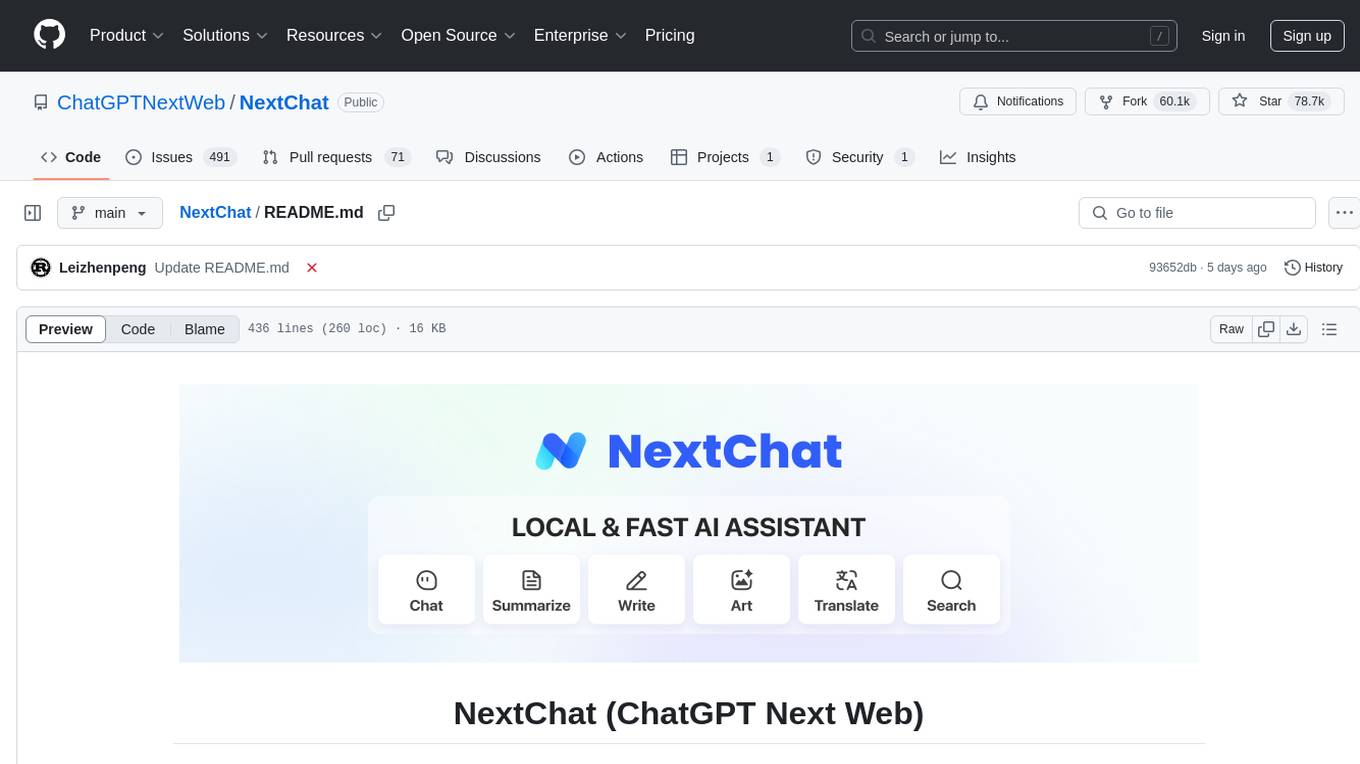
NextChat is a well-designed cross-platform ChatGPT web UI tool that supports Claude, GPT4, and Gemini Pro. It offers a compact client for Linux, Windows, and MacOS, with features like self-deployed LLMs compatibility, privacy-first data storage, markdown support, responsive design, and fast loading speed. Users can create, share, and debug chat tools with prompt templates, access various prompts, compress chat history, and use multiple languages. The tool also supports enterprise-level privatization and customization deployment, with features like brand customization, resource integration, permission control, knowledge integration, security auditing, private deployment, and continuous updates.
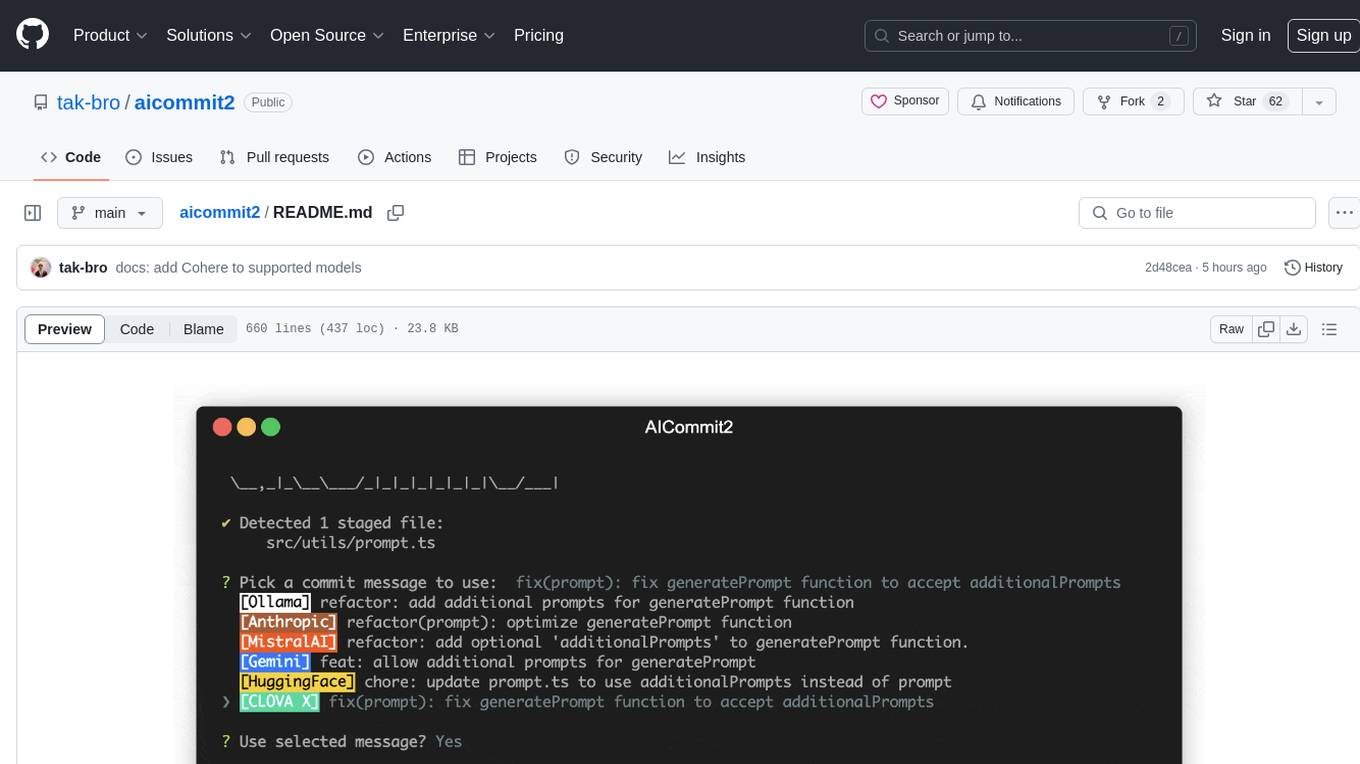
aicommit2
AICommit2 is a Reactive CLI tool that streamlines interactions with various AI providers such as OpenAI, Anthropic Claude, Gemini, Mistral AI, Cohere, and unofficial providers like Huggingface and Clova X. Users can request multiple AI simultaneously to generate git commit messages without waiting for all AI responses. The tool runs 'git diff' to grab code changes, sends them to configured AI, and returns the AI-generated commit message. Users can set API keys or Cookies for different providers and configure options like locale, generate number of messages, commit type, proxy, timeout, max-length, and more. AICommit2 can be used both locally with Ollama and remotely with supported providers, offering flexibility and efficiency in generating commit messages.
mcp
Semgrep MCP Server is a beta server under active development for using Semgrep to scan code for security vulnerabilities. It provides a Model Context Protocol (MCP) for various coding tools to get specialized help in tasks. Users can connect to Semgrep AppSec Platform, scan code for vulnerabilities, customize Semgrep rules, analyze and filter scan results, and compare results. The tool is published on PyPI as semgrep-mcp and can be installed using pip, pipx, uv, poetry, or other methods. It supports CLI and Docker environments for running the server. Integration with VS Code is also available for quick installation. The project welcomes contributions and is inspired by core technologies like Semgrep and MCP, as well as related community projects and tools.
mcphub.nvim
MCPHub.nvim is a powerful Neovim plugin that integrates MCP (Model Context Protocol) servers into your workflow. It offers a centralized config file for managing servers and tools, with an intuitive UI for testing resources. Ideal for LLM integration, it provides programmatic API access and interactive testing through the `:MCPHub` command.
oxylabs-mcp
The Oxylabs MCP Server acts as a bridge between AI models and the web, providing clean, structured data from any site. It enables scraping of URLs, rendering JavaScript-heavy pages, content extraction for AI use, bypassing anti-scraping measures, and accessing geo-restricted web data from 195+ countries. The implementation utilizes the Model Context Protocol (MCP) to facilitate secure interactions between AI assistants and web content. Key features include scraping content from any site, automatic data cleaning and conversion, bypassing blocks and geo-restrictions, flexible setup with cross-platform support, and built-in error handling and request management.

TalkWithGemini
Talk With Gemini is a web application that allows users to deploy their private Gemini application for free with one click. It supports Gemini Pro and Gemini Pro Vision models. The application features talk mode for direct communication with Gemini, visual recognition for understanding picture content, full Markdown support, automatic compression of chat records, privacy and security with local data storage, well-designed UI with responsive design, fast loading speed, and multi-language support. The tool is designed to be user-friendly and versatile for various deployment options and language preferences.
scrape-it-now
Scrape It Now is a versatile tool for scraping websites with features like decoupled architecture, CLI functionality, idempotent operations, and content storage options. The tool includes a scraper component for efficient scraping, ad blocking, link detection, markdown extraction, dynamic content loading, and anonymity features. It also offers an indexer component for creating AI search indexes, chunking content, embedding chunks, and enabling semantic search. The tool supports various configurations for Azure services and local storage, providing flexibility and scalability for web scraping and indexing tasks.
onefilellm
OneFileLLM is a command-line tool that streamlines the creation of information-dense prompts for large language models (LLMs). It aggregates and preprocesses data from various sources, compiling them into a single text file for quick use. The tool supports automatic source type detection, handling of multiple file formats, web crawling functionality, integration with Sci-Hub for research paper downloads, text preprocessing, token count reporting, and XML encapsulation of output for improved LLM performance. Users can easily access private GitHub repositories by generating a personal access token. The tool's output is encapsulated in XML tags to enhance LLM understanding and processing.
aiohttp-debugtoolbar
aiohttp_debugtoolbar provides a debug toolbar for aiohttp web applications. It is a port of pyramid_debugtoolbar and offers basic functionality such as basic panels, intercepting redirects, pretty printing exceptions, an interactive python console, and showing source code. The library is still in early development stages and offers various debug panels for monitoring different aspects of the web application. It is a useful tool for developers working with aiohttp to debug and optimize their applications.
packages
This repository is a monorepo for NPM packages published under the `@elevenlabs` scope. It contains multiple packages in the `packages` folder. The setup allows for easy development, linking packages, creating new packages, and publishing them with GitHub actions.
hud-python
hud-python is a Python library for creating interactive heads-up displays (HUDs) in video games. It provides a simple and flexible way to overlay information on the screen, such as player health, score, and notifications. The library is designed to be easy to use and customizable, allowing game developers to enhance the user experience by adding dynamic elements to their games. With hud-python, developers can create engaging HUDs that improve gameplay and provide important feedback to players.
mcp-victoriametrics
The VictoriaMetrics MCP Server is an implementation of Model Context Protocol (MCP) server for VictoriaMetrics. It provides access to your VictoriaMetrics instance and seamless integration with VictoriaMetrics APIs and documentation. The server allows you to use almost all read-only APIs of VictoriaMetrics, enabling monitoring, observability, and debugging tasks related to your VictoriaMetrics instances. It also contains embedded up-to-date documentation and tools for exploring metrics, labels, alerts, and more. The server can be used for advanced automation and interaction capabilities for engineers and tools.

retro-aim-server
Retro AIM Server is an instant messaging server that revives AOL Instant Messenger clients from the 2000s. It supports Windows AIM client versions 5.0-5.9, away messages, buddy icons, buddy list, chat rooms, instant messaging, user profiles, blocking/visibility toggle/idle notification, and warning. The Management API provides functionality for administering the server, including listing users, creating users, changing passwords, and listing active sessions.
For similar tasks
LaVague
LaVague is an open-source Large Action Model framework that uses advanced AI techniques to compile natural language instructions into browser automation code. It leverages Selenium or Playwright for browser actions. Users can interact with LaVague through an interactive Gradio interface to automate web interactions. The tool requires an OpenAI API key for default examples and offers a Playwright integration guide. Contributors can help by working on outlined tasks, submitting PRs, and engaging with the community on Discord. The project roadmap is available to track progress, but users should exercise caution when executing LLM-generated code using 'exec'.
AutoNode
AutoNode is a self-operating computer system designed to automate web interactions and data extraction processes. It leverages advanced technologies like OCR (Optical Character Recognition), YOLO (You Only Look Once) models for object detection, and a custom site-graph to navigate and interact with web pages programmatically. Users can define objectives, create site-graphs, and utilize AutoNode via API to automate tasks on websites. The tool also supports training custom YOLO models for object detection and OCR for text recognition on web pages. AutoNode can be used for tasks such as extracting product details, automating web interactions, and more.
PulsarRPA
PulsarRPA is a high-performance, distributed, open-source Robotic Process Automation (RPA) framework designed to handle large-scale RPA tasks with ease. It provides a comprehensive solution for browser automation, web content understanding, and data extraction. PulsarRPA addresses challenges of browser automation and accurate web data extraction from complex and evolving websites. It incorporates innovative technologies like browser rendering, RPA, intelligent scraping, advanced DOM parsing, and distributed architecture to ensure efficient, accurate, and scalable web data extraction. The tool is open-source, customizable, and supports cutting-edge information extraction technology, making it a preferred solution for large-scale web data extraction.
agent-browser
agent-browser is a headless browser automation CLI tool designed for AI agents. It is a fast Rust CLI tool with Node.js fallback. The tool allows users to automate web interactions, perform various browser actions, interact with elements using semantic locators, wait for specific conditions, control mouse and keyboard events, manage browser settings, handle cookies and storage, monitor network requests, work with tabs and windows, interact with frames and dialogs, debug browser sessions, navigate pages, set up sessions, use persistent profiles, take snapshots with filtering options, control browser via CDP, stream browser viewport, work with iOS simulators and real devices, utilize Browserbase, Browser Use, and Kernel cloud browser infrastructure, and more. It supports multiple platforms and browsers, provides a comprehensive set of commands for web automation, and is suitable for AI agents and coding assistants.
lector
A composable, headless PDF viewer toolkit for React applications, powered by PDF.js. Build feature-rich PDF viewing experiences with full control over the UI and functionality. It is responsive and mobile-friendly, fully customizable UI components, supports text selection and search functionality, page thumbnails and outline navigation, dark mode, pan and zoom controls, form filling support, internal and external link handling. Contributions are welcome in areas like performance optimizations, accessibility improvements, mobile/touch interactions, documentation, and examples. Inspired by open-source projects like react-pdf-headless and pdfreader. Licensed under MIT by Unriddle AI.
For similar jobs
sweep
Sweep is an AI junior developer that turns bugs and feature requests into code changes. It automatically handles developer experience improvements like adding type hints and improving test coverage.
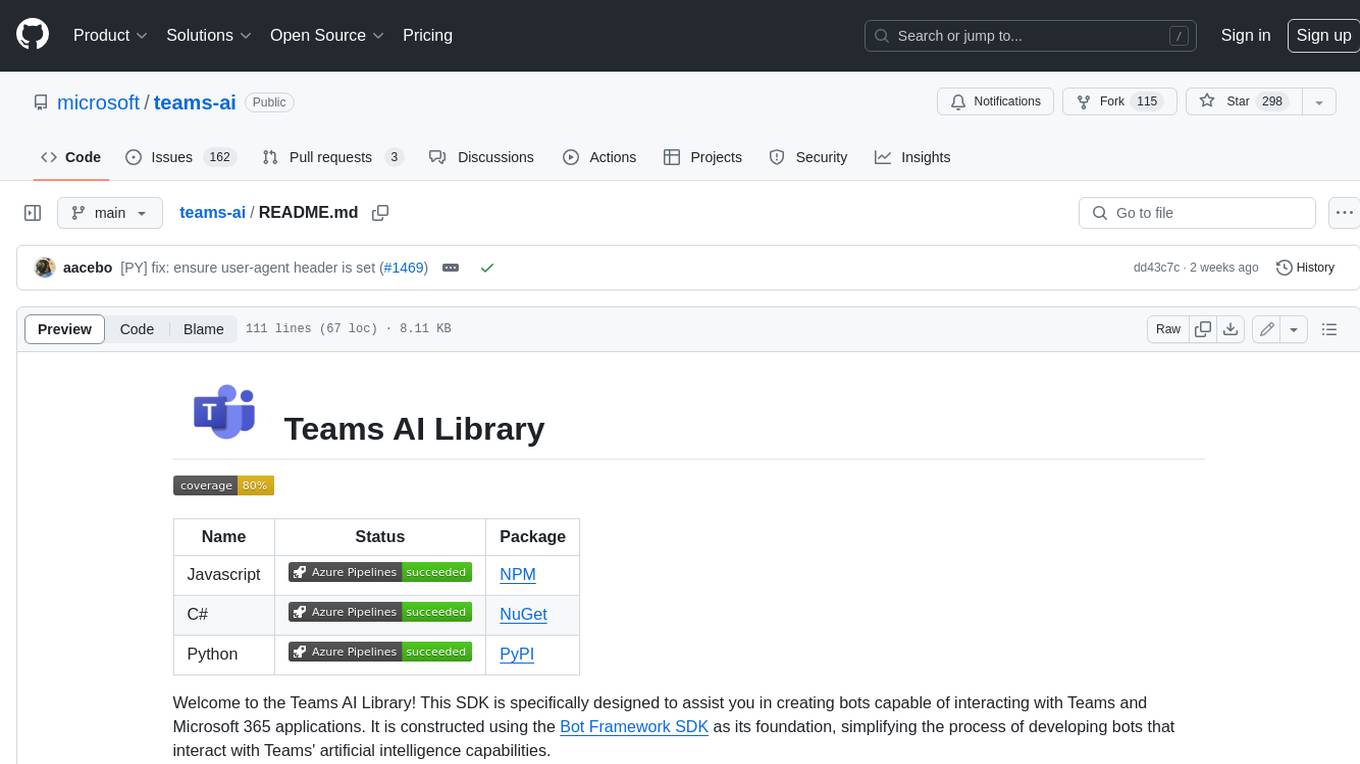
teams-ai
The Teams AI Library is a software development kit (SDK) that helps developers create bots that can interact with Teams and Microsoft 365 applications. It is built on top of the Bot Framework SDK and simplifies the process of developing bots that interact with Teams' artificial intelligence capabilities. The SDK is available for JavaScript/TypeScript, .NET, and Python.
ai-guide
This guide is dedicated to Large Language Models (LLMs) that you can run on your home computer. It assumes your PC is a lower-end, non-gaming setup.
classifai
Supercharge WordPress Content Workflows and Engagement with Artificial Intelligence. Tap into leading cloud-based services like OpenAI, Microsoft Azure AI, Google Gemini and IBM Watson to augment your WordPress-powered websites. Publish content faster while improving SEO performance and increasing audience engagement. ClassifAI integrates Artificial Intelligence and Machine Learning technologies to lighten your workload and eliminate tedious tasks, giving you more time to create original content that matters.
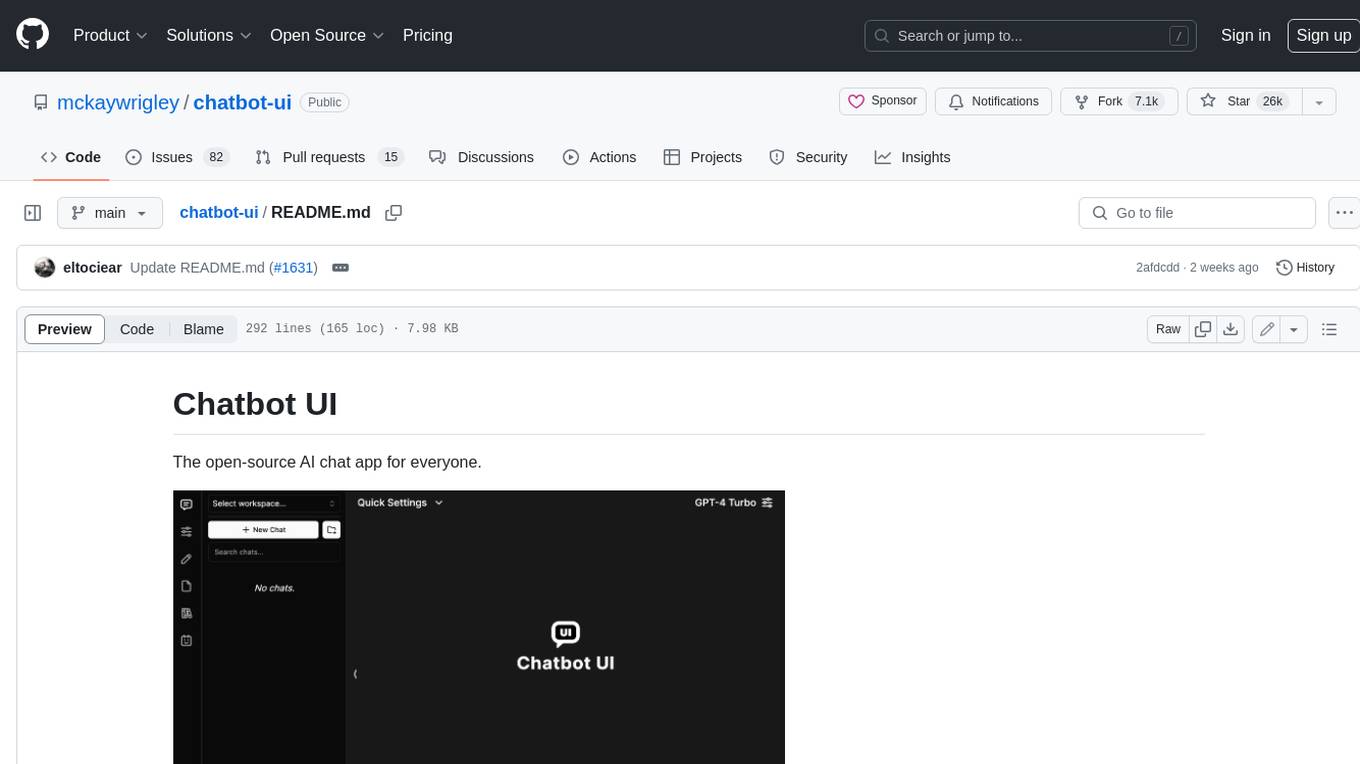
chatbot-ui
Chatbot UI is an open-source AI chat app that allows users to create and deploy their own AI chatbots. It is easy to use and can be customized to fit any need. Chatbot UI is perfect for businesses, developers, and anyone who wants to create a chatbot.
BricksLLM
BricksLLM is a cloud native AI gateway written in Go. Currently, it provides native support for OpenAI, Anthropic, Azure OpenAI and vLLM. BricksLLM aims to provide enterprise level infrastructure that can power any LLM production use cases. Here are some use cases for BricksLLM: * Set LLM usage limits for users on different pricing tiers * Track LLM usage on a per user and per organization basis * Block or redact requests containing PIIs * Improve LLM reliability with failovers, retries and caching * Distribute API keys with rate limits and cost limits for internal development/production use cases * Distribute API keys with rate limits and cost limits for students
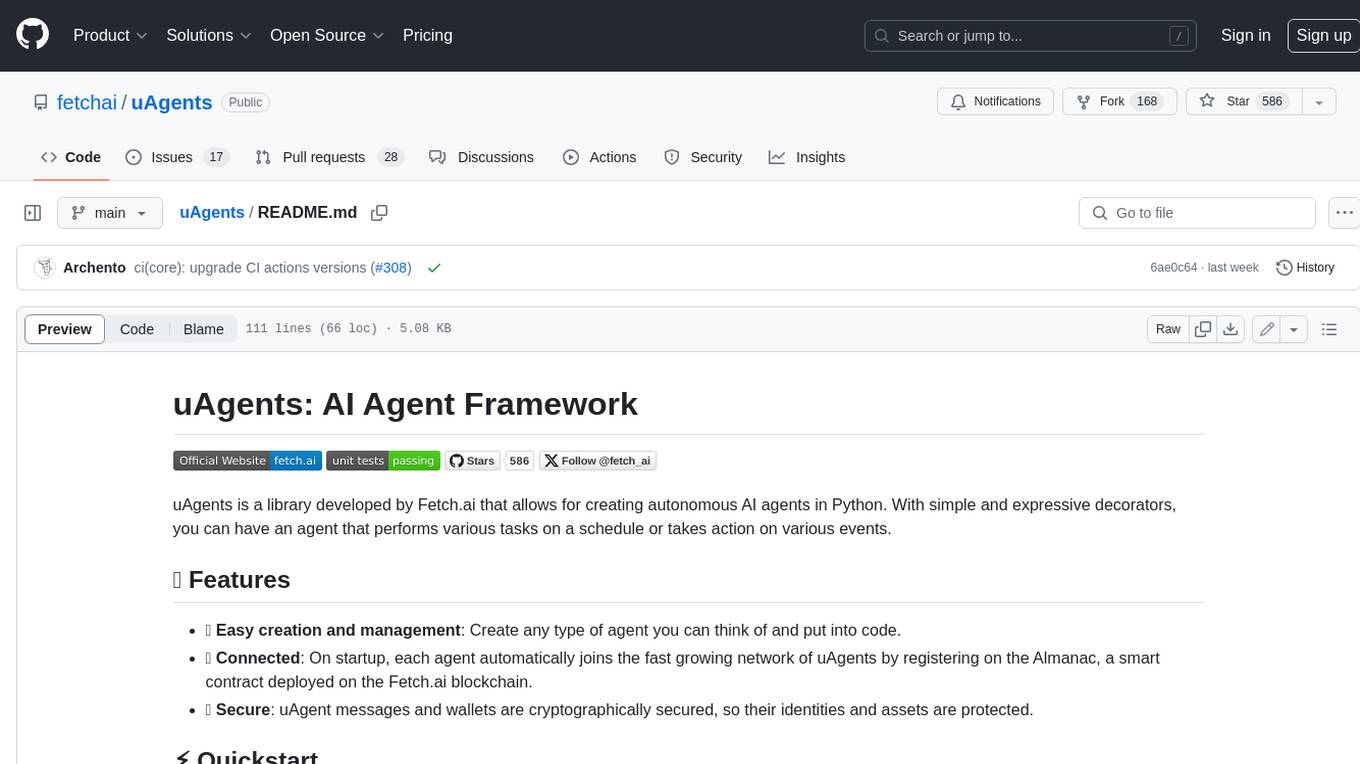
uAgents
uAgents is a Python library developed by Fetch.ai that allows for the creation of autonomous AI agents. These agents can perform various tasks on a schedule or take action on various events. uAgents are easy to create and manage, and they are connected to a fast-growing network of other uAgents. They are also secure, with cryptographically secured messages and wallets.
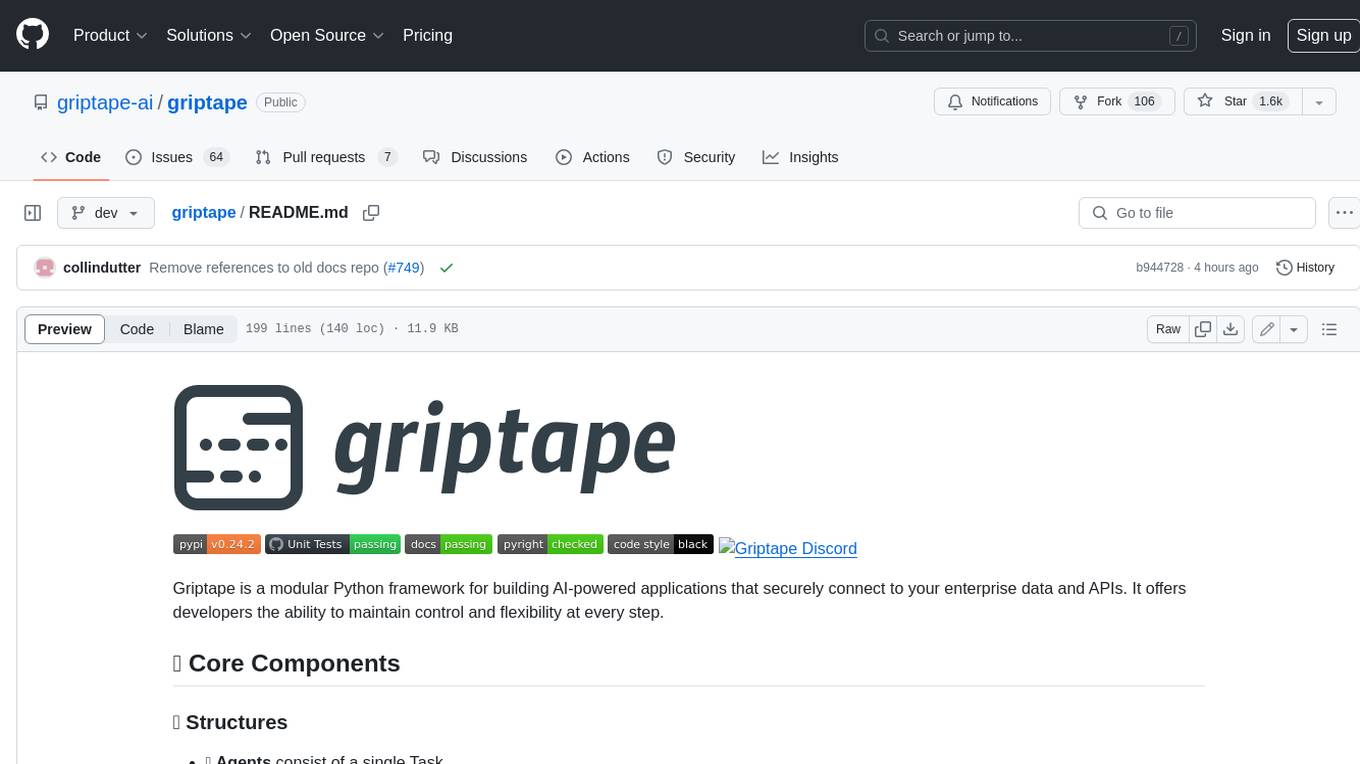
griptape
Griptape is a modular Python framework for building AI-powered applications that securely connect to your enterprise data and APIs. It offers developers the ability to maintain control and flexibility at every step. Griptape's core components include Structures (Agents, Pipelines, and Workflows), Tasks, Tools, Memory (Conversation Memory, Task Memory, and Meta Memory), Drivers (Prompt and Embedding Drivers, Vector Store Drivers, Image Generation Drivers, Image Query Drivers, SQL Drivers, Web Scraper Drivers, and Conversation Memory Drivers), Engines (Query Engines, Extraction Engines, Summary Engines, Image Generation Engines, and Image Query Engines), and additional components (Rulesets, Loaders, Artifacts, Chunkers, and Tokenizers). Griptape enables developers to create AI-powered applications with ease and efficiency.