


Overture
Overture is an open-source, locally running web interface delivered as an MCP (Model Context Protocol) server that visually maps out the execution plan of any AI coding agent as an interactive flowchart/graph before the agent begins writing code.
Stars: 550
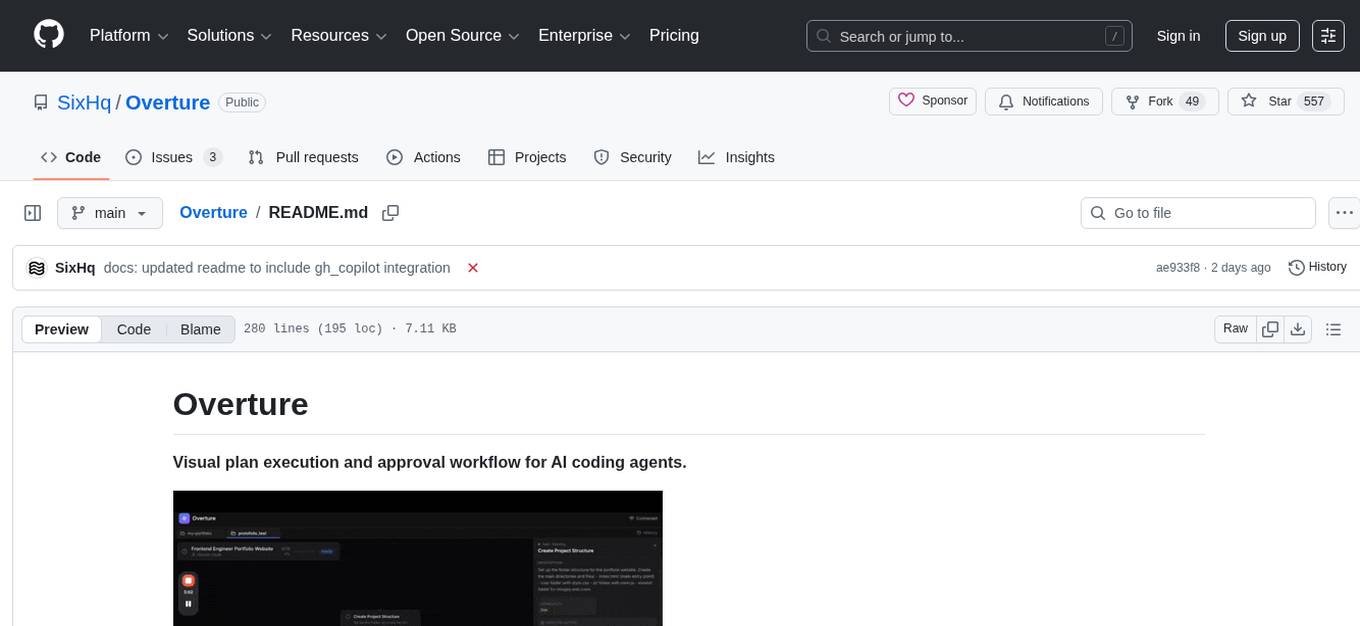
Overture is a tool designed to visualize and approve AI coding agents' plans before code execution. It intercepts the planning phase of AI agents and presents it as an interactive visual flowchart, allowing users to see the complete plan, view details of each step, attach context, choose between approaches, and monitor execution in real-time. By using Overture, users can prevent wasted tokens, time, and frustration caused by misunderstood requests and unapproved code. The tool works with various AI coding agents and enhances the planning process by providing a clear and comprehensive overview of the proposed code execution.
README:
Visual plan execution and approval workflow for AI coding agents.

Every AI coding agent today — Cursor, Claude Code, Cline, Copilot — works the same way: you type a prompt, the agent starts writing code, and you have no idea what it's actually planning to do.
By the time you realize the agent misunderstood your request, it has already written hundreds of lines of code that need to be discarded.
Some agents show plans as text in chat. But text plans don't show you:
- How steps relate to each other
- Where the plan branches into different approaches
- What context each step needs to succeed
You end up wasting tokens, time, and patience.
Overture intercepts your AI agent's planning phase and renders it as an interactive visual flowchart — before any code is written.

With Overture, you can:
- See the complete plan as an interactive graph before execution begins
- Click any node to view full details about what that step will do
- Attach context like files, documents, API keys, and instructions to specific steps
- Choose between approaches when the agent proposes multiple ways to solve a problem
- Watch execution in real-time as nodes light up with progress, completion, or errors
The agent doesn't write a single line of code until you approve the plan.
Overture is an MCP server that works with any MCP-compatible AI coding agent.
Run this command to add Overture to Claude Code:
claude mcp add overture-mcp -- npx overture-mcpThat's it. Claude Code will now use Overture for plan visualization.
Open your Cursor MCP configuration file at ~/.cursor/mcp.json and add:
{
  "mcpServers": {
    "overture": {
      "command": "npx",
      "args": ["overture-mcp"]
    }
  }
}
Restart Cursor for the changes to take effect.
Open VS Code settings, search for "Cline MCP", and add this to your MCP servers configuration:
{
  "mcpServers": {
    "overture": {
      "command": "npx",
      "args": ["overture-mcp"]
    }
  }
}Open the Sixth AI MCP settings file and add Overture:
File locations:
-
macOS:
~/Library/Application Support/Code/User/globalStorage/sixth.sixth-ai/settings/sixth-mcp-settings.json -
Windows:
%APPDATA%\Code\User\globalStorage\sixth.sixth-ai\settings\sixth-mcp-settings.json -
Linux:
~/.config/Code/User/globalStorage/sixth.sixth-ai/settings/sixth-mcp-settings.json
Add this to the mcpServers object:
{
  "mcpServers": {
    "overture": {
      "command": "npx",
      "args": ["overture-mcp"],
      "disabled": false
    }
  }
}
Restart VS Code for the changes to take effect.
Create a .vscode/mcp.json file in your project root:
{
  "servers": {
    "overture": {
      "command": "npx",
      "args": ["overture-mcp"]
    }
  }
}
After creating the file, reload VS Code (Cmd/Ctrl + Shift + P → "Developer: Reload Window").
Note: GitHub Copilot MCP support requires VS Code 1.99+ and uses a different configuration format (servers instead of mcpServers).
If you prefer to install Overture globally instead of using npx:
npm install -g overture-mcpThen replace npx overture-mcp with just overture-mcp in any of the configurations above.
Once installed, give your agent any task. Overture will automatically open in your browser at http://localhost:3031 and display the plan for your approval.
-
You prompt your agent with a task like "Build a REST API with authentication"
-
The agent generates a detailed plan broken down into individual steps, with branching paths where multiple approaches are possible
-
Overture displays the plan as an interactive graph in your browser
-
You review and enrich the plan by clicking nodes to see details, attaching files or API keys to specific steps, and selecting which approach to take at decision points
-
You approve the plan and the agent begins execution
-
You watch progress in real-time as each node updates with its status — active, completed, or failed
You can customize Overture's behavior using environment variables. Here's how to set them for each agent:
| Variable | Default | Description |
|---|---|---|
OVERTURE_HTTP_PORT |
3031 |
Port for the web UI |
OVERTURE_WS_PORT |
3030 |
Port for WebSocket communication |
OVERTURE_AUTO_OPEN |
true |
Set to false to prevent auto-opening browser |
Claude Code
claude mcp add overture-mcp -e OVERTURE_HTTP_PORT=4000 -e OVERTURE_AUTO_OPEN=false -- npx overture-mcpCursor (~/.cursor/mcp.json)
{
  "mcpServers": {
    "overture": {
      "command": "npx",
      "args": ["overture-mcp"],
      "env": {
        "OVERTURE_HTTP_PORT": "4000",
        "OVERTURE_WS_PORT": "4001",
        "OVERTURE_AUTO_OPEN": "false"
      }
    }
  }
}
Cline & Sixth AI
Add the env object to your MCP server configuration:
{
  "mcpServers": {
    "overture": {
      "command": "npx",
      "args": ["overture-mcp"],
      "env": {
        "OVERTURE_HTTP_PORT": "4000",
        "OVERTURE_WS_PORT": "4001",
        "OVERTURE_AUTO_OPEN": "false"
      }
    }
  }
}
GitHub Copilot (.vscode/mcp.json)
{
  "servers": {
    "overture": {
      "command": "npx",
      "args": ["overture-mcp"],
      "env": {
        "OVERTURE_HTTP_PORT": "4000",
        "OVERTURE_WS_PORT": "4001",
        "OVERTURE_AUTO_OPEN": "false"
      }
    }
  }
}
Global Installation (shell)
If you installed globally, set variables in your shell before running:
# macOS/Linux
export OVERTURE_HTTP_PORT=4000
export OVERTURE_AUTO_OPEN=false
overture-mcp

# Windows (PowerShell)
$env:OVERTURE_HTTP_PORT="4000"
$env:OVERTURE_AUTO_OPEN="false"
overture-mcpOverture is open source and we welcome contributions from the community.
Whether you want to report a bug, suggest a feature, improve documentation, or contribute code — we'd love to have you involved.
- Report issues at github.com/SixHq/Overture/issues
- Read the contributing guide at CONTRIBUTING.md
- Join the discussion in GitHub Discussions
All contributions are appreciated, no matter how small.
MIT License - see LICENSE for details.
Built by Sixth
For an even better experience, try Sixth for VS Code — Overture is built-in with zero configuration required.
For Tasks:
Click tags to check more tools for each tasksFor Jobs:
Alternative AI tools for Overture
Similar Open Source Tools
Overture
Overture is a tool designed to visualize and approve AI coding agents' plans before code execution. It intercepts the planning phase of AI agents and presents it as an interactive visual flowchart, allowing users to see the complete plan, view details of each step, attach context, choose between approaches, and monitor execution in real-time. By using Overture, users can prevent wasted tokens, time, and frustration caused by misunderstood requests and unapproved code. The tool works with various AI coding agents and enhances the planning process by providing a clear and comprehensive overview of the proposed code execution.
open-edison
OpenEdison is a secure MCP control panel that connects AI to data/software with additional security controls to reduce data exfiltration risks. It helps address the lethal trifecta problem by providing visibility, monitoring potential threats, and alerting on data interactions. The tool offers features like data leak monitoring, controlled execution, easy configuration, visibility into agent interactions, a simple API, and Docker support. It integrates with LangGraph, LangChain, and plain Python agents for observability and policy enforcement. OpenEdison helps gain observability, control, and policy enforcement for AI interactions with systems of records, existing company software, and data to reduce risks of AI-caused data leakage.
firecrawl-mcp-server
Firecrawl MCP Server is a Model Context Protocol (MCP) server implementation that integrates with Firecrawl for web scraping capabilities. It offers features such as web scraping, crawling, and discovery, search and content extraction, deep research and batch scraping, automatic retries and rate limiting, cloud and self-hosted support, and SSE support. The server can be configured to run with various tools like Cursor, Windsurf, SSE Local Mode, Smithery, and VS Code. It supports environment variables for cloud API and optional configurations for retry settings and credit usage monitoring. The server includes tools for scraping, batch scraping, mapping, searching, crawling, and extracting structured data from web pages. It provides detailed logging and error handling functionalities for robust performance.
ZerePy
ZerePy is an open-source Python framework for deploying agents on X using OpenAI or Anthropic LLMs. It offers CLI interface, Twitter integration, and modular connection system. Users can fine-tune models for creative outputs and create agents with specific tasks. The tool requires Python 3.10+, Poetry 1.5+, and API keys for LLM, OpenAI, Anthropic, and X API.
npi
NPi is an open-source platform providing Tool-use APIs to empower AI agents with the ability to take action in the virtual world. It is currently under active development, and the APIs are subject to change in future releases. NPi offers a command line tool for installation and setup, along with a GitHub app for easy access to repositories. The platform also includes a Python SDK and examples like Calendar Negotiator and Twitter Crawler. Join the NPi community on Discord to contribute to the development and explore the roadmap for future enhancements.
bot-on-anything
The 'bot-on-anything' repository allows developers to integrate various AI models into messaging applications, enabling the creation of intelligent chatbots. By configuring the connections between models and applications, developers can easily switch between multiple channels within a project. The architecture is highly scalable, allowing the reuse of algorithmic capabilities for each new application and model integration. Supported models include ChatGPT, GPT-3.0, New Bing, and Google Bard, while supported applications range from terminals and web platforms to messaging apps like WeChat, Telegram, QQ, and more. The repository provides detailed instructions for setting up the environment, configuring the models and channels, and running the chatbot for various tasks across different messaging platforms.
swarmzero
SwarmZero SDK is a library that simplifies the creation and execution of AI Agents and Swarms of Agents. It supports various LLM Providers such as OpenAI, Azure OpenAI, Anthropic, MistralAI, Gemini, Nebius, and Ollama. Users can easily install the library using pip or poetry, set up the environment and configuration, create and run Agents, collaborate with Swarms, add tools for complex tasks, and utilize retriever tools for semantic information retrieval. Sample prompts are provided to help users explore the capabilities of the agents and swarms. The SDK also includes detailed examples and documentation for reference.
concierge
Concierge AI is a tool that implements the Model Context Protocol (MCP) to connect AI agents to tools in a standardized way. It ensures deterministic results and reliable tool invocation by progressively disclosing only relevant tools. Users can scaffold new projects or wrap existing MCP servers easily. Concierge works at the MCP protocol level, dynamically changing which tools are returned based on the current workflow step. It allows users to group tools into steps, define transitions, share state between steps, enable semantic search, and run over HTTP. The tool offers features like progressive disclosure, enforced tool ordering, shared state, semantic search, protocol compatibility, session isolation, multiple transports, and a scaffolding CLI for quick project setup.
deep-searcher
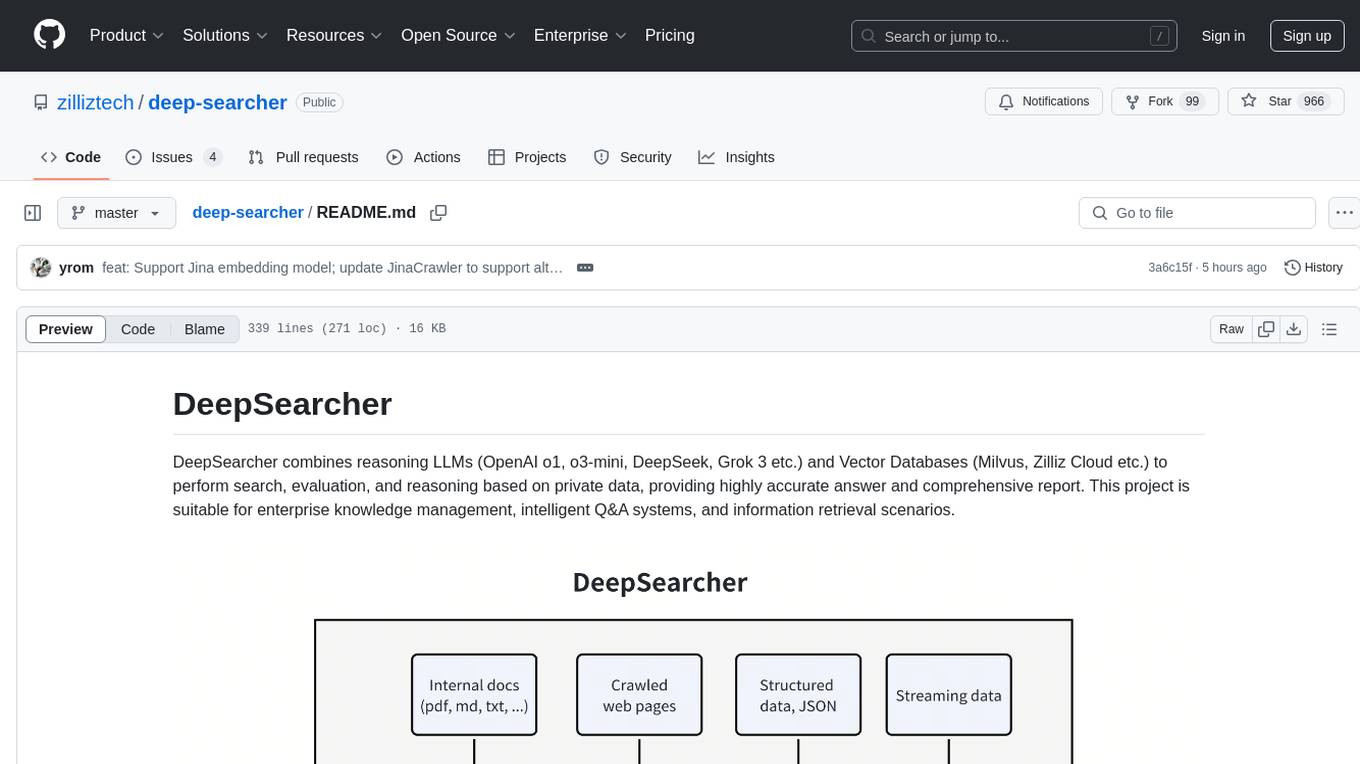
DeepSearcher is a tool that combines reasoning LLMs and Vector Databases to perform search, evaluation, and reasoning based on private data. It is suitable for enterprise knowledge management, intelligent Q&A systems, and information retrieval scenarios. The tool maximizes the utilization of enterprise internal data while ensuring data security, supports multiple embedding models, and provides support for multiple LLMs for intelligent Q&A and content generation. It also includes features like private data search, vector database management, and document loading with web crawling capabilities under development.
Lumos
Lumos is a Chrome extension powered by a local LLM co-pilot for browsing the web. It allows users to summarize long threads, news articles, and technical documentation. Users can ask questions about reviews and product pages. The tool requires a local Ollama server for LLM inference and embedding database. Lumos supports multimodal models and file attachments for processing text and image content. It also provides options to customize models, hosts, and content parsers. The extension can be easily accessed through keyboard shortcuts and offers tools for automatic invocation based on prompts.
FlashLearn
FlashLearn is a tool that provides a simple interface and orchestration for incorporating Agent LLMs into workflows and ETL pipelines. It allows data transformations, classifications, summarizations, rewriting, and custom multi-step tasks using LLMs. Each step and task has a compact JSON definition, making pipelines easy to understand and maintain. FlashLearn supports LiteLLM, Ollama, OpenAI, DeepSeek, and other OpenAI-compatible clients.
aiavatarkit
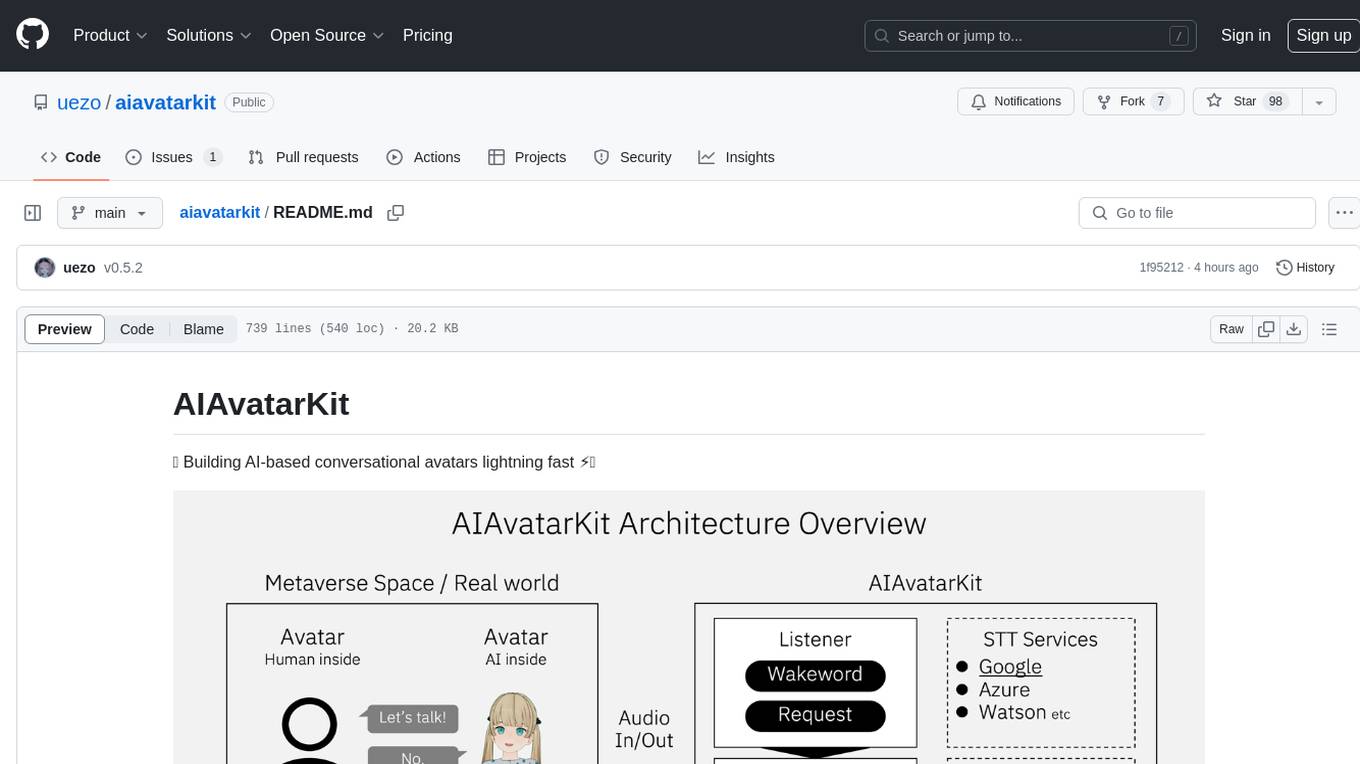
AIAvatarKit is a tool for building AI-based conversational avatars quickly. It supports various platforms like VRChat and cluster, along with real-world devices. The tool is extensible, allowing unlimited capabilities based on user needs. It requires VOICEVOX API, Google or Azure Speech Services API keys, and Python 3.10. Users can start conversations out of the box and enjoy seamless interactions with the avatars.
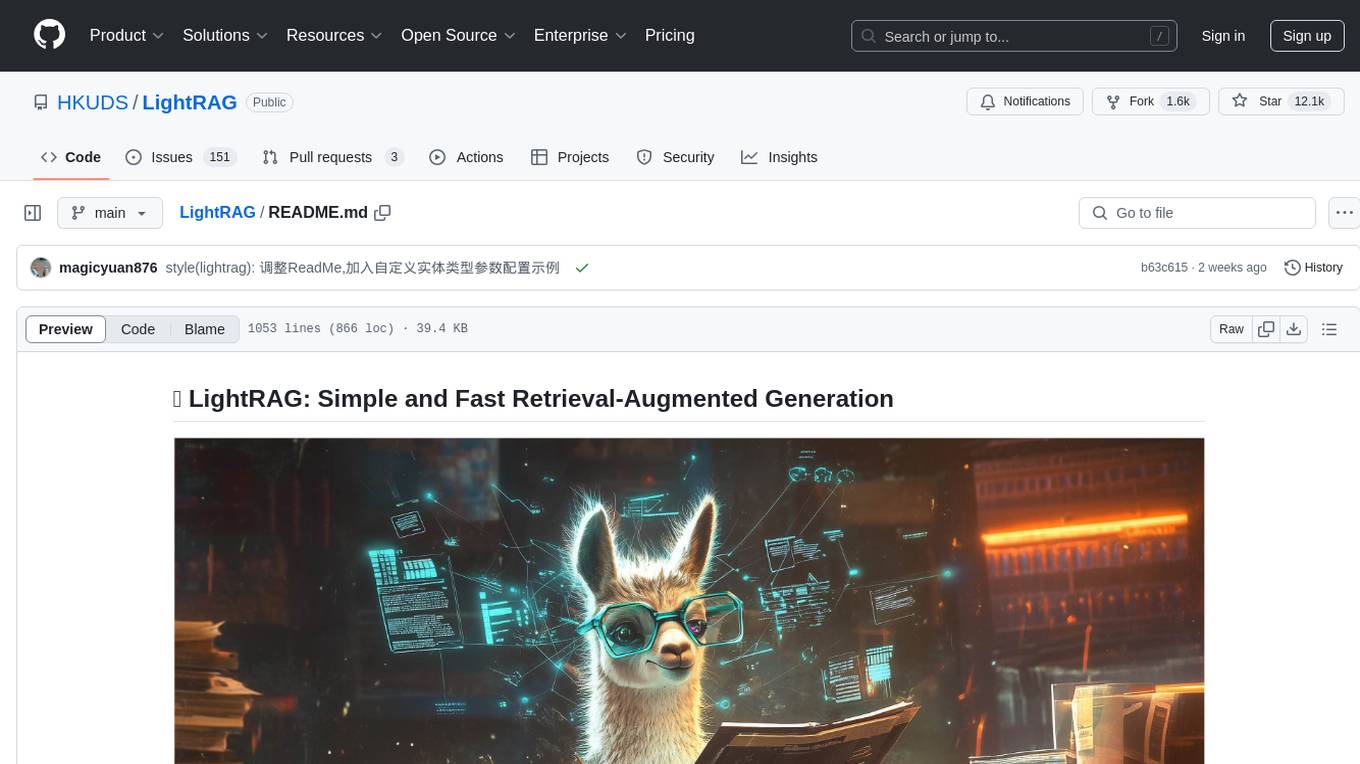
LightRAG
LightRAG is a repository hosting the code for LightRAG, a system that supports seamless integration of custom knowledge graphs, Oracle Database 23ai, Neo4J for storage, and multiple file types. It includes features like entity deletion, batch insert, incremental insert, and graph visualization. LightRAG provides an API server implementation for RESTful API access to RAG operations, allowing users to interact with it through HTTP requests. The repository also includes evaluation scripts, code for reproducing results, and a comprehensive code structure.
sonarqube-mcp-server
The SonarQube MCP Server is a Model Context Protocol (MCP) server that enables seamless integration with SonarQube Server or Cloud for code quality and security. It supports the analysis of code snippets directly within the agent context. The server provides various tools for analyzing code, managing issues, accessing metrics, and interacting with SonarQube projects. It also supports advanced features like dependency risk analysis, enterprise portfolio management, and system health checks. The server can be configured for different transport modes, proxy settings, and custom certificates. Telemetry data collection can be disabled if needed.
sparkle
Sparkle is a tool that streamlines the process of building AI-driven features in applications using Large Language Models (LLMs). It guides users through creating and managing agents, defining tools, and interacting with LLM providers like OpenAI. Sparkle allows customization of LLM provider settings, model configurations, and provides a seamless integration with Sparkle Server for exposing agents via an OpenAI-compatible chat API endpoint.
typst-mcp
Typst MCP Server is an implementation of the Model Context Protocol (MCP) that facilitates interaction between AI models and Typst, a markup-based typesetting system. The server offers tools for converting between LaTeX and Typst, validating Typst syntax, and generating images from Typst code. It provides functions such as listing documentation chapters, retrieving specific chapters, converting LaTeX snippets to Typst, validating Typst syntax, and rendering Typst code to images. The server is designed to assist Language Model Managers (LLMs) in handling Typst-related tasks efficiently and accurately.
For similar tasks
Overture
Overture is a tool designed to visualize and approve AI coding agents' plans before code execution. It intercepts the planning phase of AI agents and presents it as an interactive visual flowchart, allowing users to see the complete plan, view details of each step, attach context, choose between approaches, and monitor execution in real-time. By using Overture, users can prevent wasted tokens, time, and frustration caused by misunderstood requests and unapproved code. The tool works with various AI coding agents and enhances the planning process by providing a clear and comprehensive overview of the proposed code execution.

airflow
Apache Airflow (or simply Airflow) is a platform to programmatically author, schedule, and monitor workflows. When workflows are defined as code, they become more maintainable, versionable, testable, and collaborative. Use Airflow to author workflows as directed acyclic graphs (DAGs) of tasks. The Airflow scheduler executes your tasks on an array of workers while following the specified dependencies. Rich command line utilities make performing complex surgeries on DAGs a snap. The rich user interface makes it easy to visualize pipelines running in production, monitor progress, and troubleshoot issues when needed.
MateCat
Matecat is an enterprise-level, web-based CAT tool designed to make post-editing and outsourcing easy and to provide a complete set of features to manage and monitor translation projects.
daydreams
Daydreams is a generative agent library designed for playing onchain games by injecting context. It is chain agnostic and allows users to perform onchain tasks, including playing any onchain game. The tool is lightweight and powerful, enabling users to define game context, register actions, set goals, monitor progress, and integrate with external agents. Daydreams aims to be 'lite' and 'composable', dynamically generating code needed to play games. It is currently in pre-alpha stage, seeking feedback and collaboration for further development.
WaterCrawl
WaterCrawl is a powerful web application that uses Python, Django, Scrapy, and Celery to crawl web pages and extract relevant data. It provides advanced web crawling and scraping capabilities, a powerful search engine, multi-language support, asynchronous processing, REST API with OpenAPI, rich ecosystem integrations, self-hosted and open-source options, and advanced results handling. The tool allows users to crawl websites with customizable options, search for relevant content across the web, monitor real-time progress of crawls, and process search results with customizable parameters.
For similar jobs
sweep
Sweep is an AI junior developer that turns bugs and feature requests into code changes. It automatically handles developer experience improvements like adding type hints and improving test coverage.
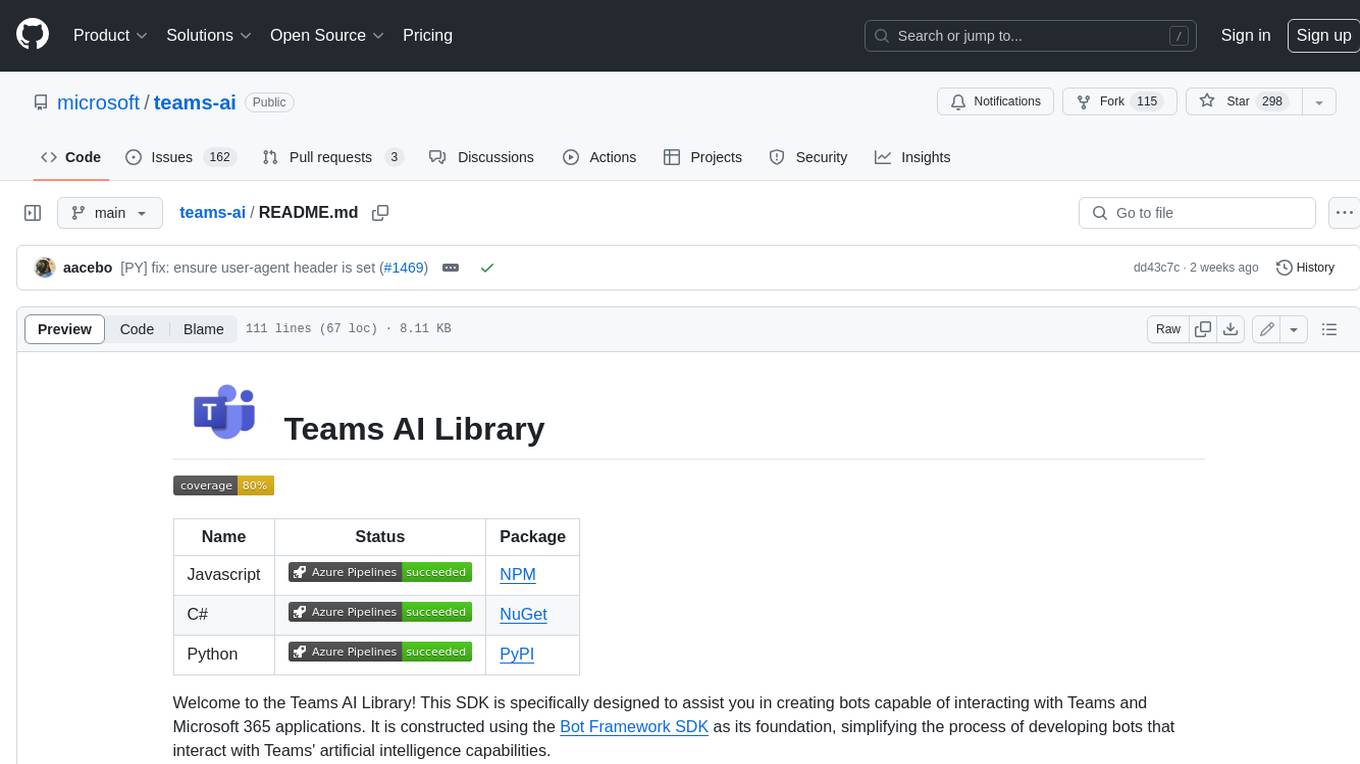
teams-ai
The Teams AI Library is a software development kit (SDK) that helps developers create bots that can interact with Teams and Microsoft 365 applications. It is built on top of the Bot Framework SDK and simplifies the process of developing bots that interact with Teams' artificial intelligence capabilities. The SDK is available for JavaScript/TypeScript, .NET, and Python.
ai-guide
This guide is dedicated to Large Language Models (LLMs) that you can run on your home computer. It assumes your PC is a lower-end, non-gaming setup.
classifai
Supercharge WordPress Content Workflows and Engagement with Artificial Intelligence. Tap into leading cloud-based services like OpenAI, Microsoft Azure AI, Google Gemini and IBM Watson to augment your WordPress-powered websites. Publish content faster while improving SEO performance and increasing audience engagement. ClassifAI integrates Artificial Intelligence and Machine Learning technologies to lighten your workload and eliminate tedious tasks, giving you more time to create original content that matters.
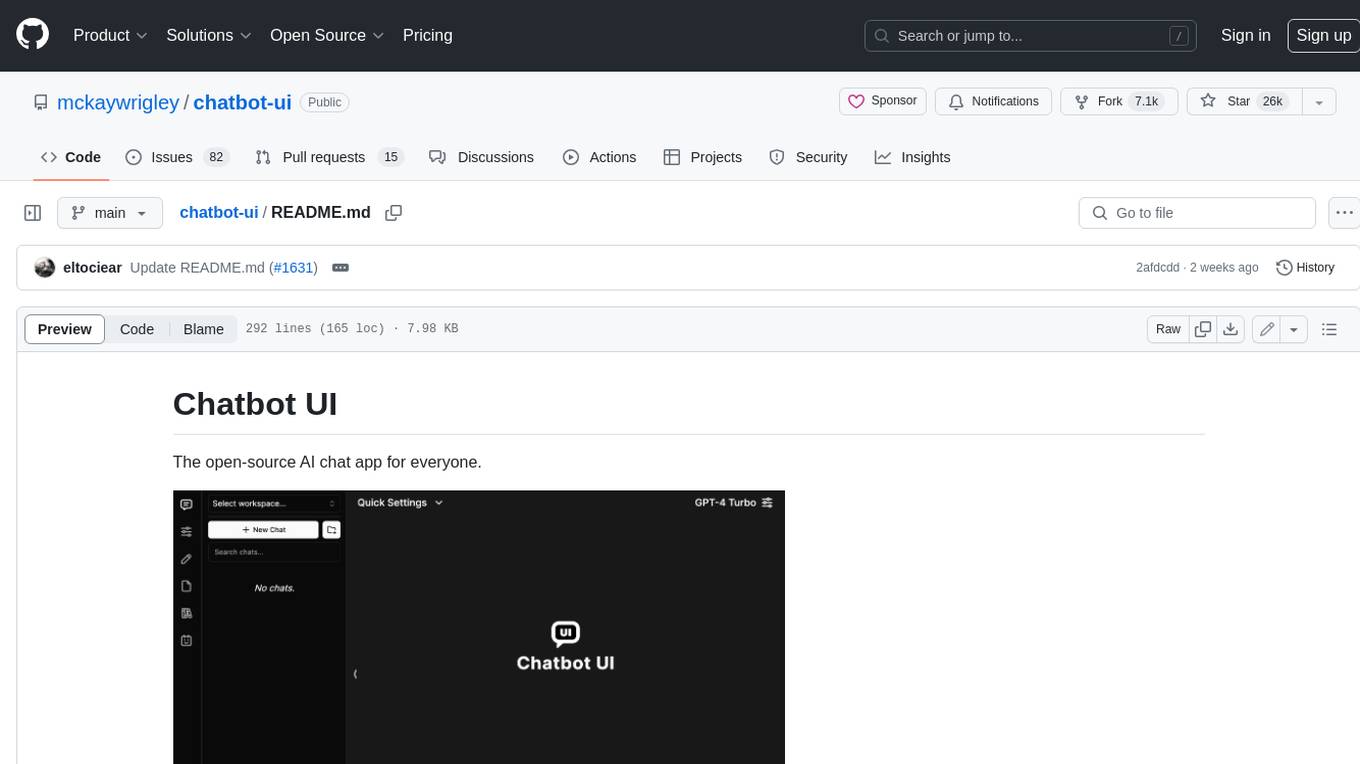
chatbot-ui
Chatbot UI is an open-source AI chat app that allows users to create and deploy their own AI chatbots. It is easy to use and can be customized to fit any need. Chatbot UI is perfect for businesses, developers, and anyone who wants to create a chatbot.
BricksLLM
BricksLLM is a cloud native AI gateway written in Go. Currently, it provides native support for OpenAI, Anthropic, Azure OpenAI and vLLM. BricksLLM aims to provide enterprise level infrastructure that can power any LLM production use cases. Here are some use cases for BricksLLM: * Set LLM usage limits for users on different pricing tiers * Track LLM usage on a per user and per organization basis * Block or redact requests containing PIIs * Improve LLM reliability with failovers, retries and caching * Distribute API keys with rate limits and cost limits for internal development/production use cases * Distribute API keys with rate limits and cost limits for students
uAgents
uAgents is a Python library developed by Fetch.ai that allows for the creation of autonomous AI agents. These agents can perform various tasks on a schedule or take action on various events. uAgents are easy to create and manage, and they are connected to a fast-growing network of other uAgents. They are also secure, with cryptographically secured messages and wallets.
griptape
Griptape is a modular Python framework for building AI-powered applications that securely connect to your enterprise data and APIs. It offers developers the ability to maintain control and flexibility at every step. Griptape's core components include Structures (Agents, Pipelines, and Workflows), Tasks, Tools, Memory (Conversation Memory, Task Memory, and Meta Memory), Drivers (Prompt and Embedding Drivers, Vector Store Drivers, Image Generation Drivers, Image Query Drivers, SQL Drivers, Web Scraper Drivers, and Conversation Memory Drivers), Engines (Query Engines, Extraction Engines, Summary Engines, Image Generation Engines, and Image Query Engines), and additional components (Rulesets, Loaders, Artifacts, Chunkers, and Tokenizers). Griptape enables developers to create AI-powered applications with ease and efficiency.