


wtffmpeg
a toy REPL that has a local llm spit out ffmpeg commands from natural language prompts and turns out to be surprisngly useful
Stars: 322
wtffmpeg is a command-line tool that uses a Large Language Model (LLM) to translate plain-English descriptions of video or audio tasks into actual, executable ffmpeg commands. It aims to streamline the process of generating ffmpeg commands by allowing users to describe what they want to do in natural language, review the generated command, optionally edit it, and then decide whether to run it. The tool provides an interactive REPL interface where users can input their commands, retain conversational context, and history, and control the level of interactivity. wtffmpeg is designed to assist users in efficiently working with ffmpeg commands, reducing the need to search for solutions, read lengthy explanations, and manually adjust commands.
README:
without the chat UI inconvenience
A snapshot of v0.1.0 was tagged as 'alpha' from the main branch. If you don't want to switch to the current (as of Feb 2026) beta release, you can pull that 'alpha' tagged release, or download tarballs or zips of it from github.
- The old
-i/ “interactive mode” is now the default. - Running
wtffwith no arguments drops you straight into a REPL. - This is intentional. A command-line tool should behave like one.
If you previously used wtff "some prompt": that still works, but now it preloads context and then drops you into the REPL instead of exiting immediately. If you truly want a single-shot, non-interactive invocation, there is a flag for that (see below).
wtffmpeg is a command-line tool that uses a Large Language Model (LLM) to translate plain-English descriptions of video or audio tasks into actual, executable ffmpeg commands.
It exists to eliminate this workflow:
- Search Stack Overflow
- Read a 900-word explanation
- Copy/paste a command
- Fix three flags
- Repeat. (And repeat the entire workflow the next time you need to do something new.)
Instead, you say what you want, review the generated command, optionally edit it, and then decide whether to run it.
The command is the point. The REPL was the intent. Truth is, that even as a capable long-time user of ffmpeg, even when I have historically arrived at very complicated ffmpeg command-lines or piped-together chains of commands, or long batches of them intersperse throughout bash logic, there are very few things I get right every tiime.
ffmpeg usage is often very much a process of running many different almost right commands, and altering the input options and flags and varying them until arriving at one or more commands that will no doubt be preserved in text documents or shell scripts for the user to refer to later.
It is often the case that I will spend a lot of time learning how (and how not) to accomplish some specific thing , and then never need to do that exact thing again.
So, if I am honest, I will admit that every ffmpeg session that accomplishes anything useful or meaningful, is already an exercise in up-arrow, command-history editing, and evolving mutating things you know how to accomplish, until you eventually arrive at a way to accomplish the thing you set out to do. So, if I ackowledge that is true, then using a REPL for ffmpeg that is often correct, often nearly correct, "learning" and changing tactics throughout the process seems a natural fit.
ffmpeg usage, for me, is already very non-deterministic. ffmpeg is just enormously powerful, and its list of capabilities and ways to affect their outcome is immense.
wtffmpeg is an auxillary tool for using ffmpeg. The ability of your command history and your knowledge, to couple directly in a command-line interface, while the model's responses are shaped and improved throughout your experimental session, actually makes this thing I made as a joke into something I now haave an obligation to improve and maintain because - approve of it on moral grounds or not, be offended by it on intellevtual grounds if you care to be - but ffmpeg cli configurator and experimental command lab assistant is a perfect use case for an LLM.
I initially shipped wwtffmpeg as a tiny REPL app with a huge system prompt that was actual more valuable as a cheat sheet than a generalizable input for LLMs to "be good at ffmpeg".
It by default used Phi, and then slowly and inadvertantly through trial and error, I arrived at system prompt was a necessary artifact of model capability constraints, and served essentially as finetuning by transcript. For a small local model. Because doing so was simultaneously ludicrous and undeniably useful.
With the updates to this branch, the default system prompt could likely be a hindrance to a SoTA model. This is why it is being retired to a profile labeled "cheatsheet' in this release, along with a handful of other profiles enabled by the new --profile <list>, where is a plain-text file pointed to by an avsolute path, or a "profile name" if you want to use a profile from youe wtffmpeg profile directory. Anyway, some (een the v0.1.0 Phi-tailored joke of a prompt) are shipped in the repo, but in the end it's just text, so you are free to use whatever you choose.
$ wtff "convert test_pattern.mp4 to a gif"

--- Generated ffmpeg command ---
ffmpeg -i test_pattern.mp4 -vf "fps=10,scale=320:-1:flags=lanczos" output.gif
-------------------------------
Execute? [y/N], (c)opy to clipboard:
If you say y, it runs. If you say c, it copies. If you say anything else, nothing happens.
You stay in the REPL. As I just stream-of-consciousnesseed a lot of words on the topic of, it's ;iterally the point.
Running
wtff
It drops you into an interactive session where importantly:
- Up/down arrow history works.
- Left/right editing works.
- History is persisted to ~/.wtff_history.
- Each turn builds conversational context unless you tell it not to.
This is the intended interface.
Some people seem to prefer sending their first return stroke to the LLM at the time of command invocation. I don't know why, but to preserve their workflow, you can one-shot your request the way many people seem to do today, which is like:
wtff "turn this directory of PNGs into an mp4 slideshow"
This works, but it is essentially just "preloading your first request to the LLM. You are still dropped into the hopefully now-pleasant REPL workflow.
If you really want single-shot, stateless execution, you can pass --prompt-once
wtff --prompt-once "extract the audio from lecture.mp4"
This does not retain context. It generates once, then:
- prints the command
- optionally copies it
- optionally executes it
- exits
This is intentionally boring and predictable.
By default wtffmpeg's REPL retains conversational context, as well as command history, but you can control or disable tthat.
wtff --context-turns N
where N is a number greater than or equal to zero that represents the number of conversational turns you'd like to keep in context, with 0 effectively making the REPL stateless, and higher numbers imdicating a greater number of pairs of prompt/response (as well as growing to eat more RAM, tokens, etc, and eventually bringing your LLM to a point of struggling to appear coherent, but you are free to set this to whatever number is best for you. It defaults to 12.
When random Internet users were clearly getting more excitement out of wtffmpeg than I was, I tended to accept PR's that were of little obvious value to me, but I accepted someone's initial OPENAI API integrations, and maybe more than one installation method I felt were unnecessary since it has had a pyproject.toml since day one and could be installed then with pip, pipx, or uv, and it would install a stub, in the bin or scripts directory of your system or venv Python path. One patch included a documentation change describing how to symlink wtffmpeg.py into a system path so you can access it by typing wtff from any command-line. That was literally a feature I shipped on day 1 via the setuptools innate scripts mechanism. But, as I said, these people were actually wanting to use wtffmpeg so who am I to deny them joy or explain that the feature was already there and documenteed? shrug
But after I'm now finding auto-generated LLM video slop (it's literally just a screenshot of a browser loading the wtffmpeg github repo browser render of README.md with a low-rent verion of a NotebookLM-style "podcast" for audio. It's funny. And sad. But also someone wrote in a newsletter calling scottvr/wtffmpeg "Repo of the Week". A corporate marketing/tutorial video on how to use their synthetic data and partially-automated model/prompt pairing combination and pricing tool referred kindly to wtffmpeg, and kept a browser tab to the repo open throughout the video. (Sadly, he also showed the aforementioned silly-but-working-on-Phi prompt from wtffmpeg, and unsurprisingly ChatGPT could outperform the wtffmpeg joke-ish prompt with a system prompt that it wrote itself.) But also... and this was surprising: the maker of the video actually went out of his way to acknowledge that in some cases wtffmpeg's ludicrous prompt actually worked better! When tested using Phi. (LOL)
But I digress. Where were we? Oh yes, installation. Just do this:
git clone https://github.com/scottvr/wtffmpeg.git
cd wtffmpeg
pip install -e .
(or pipx, if that's your preference. Or uv pip install if you like. But really, this just works and doesn't need incremental changes to the process. Maybe I will package and toss it up on PyPi, once the modularization refactor is complete. But regardless, just pip install it from source, amd wtff command will just work without any symlinking or special installer support needed. That is to say, that I'm taking the project on again, at least for a bit, and hopefully you will all find it useful. If not, it is open source and you are free to fork it and shape it how you think it should be, but I might argue there are much better and more appropriate projects to fork a new project from, than one that was ludicrous architecture by design and intent, and yet was simultaneously actually useful and fun, while being the most polarizing thing I've ever done on the Internet at large.
These were graciously implemented by someone in the community. Thanks.
- WTFFMPEG_MODEL: You can (but don't have to) specify a model name here. e.g, llama3, gpt-4o, codellama:7b
- WTFFMPEG_LLM_API_URL: Base URL for a local or remote OpenAI-compatible API Defaults to http://localhost:11434 (Ollama)
- WTFFMPEG_OPENAI_API_KEY: What else would this be? :-)
- WTFFMPEG_BEARER_TOKEN: Bearer token for other OpenAI-compatible services.
usage: wtff [options] [prompt]

--model MODEL           Model to use
--api-key KEY           OpenAI API key
--bearer-token TOKEN    Bearer token for compatible APIs
--url URL               Base API URL (OpenAI-compatible)
--prompt-once           Single-shot, non-interactive mode
--context-turns N       Number of turns of context to retain
-x, -e, --exec          Execute without confirmation
-c, --copy              Copy command to clipboard
There's stil a few to document and a few others I haven't gotten around to implementing yet.
The old -i flag is accepted but ignored. Interactive is the default now.
Lines starting with ! are executed as shell commands:
!ls -lh
!ffprobe input.mp4
These are just for convenience. You cannot, for example, !chdir and actually change your REPL process dir. (Though convenient /cd (slash commands) may be a thing soon.)
wtffmpeg started as something I built to amuse myself. It accidentally turned out to be useful.
It executes commands that can destroy your data if you are careless. Always review generated commands before running them.
YMMV. Use at your own risk. I assume you know what ffmpeg can do.
For Tasks:
Click tags to check more tools for each tasksFor Jobs:
Alternative AI tools for wtffmpeg
Similar Open Source Tools
wtffmpeg
wtffmpeg is a command-line tool that uses a Large Language Model (LLM) to translate plain-English descriptions of video or audio tasks into actual, executable ffmpeg commands. It aims to streamline the process of generating ffmpeg commands by allowing users to describe what they want to do in natural language, review the generated command, optionally edit it, and then decide whether to run it. The tool provides an interactive REPL interface where users can input their commands, retain conversational context, and history, and control the level of interactivity. wtffmpeg is designed to assist users in efficiently working with ffmpeg commands, reducing the need to search for solutions, read lengthy explanations, and manually adjust commands.
yet-another-applied-llm-benchmark
Yet Another Applied LLM Benchmark is a collection of diverse tests designed to evaluate the capabilities of language models in performing real-world tasks. The benchmark includes tests such as converting code, decompiling bytecode, explaining minified JavaScript, identifying encoding formats, writing parsers, and generating SQL queries. It features a dataflow domain-specific language for easily adding new tests and has nearly 100 tests based on actual scenarios encountered when working with language models. The benchmark aims to assess whether models can effectively handle tasks that users genuinely care about.
AnnA_Anki_neuronal_Appendix
AnnA is a Python script designed to create filtered decks in optimal review order for Anki flashcards. It uses Machine Learning / AI to ensure semantically linked cards are reviewed far apart. The script helps users manage their daily reviews by creating special filtered decks that prioritize reviewing cards that are most different from the rest. It also allows users to reduce the number of daily reviews while increasing retention and automatically identifies semantic neighbors for each note.
aicodeguide
AI Code Guide is a comprehensive guide that covers everything you need to know about using AI to help you code or even code for you. It provides insights into the changing landscape of coding with AI, new tools, editors, and practices. The guide aims to consolidate information on AI coding and AI-assisted code generation in one accessible place. It caters to both experienced coders looking to leverage AI tools and beginners interested in 'vibe coding' to build software products. The guide covers various topics such as AI coding practices, different ways to use AI in coding, recommended resources, tools for AI coding, best practices for structuring prompts, and tips for using specific tools like Claude Code.
bidirectional_streaming_ai_voice
This repository contains Python scripts that enable two-way voice conversations with Anthropic Claude, utilizing ElevenLabs for text-to-speech, Faster-Whisper for speech-to-text, and Pygame for audio playback. The tool operates by transcribing human audio using Faster-Whisper, sending the transcription to Anthropic Claude for response generation, and converting the LLM's response into audio using ElevenLabs. The audio is then played back through Pygame, allowing for a seamless and interactive conversation between the user and the AI. The repository includes variations of the main script to support different operating systems and configurations, such as using CPU transcription on Linux or employing the AssemblyAI API instead of Faster-Whisper.
discourse-chatbot
The discourse-chatbot is an original AI chatbot for Discourse forums that allows users to converse with the bot in posts or chat channels. Users can customize the character of the bot, enable RAG mode for expert answers, search Wikipedia, news, and Google, provide market data, perform accurate math calculations, and experiment with vision support. The bot uses cutting-edge Open AI API and supports Azure and proxy server connections. It includes a quota system for access management and can be used in RAG mode or basic bot mode. The setup involves creating embeddings to make the bot aware of forum content and setting up bot access permissions based on trust levels. Users must obtain an API token from Open AI and configure group quotas to interact with the bot. The plugin is extensible to support other cloud bots and content search beyond the provided set.
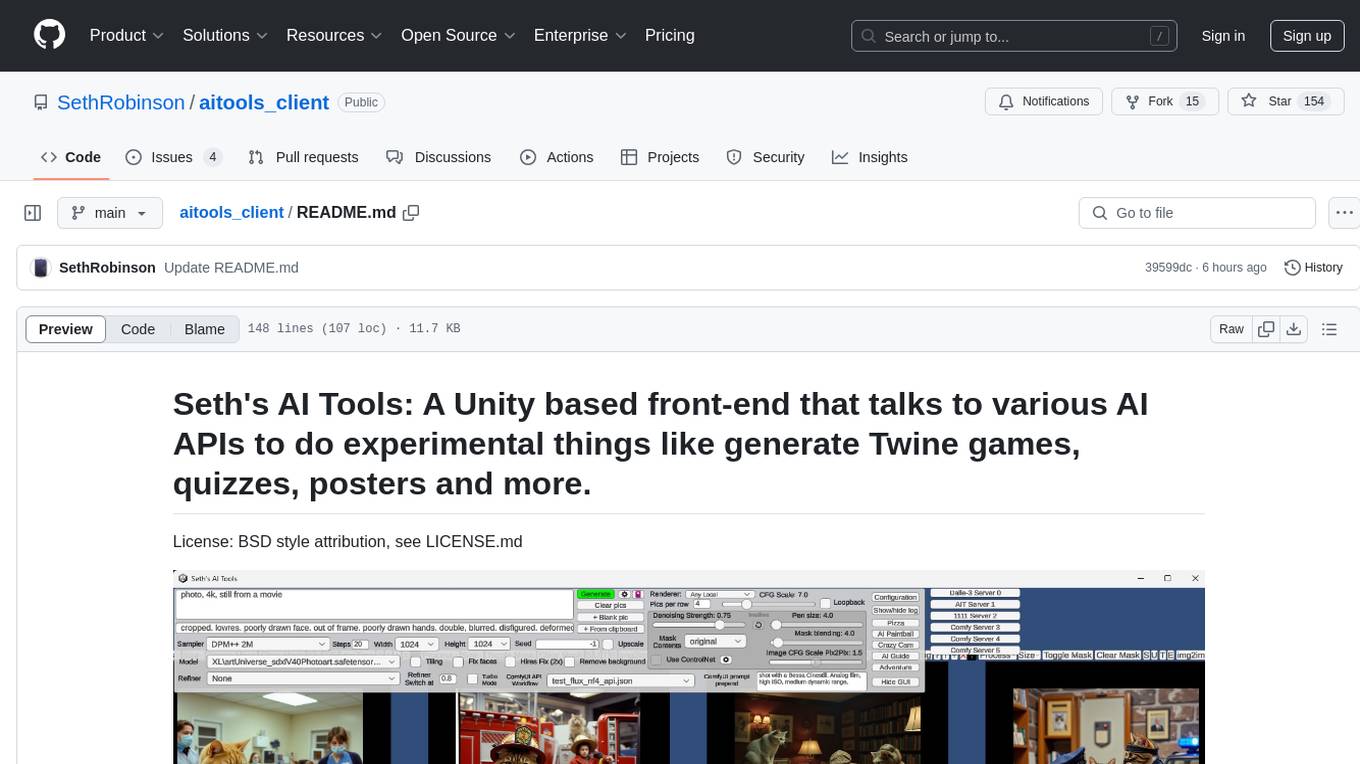
aitools_client
Seth's AI Tools is a Unity-based front-end that interfaces with various AI APIs to perform tasks such as generating Twine games, quizzes, posters, and more. The tool is a native Windows application that supports features like live update integration with image editors, text-to-image conversion, image processing, mask painting, and more. It allows users to connect to multiple servers for fast generation using GPUs and offers a neat workflow for evolving images in real-time. The tool respects user privacy by operating locally and includes built-in games and apps to test AI/SD capabilities. Additionally, it features an AI Guide for creating motivational posters and illustrated stories, as well as an Adventure mode with presets for generating web quizzes and Twine game projects.
ClipboardConqueror
Clipboard Conqueror is a multi-platform omnipresent copilot alternative. Currently requiring a kobold united or openAI compatible back end, this software brings powerful LLM based tools to any text field, the universal copilot you deserve. It simply works anywhere. No need to sign in, no required key. Provided you are using local AI, CC is a data secure alternative integration provided you trust whatever backend you use. *Special thank you to the creators of KoboldAi, KoboldCPP, llamma, openAi, and the communities that made all this possible to figure out.
whisper_dictation
Whisper Dictation is a fast, offline, privacy-focused tool for voice typing, AI voice chat, voice control, and translation. It allows hands-free operation, launching and controlling apps, and communicating with OpenAI ChatGPT or a local chat server. The tool also offers the option to speak answers out loud and draw pictures. It includes client and server versions, inspired by the Star Trek series, and is designed to keep data off the internet and confidential. The project is optimized for dictation and translation tasks, with voice control capabilities and AI image generation using stable-diffusion API.
WeeaBlind
Weeablind is a program that uses modern AI speech synthesis, diarization, language identification, and voice cloning to dub multi-lingual media and anime. It aims to create a pleasant alternative for folks facing accessibility hurdles such as blindness, dyslexia, learning disabilities, or simply those that don't enjoy reading subtitles. The program relies on state-of-the-art technologies such as ffmpeg, pydub, Coqui TTS, speechbrain, and pyannote.audio to analyze and synthesize speech that stays in-line with the source video file. Users have the option of dubbing every subtitle in the video, setting the start and end times, dubbing only foreign-language content, or full-blown multi-speaker dubbing with speaking rate and volume matching.
kobold_assistant
Kobold-Assistant is a fully offline voice assistant interface to KoboldAI's large language model API. It can work online with the KoboldAI horde and online speech-to-text and text-to-speech models. The assistant, called Jenny by default, uses the latest coqui 'jenny' text to speech model and openAI's whisper speech recognition. Users can customize the assistant name, speech-to-text model, text-to-speech model, and prompts through configuration. The tool requires system packages like GCC, portaudio development libraries, and ffmpeg, along with Python >=3.7, <3.11, and runs on Ubuntu/Debian systems. Users can interact with the assistant through commands like 'serve' and 'list-mics'.
sorcery
Sorcery is a SillyTavern extension that allows AI characters to interact with the real world by executing user-defined scripts at specific events in the chat. It is easy to use and does not require a specially trained function calling model. Sorcery can be used to control smart home appliances, interact with virtual characters, and perform various tasks in the chat environment. It works by injecting instructions into the system prompt and intercepting markers to run associated scripts, providing a seamless user experience.
aiohomekit
aiohomekit is a Python library that implements the HomeKit protocol for controlling HomeKit accessories using asyncio. It is primarily used with Home Assistant, targeting the same versions of Python and following their code standards. The library is still under development and does not offer API guarantees yet. It aims to match the behavior of real HAP controllers, even when not strictly specified, and works around issues like JSON formatting, boolean encoding, header sensitivity, and TCP packet splitting. aiohomekit is primarily tested with Phillips Hue and Eve Extend bridges via Home Assistant, but is known to work with many more devices. It does not support BLE accessories and is intended for client-side use only.

local-chat
LocalChat is a simple, easy-to-set-up, and open-source local AI chat tool that allows users to interact with generative language models on their own computers without transmitting data to a cloud server. It provides a chat-like interface for users to experience ChatGPT-like behavior locally, ensuring GDPR compliance and data privacy. Users can download LocalChat for macOS, Windows, or Linux to chat with open-weight generative language models.
iris-llm
iris-llm is a personal project aimed at creating an Intelligent Residential Integration System (IRIS) with a voice interface to local language models or GPT. It provides options for chat engines, text-to-speech engines, speech-to-text engines, feedback sounds, and push-to-talk or wake word features. The tool is still in early development and serves as a tutorial for Python coders interested in working with language models.
dota2ai
The Dota2 AI Framework project aims to provide a framework for creating AI bots for Dota2, focusing on coordination and teamwork. It offers a LUA sandbox for scripting, allowing developers to code bots that can compete in standard matches. The project acts as a proxy between the game and a web service through JSON objects, enabling bots to perform actions like moving, attacking, casting spells, and buying items. It encourages contributions and aims to enhance the AI capabilities in Dota2 modding.
For similar tasks
wtffmpeg
wtffmpeg is a command-line tool that uses a Large Language Model (LLM) to translate plain-English descriptions of video or audio tasks into actual, executable ffmpeg commands. It aims to streamline the process of generating ffmpeg commands by allowing users to describe what they want to do in natural language, review the generated command, optionally edit it, and then decide whether to run it. The tool provides an interactive REPL interface where users can input their commands, retain conversational context, and history, and control the level of interactivity. wtffmpeg is designed to assist users in efficiently working with ffmpeg commands, reducing the need to search for solutions, read lengthy explanations, and manually adjust commands.
AIO-Video-Downloader
AIO Video Downloader is an open-source Android application built on the robust yt-dlp backend with the help of youtubedl-android. It aims to be the most powerful download manager available, offering a clean and efficient interface while unlocking advanced downloading capabilities with minimal setup. With support for 1000+ sites and virtually any downloadable content across the web, AIO delivers a seamless yet powerful experience that balances speed, flexibility, and simplicity.
youwee
Youwee is a modern YouTube video downloader tool built with Tauri and React. It offers features like downloading videos from various platforms, following channels, fetching metadata, live stream support, AI video summary and processing, time range download, batch and playlist downloads, audio extraction, subtitle support, subtitle workshop, post-processing, SponsorBlock, speed limit control, download library, multiple themes, and is fast and lightweight.
FluidFrames.RIFE
FluidFrames.RIFE is a Windows app powered by RIFE AI to create frame-generated and slowmotion videos. It is written in Python and utilizes external packages such as torch, onnxruntime-directml, customtkinter, OpenCV, moviepy, and Nuitka. The app features an elegant GUI, video frame generation at different speeds, video slow motion, video resizing, multiple GPU support, and compatibility with various video formats. Future versions aim to support different GPU types, enhance the GUI, include audio processing, optimize video processing speed, and introduce new features like saving AI-generated frames and supporting different RIFE AI models.
For similar jobs
LLMStack
LLMStack is a no-code platform for building generative AI agents, workflows, and chatbots. It allows users to connect their own data, internal tools, and GPT-powered models without any coding experience. LLMStack can be deployed to the cloud or on-premise and can be accessed via HTTP API or triggered from Slack or Discord.
daily-poetry-image
Daily Chinese ancient poetry and AI-generated images powered by Bing DALL-E-3. GitHub Action triggers the process automatically. Poetry is provided by Today's Poem API. The website is built with Astro.
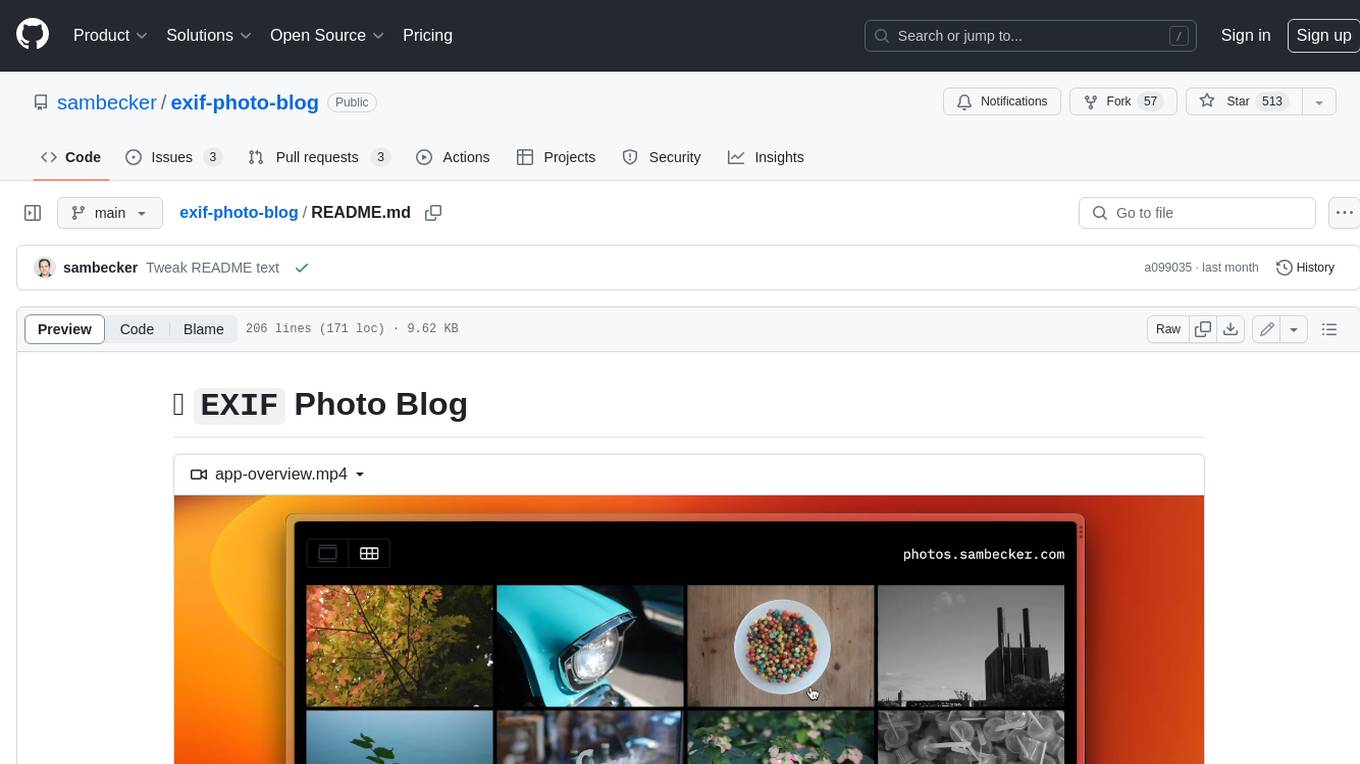
exif-photo-blog
EXIF Photo Blog is a full-stack photo blog application built with Next.js, Vercel, and Postgres. It features built-in authentication, photo upload with EXIF extraction, photo organization by tag, infinite scroll, light/dark mode, automatic OG image generation, a CMD-K menu with photo search, experimental support for AI-generated descriptions, and support for Fujifilm simulations. The application is easy to deploy to Vercel with just a few clicks and can be customized with a variety of environment variables.
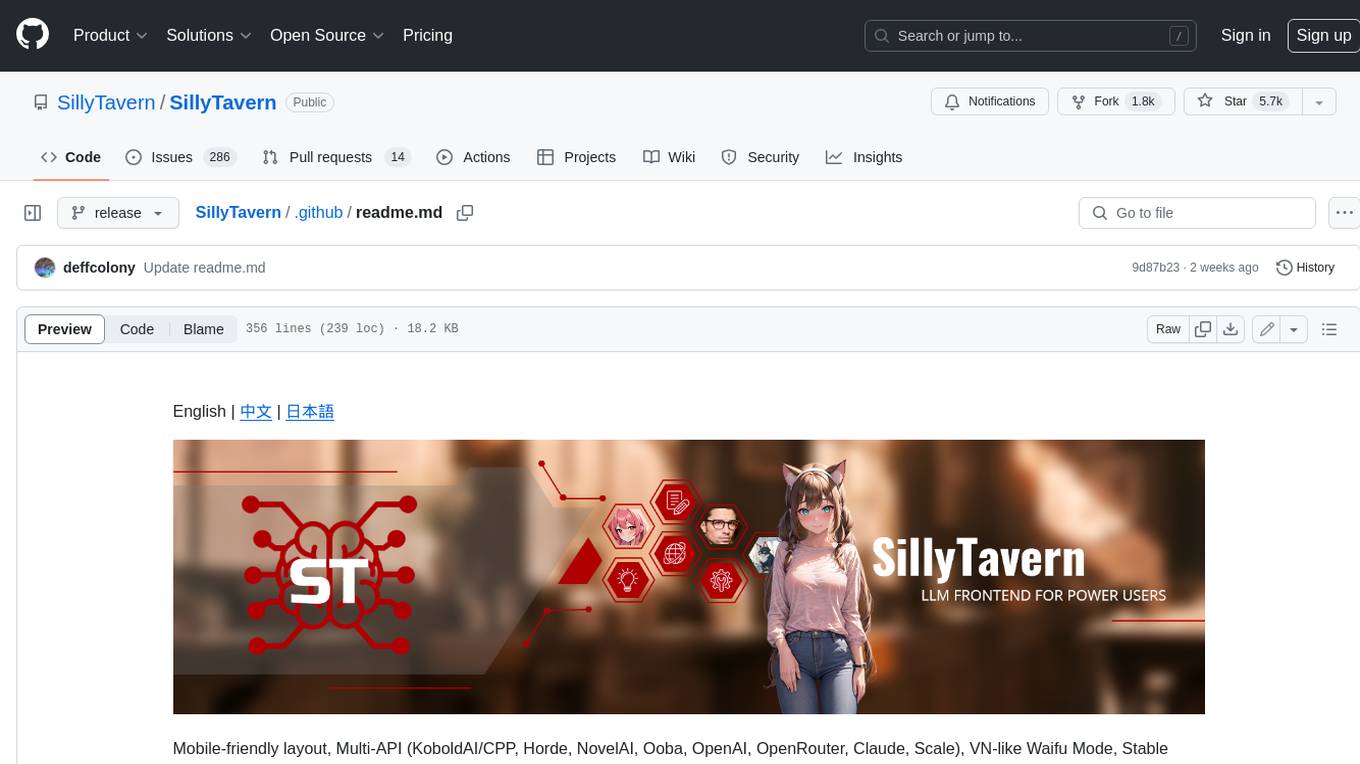
SillyTavern
SillyTavern is a user interface you can install on your computer (and Android phones) that allows you to interact with text generation AIs and chat/roleplay with characters you or the community create. SillyTavern is a fork of TavernAI 1.2.8 which is under more active development and has added many major features. At this point, they can be thought of as completely independent programs.
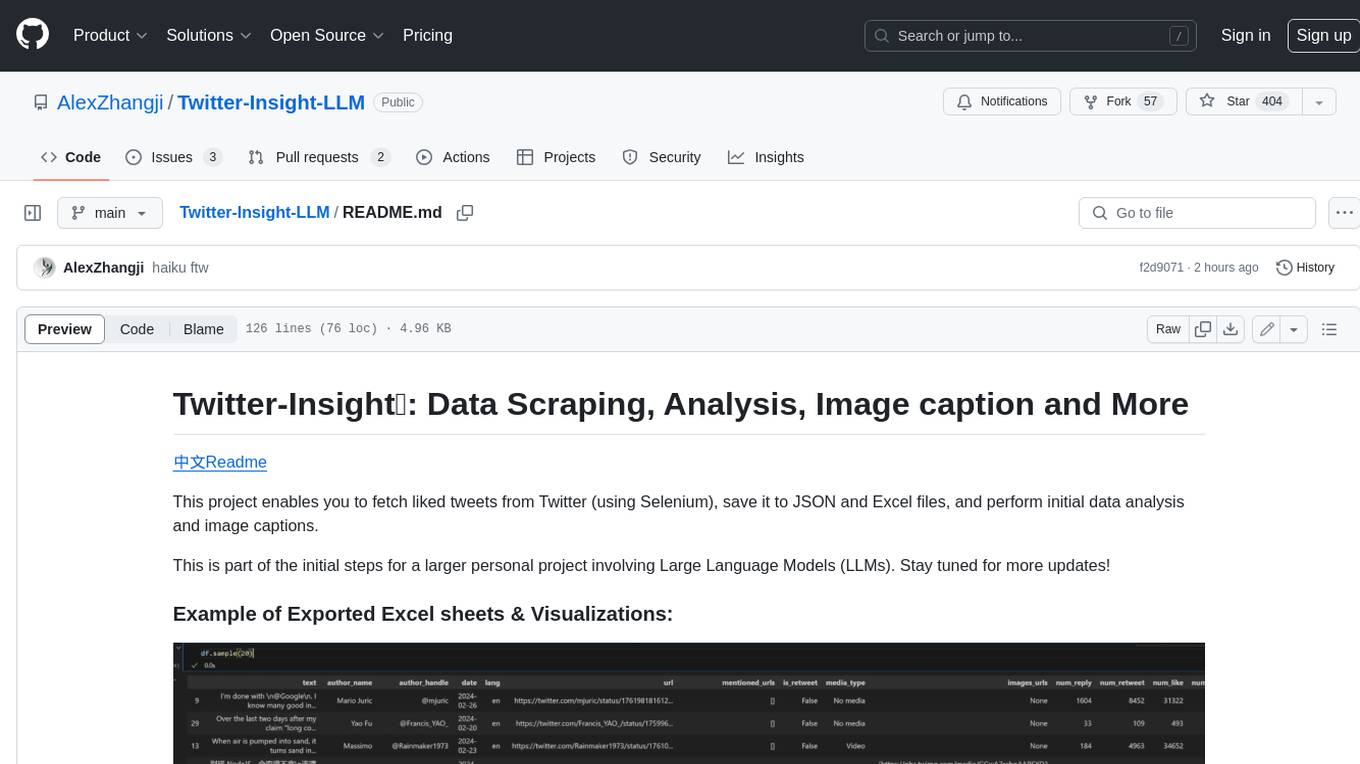
Twitter-Insight-LLM
This project enables you to fetch liked tweets from Twitter (using Selenium), save it to JSON and Excel files, and perform initial data analysis and image captions. This is part of the initial steps for a larger personal project involving Large Language Models (LLMs).
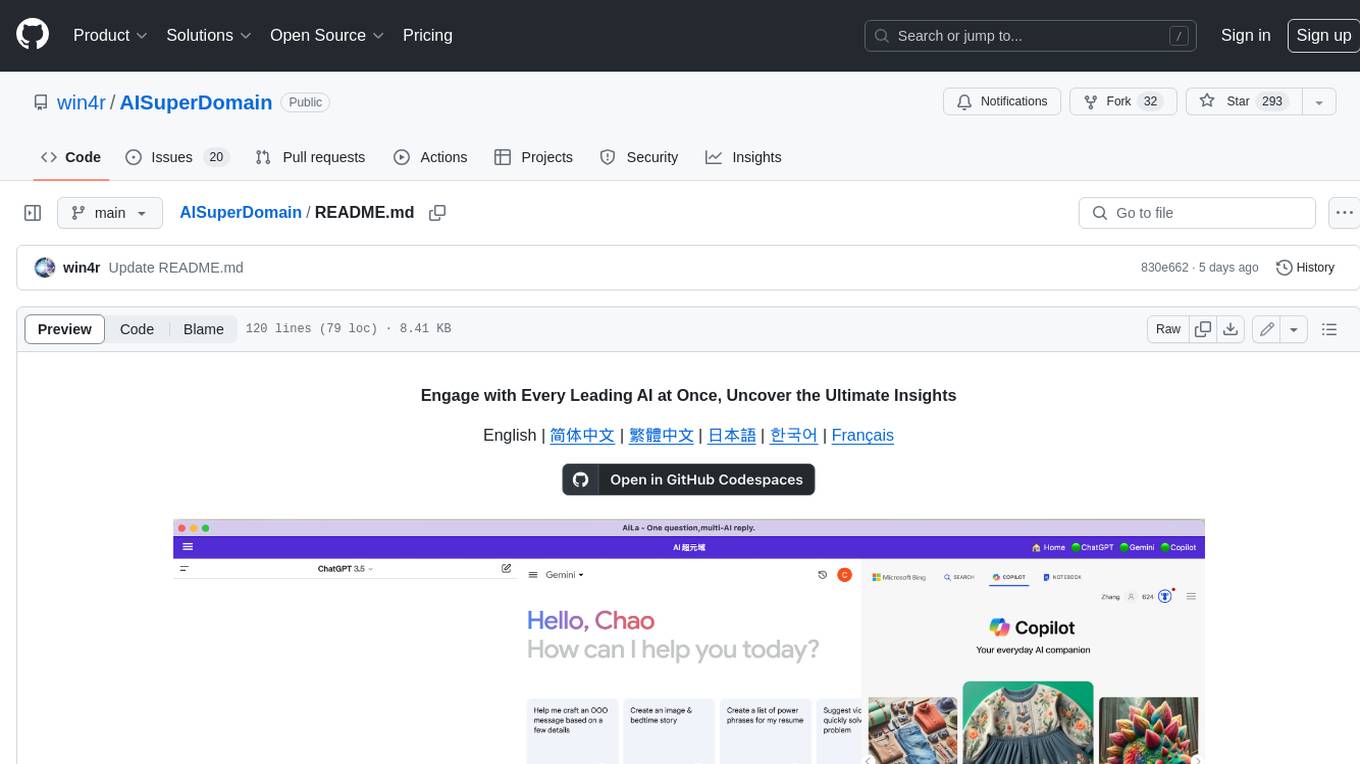
AISuperDomain
Aila Desktop Application is a powerful tool that integrates multiple leading AI models into a single desktop application. It allows users to interact with various AI models simultaneously, providing diverse responses and insights to their inquiries. With its user-friendly interface and customizable features, Aila empowers users to engage with AI seamlessly and efficiently. Whether you're a researcher, student, or professional, Aila can enhance your AI interactions and streamline your workflow.
ChatGPT-On-CS
This project is an intelligent dialogue customer service tool based on a large model, which supports access to platforms such as WeChat, Qianniu, Bilibili, Douyin Enterprise, Douyin, Doudian, Weibo chat, Xiaohongshu professional account operation, Xiaohongshu, Zhihu, etc. You can choose GPT3.5/GPT4.0/ Lazy Treasure Box (more platforms will be supported in the future), which can process text, voice and pictures, and access external resources such as operating systems and the Internet through plug-ins, and support enterprise AI applications customized based on their own knowledge base.
obs-localvocal
LocalVocal is a live-streaming AI assistant plugin for OBS that allows you to transcribe audio speech into text and perform various language processing functions on the text using AI / LLMs (Large Language Models). It's privacy-first, with all data staying on your machine, and requires no GPU, cloud costs, network, or downtime.