


nexus-ai-chat-importer
None
Stars: 130
Nexus AI Chat Importer is a tool designed to streamline the process of importing chat data into the Nexus platform. It provides a user-friendly interface for uploading chat logs, extracting relevant information, and organizing the data for analysis. With Nexus AI Chat Importer, users can easily import chat conversations from various sources and formats, enabling them to gain valuable insights and improve customer service efficiency.
README:



)

- ⚡ Quickstart - Get up and running in 2 minutes
- 📥 Installation - Install from Community Plugins
- 📤 Export Your Chats - Get your data from ChatGPT/Claude/Le Chat
- 📥 Import Conversations - Quick or selective import
- 📊 Import Reports - Understand what was imported
- 📁 File Organization - Where your files are stored
- 🎨 Conversation Format - How conversations look
- 📎 Attachments - Images, DALL-E, artifacts
- 🤖 Provider Differences - ChatGPT, Claude, Le Chat specifics
- 💻 CLI - Import from command line
- ⚙️ Settings - Customize folders and formatting
- 🔧 Troubleshooting - Common issues and solutions
- ✨ What's New - v1.4.0 features
- ☕ Support - Help keep this plugin alive
- 📜 License - GPL-3.0
Get started in 2 minutes:
- Install the plugin from Obsidian Community Plugins (search "Nexus AI Chat Importer")
-
Export your chats:
- ChatGPT: Settings → Data controls → Export data → Download ZIP
- Claude: Settings → Privacy → Export data → Download ZIP
- Le Chat: Click your name → Profile → Le Chat: Export → Download
- Import: Click the ribbon icon (chat +) in the left sidebar or use command palette → "Import AI conversations"
- Select your ZIP file(s) → Choose import mode (all or selective)
-
Done! Your conversations are now in
Nexus/Conversations/
💡 First time? The plugin will show you a welcome dialog with helpful links!
Import your AI chat conversations from ChatGPT, Claude, and Le Chat exports into Obsidian as beautifully formatted Markdown files.
- Multi-provider support (ChatGPT, Claude, Le Chat)
- Selective import with interactive preview
- Smart deduplication across multiple ZIPs
- Attachment handling — images, documents, DALL-E, artifacts (provider-dependent)
- Claude artifact versioning
- LaTeX math support
- CLI for automation and headless setups
- Beautiful formatting with role-specific callouts
- Detailed import reports
- International date support
- 🤖 Le Chat (Mistral AI) — Full support with attachments, references, and citations
- 💻 CLI for Bulk Import — Import from the terminal without opening Obsidian (see docs)
- Human-readable artifact folders — Claude artifacts now stored in folders named after the conversation, not UUIDs
- LaTeX math — Math equations are properly handled and converted to Obsidian syntax
- Large archive support — All providers now handle very large exports reliably
- Multiple attachments in a single message no longer break out of the parent callout
- Claude artifacts render correctly for both old and new export formats
- Mobile artifact placeholders no longer show raw text
- Binary files referenced by Claude scripts no longer saved as empty artifacts
Upgrading from a previous version triggers required migration tasks automatically.
For v1.3.x and earlier release notes, see RELEASE_NOTES.md
I'm working on Nexus projects full-time while unemployed and dealing with health issues.
Over 6,500 downloads so far! Thank you to everyone who has supported this project.
If this plugin makes your life easier, a donation would mean the world to me and help keep development going strong.

Why support?
- 🚀 Faster development - More time for features and improvements
- 🐛 Better support - Quicker bug fixes and responses
- 💡 New features - Your suggestions become reality
- ❤️ Motivation - Shows that my work is appreciated
- 🎯 Selective Import: Choose exactly which conversations to import with interactive preview
- 💬 Multi-Provider Support: Full support for ChatGPT, Claude, and Le Chat conversations
- 🎨 Beautiful Formatting: Custom callouts with role-specific colors and icons
- 📎 Complete Attachment Handling: Images, documents, DALL-E creations with prompts
- 🎨 Claude Artifact Versioning: Separate files for each artifact modification
- 📊 Detailed Reports: Comprehensive import statistics with per-file breakdown
- 🗂️ Flexible Organization: Separate folders for conversations, attachments, and reports
- 🌍 International Support: ISO 8601 timestamps, works with all locales
- ⏱️ Progress Tracking: Real-time feedback during large imports
- 🔄 Smart Deduplication: Handles multiple ZIP files without creating duplicates
💡 Tip: Screenshots coming soon! For now, try the plugin yourself - it's free and takes 2 minutes to set up.
From Obsidian Community Plugins (Recommended):
- Open Settings → Community Plugins
- Click Browse and search for "Nexus AI Chat Importer"
- Click Install, then Enable
Manual Installation:
- Download the latest release from GitHub Releases
- Extract files to
.obsidian/plugins/nexus-ai-chat-importer/ - Reload Obsidian and enable the plugin
After installing the plugin:
- Open Settings → Community Plugins → Nexus AI Chat Importer
-
Configure your folders (or keep the defaults):
- Conversations: Where your chat notes will be saved
- Attachments: Where images and files will be stored
- Reports: Where import summaries will be created
-
Configure filename options:
-
Add Date Prefix: Enable to add dates to conversation filenames (e.g.,
2024-01-15 - My Chat.md) -
Date Format: Choose between
YYYY-MM-DD(2024-01-15) orYYYYMMDD(20240115)
-
Add Date Prefix: Enable to add dates to conversation filenames (e.g.,
-
Chose message date format:
- Custom date format If Obsidian Locale is not providing the format you want (i.e. english provides US format MM/DD/YYYY), select the format you prefer. The plugin will apply it to messages in conversations while importing
Good news: The plugin handles everything automatically!
When you upgrade to a new version:
- ✅ Your settings are migrated to the new format
- ✅ Your existing conversations are updated with new features
- ✅ Folders are reorganized if needed (with your permission)
- ✅ A detailed upgrade report shows you what changed
No manual work required - just install and go!
Choose where your files are stored:
-
Conversations Folder: Your chat notes (default:
Nexus/Conversations) -
Attachments Folder: Images, files, and Claude artifacts (default:
Nexus/Attachments) -
Reports Folder: Import summaries (default:
Nexus/Reports)
💡 Tip: You can organize these folders however you like! Put them all together, or spread them across your vault.
Customize how your conversations look:
-
Date Prefix: Add dates to filenames
- ✅ Enabled:
2024-01-15 - My Conversation.md - ❌ Disabled:
My Conversation.md
- ✅ Enabled:
-
Date Format: Choose your style
- With dashes:
2024-01-15 - Without:
20240115
- With dashes:
-
Message Timestamps: Choose how dates appear in messages
- Auto (default): Matches your Obsidian language
- Custom: Pick from ISO 8601, US, European, UK, German, or Japanese
Want to reorganize? No problem!
- Change a folder path in settings
- Click Save
-
Choose what to do:
- ✅ Move files: Everything moves automatically, links stay working
- ❌ Leave files: They stay put (but won't be managed by the plugin anymore)
💡 Pro tip: The plugin is smart - it merges folders instead of overwriting, so your existing files are safe!
ChatGPT:
- Open ChatGPT → Settings → Data Controls → Export data
- Check your email (arrives in a few minutes)
- Download the ZIP file
Claude:
- Open Claude → Settings → Privacy → Export data
- Check your email (arrives in a few minutes)
- Download the ZIP file
Le Chat:
- Click your name → Profile → Le Chat: Export
- Wait for the button to change from "Export" to "Download"
- Click Download to get the ZIP file
Two ways to start:
- Click the ribbon icon (chat +) in the left sidebar, OR
- Press Ctrl/Cmd+P → type "Import AI conversations"
Perfect when you want everything imported fast:
- Select ChatGPT, Claude, or Le Chat
- Choose your ZIP file(s)
- Click Import All
- Done! ✨
Perfect when you want control:
- Select ChatGPT, Claude, or Le Chat
- Choose your ZIP file(s)
- Click Select Conversations
-
Review the list - you'll see:
- 📝 Conversation title and date
- 💬 Number of messages
- 🆕 New / 🔄 Updated / ✅ Already imported
- 📎 Attachments info
-
Filter conversations (optional):
- 🔍 Search by keyword - Type in the search box to filter by title
- 📊 Filter by status - Show only New, Updated, or Already imported
- 📅 Sort - By date, title, or status
-
Select conversations:
- ✅ Check individual conversations
- ✅ Use "Select All" / "Deselect All" buttons
- ✅ Use "Select New Only" to import only new conversations
- Click Import Selected
Cool features:
- ✅ Keyword search - Find conversations by title instantly
- ✅ Smart filtering - Show only what you need
- ✅ Multi-ZIP support - Process multiple exports at once
- ✅ Duplicate detection - Automatically finds duplicates across ZIPs
- ✅ Flexible sorting - Organize by date, title, or status
After every import, you get a beautiful summary report:
What's in it:
- ✅ How many conversations were imported
- ⏱️ How long it took
- 📊 Success rate
- 📎 Attachment statistics
- 🔗 Clickable links to your new conversations
Where to find it: <reports>/<provider>/import-YYYYMMDD-HHMMSS.md
💡 Tip: The report opens automatically when import finishes!
Conversations are organized by provider, year, and month:
<conversations>/
├── <provider>/
│   └── YYYY/
│       └── MM/
│           └── YYYY-MM-DD - conversation-title.md
Example (with date prefix enabled):
<conversations>/chatgpt/2024/01/2024-01-15 - my-conversation.md
<conversations>/claude/2024/02/2024-02-20 - another-chat.md
Example (without date prefix):
<conversations>/chatgpt/2024/01/my-conversation.md
<conversations>/claude/2024/02/another-chat.md
Each conversation note contains:
1. Frontmatter - Rich metadata for Obsidian features:
---
conversation_id: "abc123..."          # Unique identifier
provider: "chatgpt"                   # chatgpt, claude, or lechat
title: "Conversation Title"           # Original title
create_time: "2024-01-15T14:30:22Z"  # Creation timestamp (UTC, ISO 8601)
update_time: "2024-01-15T16:45:10Z"  # Last update timestamp (UTC, ISO 8601)
message_count: 42                     # Total messages
aliases: ["Conversation Title"]       # For linking
---
This metadata enables powerful Obsidian features:
- 🔍 Search & filter by any field
- 📊 Dataview queries for custom dashboards
- 📈 Track statistics across conversations
- 🔗 Link using aliases
2. Header - Title with link to original conversation:
# Conversation Title
[View original conversation](https://chatgpt.com/c/abc123...)Note: If you deleted the conversation online, the link will be dead.
3. Messages - Formatted with custom callouts:
> [!nexus_user]
> **User** - 2024-01-15 14:30:22
>
> Your message here...

> [!nexus_assistant]
> **Assistant** - 2024-01-15 14:31:05
>
> AI response here...
Callout Types:
- 👤 nexus_user: Blue callouts for user messages
- 🤖 nexus_assistant: Green callouts for AI responses
- 📎 nexus_attachment: Amber callouts for attachments
- ✨ nexus_artifact: Purple callouts for Claude artifacts
- 🪄 nexus_prompt: Red callouts for DALL-E prompts
Viewing Modes:
- Reading View: Full visual experience with colored callouts
- Live Preview: Rendered callouts while editing
- Source Mode: Raw Markdown syntax
The plugin uses two different date formats depending on where they appear:
1. Metadata (Top of File) - Universal Format
The dates at the top of each note use ISO 8601 format (2024-01-15T14:30:22.000Z):
✅ Works everywhere - No matter what language you use ✅ Sorts correctly - Alphabetical order = chronological order ✅ No confusion - Never mix up month and day ✅ Works with Dataview - Perfect for queries and tables ✅ Same timezone - Always UTC (no timezone confusion)
2. Message Timestamps (In Conversation) - Your Choice
The timestamps shown in each message can be customized:
-
Auto (Default): Matches your Obsidian language
- English →
01/15/2024 2:30:22 PM - French →
15/01/2024 14:30:22 - German →
15.01.2024 14:30:22
- English →
-
Custom: Pick your favorite format in Settings
-
Universal:
2024-01-15 14:30:22(same everywhere, easy to sort) -
US:
01/15/2024 2:30:22 PM -
European:
15/01/2024 14:30:22 -
German:
15.01.2024 14:30:22 -
Japanese:
2024/01/15 14:30:22
-
Universal:
⚠️ Important: Changing this setting only affects new imports. Your existing notes won't change (to protect your data).
Example of Universal Format: 2024-01-15T14:30:22.000Z
- Date: January 15, 2024
- Time: 2:30:22 PM (in UTC timezone)
- Why UTC? So the same timestamp works everywhere in the world
✅ DO:
- Add your own frontmatter fields - the plugin won't touch them
- Edit message content as needed
- Use Reading View for best experience
❌ DON'T:
- Modify plugin-generated frontmatter fields (conversation_id, provider, etc.)
- Delete message IDs (hidden in Reading View)
- Remove messages - they'll be restored on reimport
Why? The plugin uses conversation_id and message IDs to detect updates and avoid duplicates. Modifying them breaks this functionality.
Attachments are organized by provider:
<attachments>/
└── <provider>/
    ├── images/
    ├── documents/
    └── artifacts/  (Claude only)
Example:
<attachments>/chatgpt/images/dalle-abc123.png
<attachments>/claude/artifacts/conv-id/script_v1.py
Images:
- User-uploaded photos and screenshots
- AI-generated images (DALL-E with prompts)
- Embedded directly in conversation notes
Documents:
- PDFs, text files, code files
- Linked in conversation notes
Claude Artifacts (when included in export):
- Code, documents, and AI-generated content
- Saved as separate versioned files when content is available
- Each modification creates a new version (v1, v2, v3...)
⚠️ Note: Claude exports often don't include artifact content - see Provider Limitations
Some attachments may be missing from exports:
- Older exports: May not include all files
- Large files: Sometimes excluded from ZIP
- External links: Not downloadable
The plugin continues importing even with missing attachments. Check import reports for details.
Each AI provider has unique characteristics in how they export conversations. Here's what you need to know:
✅ Fully Supported:
- Conversation titles (exported in JSON)
- User-uploaded attachments (images, documents)
- DALL-E generated images with prompts
- Complete message history
- Custom instructions and model information
Export Format: Single conversations.json file with all conversations + attachments in ZIP
✅ Fully Supported:
- Conversation titles (exported in JSON)
- User-uploaded attachments (images, documents)
- Complete message history
- Artifacts with full content and versioning
- Mobile view limitations: Conversations viewed on mobile show placeholder text instead of displaying artifacts inline. While artifact files are extracted correctly to the artifacts folder, these mobile placeholders cannot be automatically linked to their corresponding artifact files in the conversation view
- Export format change: Anthropic changed the Claude export format structure over time. Conversations imported with plugin v1.3.x may be missing inline artifact callouts. The v1.4.0 migration automatically restores artifact links at the end of affected notes. To get artifacts positioned inline within messages, delete the note and re-import from your Claude export ZIP
Export Format: Single conversations.json file with all conversations + attachments in ZIP
💡 Tip for Claude Users:
- Artifacts are fully extracted and saved with versioning - check your artifacts folder
- For conversations viewed on mobile, artifact files are still created but inline callouts may not show in messages
- If you upgraded from v1.3.x and are missing artifact links, they have been restored at the bottom of affected notes during the v1.4.0 migration
✅ Supported:
- User-uploaded attachments (images, documents)
- Complete message history
- References and citations
- Custom elements
- No conversation titles: Le Chat exports don't include conversation titles. The plugin automatically generates titles from the first user message (truncated to 50 characters)
- No generated images: Images created by Le Chat's image generation tool are not included in exports. Only external URLs are provided, which may expire. The plugin will show the generation prompt but cannot download the images
- Tool calls filtered: Internal tool calls (web_search, etc.) are filtered out as they're not useful for users
Export Format: Individual chat-{uuid}.json files (one per conversation) + attachments in chat-{uuid}-files/ directories
💡 Tip for Le Chat Users:
- If you want to preserve generated images, download them manually before exporting
- Consider adding custom titles to your conversations by editing the imported notes' frontmatter
Google Gemini exports present unique technical challenges that may make full support impractical. Unlike other providers, Gemini Takeout data lacks conversation IDs, making it impossible to reconstruct conversations from the export alone.
Why It's So Hard:
- Takeout provides messages without conversation identifiers
- No way to group related messages into conversations
- Requires external metadata that Google doesn't include
Experimental Approach: I'm exploring a solution using a browser extension to capture conversation metadata directly from the Gemini web UI, which would then be combined with Takeout data to reconstruct conversations. However, this is complex, fragile, and may never reach production quality.
Status: Research only. No timeline, no guarantees, no promises - just experimentation.
You may notice Gemini code in the repository - it's experimental and disabled in v1.4.0.
You can safely reimport the same ZIP file multiple times. The plugin intelligently handles updates:
What Happens:
- ✅ New conversations → Added
- ✅ Updated conversations → Refreshed with new messages
- ✅ Unchanged conversations → Skipped
- ✅ No duplicates → Smart detection prevents duplicates
When to Reimport:
- You've had more conversations since last export
- Plugin update adds new features
- Fix issues from previous import
- Retry failed attachments
What's Updated:
- Messages and content
- Attachments and artifacts
- Frontmatter metadata
- Formatting
What's Preserved:
- Your manual edits (if frontmatter/message IDs intact)
- Existing attachments
- Folder structure
Import conversations without opening Obsidian — useful for automation, large archives, or headless setups.
The CLI is included in the plugin source. To use it:
- Clone or download the repository
- Run
npm installthennpm run build - Use the CLI from the
cli/directory
nexus-cli import --vault /path/to/vault --input export.zip --provider chatgpt [options]| Option | Description |
|---|---|
--vault <path> |
Path to your Obsidian vault (required) |
--input <files...> |
One or more ZIP export files (required) |
--provider <name> |
Provider: chatgpt, claude, or lechat (required) |
--conversation-folder <path> |
Override conversation folder |
--attachment-folder <path> |
Override attachment folder |
--report-folder <path> |
Override report folder |
--date-prefix |
Add date prefix to filenames |
--date-format <fmt> |
Date format: YYYY-MM-DD or YYYYMMDD
|
--dry-run |
Preview what would be imported without writing files |
--verbose |
Show detailed import progress |
# Import a ChatGPT export
nexus-cli import --vault ~/my-vault --input chatgpt-export.zip --provider chatgpt

# Import a Claude export
nexus-cli import --vault ~/my-vault --input claude-export.zip --provider claude

# Import a Le Chat export
nexus-cli import --vault ~/my-vault --input lechat-export.zip --provider lechat

# Import multiple files with date prefix
nexus-cli import --vault ~/my-vault --input export1.zip export2.zip --provider chatgpt --date-prefix

# Preview without writing (dry run)
nexus-cli import --vault ~/my-vault --input export.zip --provider chatgpt --dry-runNote: The CLI reuses the same import engine as the plugin. Conversations imported via CLI are fully compatible with the plugin and vice versa.
Projects:
- Project organization is not currently supported
- All conversations are imported individually
- Future versions may add project support
Performance:
- Large archives (1000+ conversations) take several minutes to analyze
- Obsidian may become temporarily unresponsive during processing
- Progress dialogs show real-time status
Storage:
- Attachments can significantly increase vault size
- AI-generated images can be several MB each
- Consider excluding
<attachments>/from cloud sync
"Invalid file format" error:
- Only ZIP files are supported (must have
.zipextension) -
Known Issue (Claude + Firefox on Mac): The downloaded file may have a
.datextension instead of.zip-
Solution: Simply rename the file to change
.datto.zip(do NOT extract and re-compress!) - This is a browser/server issue that has been reported to Anthropic
-
Solution: Simply rename the file to change
- If you manually compressed a folder, make sure it's a valid ZIP format
Import stuck or slow:
- Large archives take 5-10 minutes
- Check progress dialog
- If frozen, restart Obsidian
No conversations appear:
- Verify correct provider selected
- Check ZIP file is valid export
- Review import report for errors
Safari users (Mac) - ZIP file issues:
- Safari automatically unzips downloaded files by default
- This creates a folder instead of keeping the ZIP file
-
Solution: Disable auto-unzip in Safari:
- Safari → Preferences → General
- Uncheck "Open 'safe' files after downloading"
- Re-download the export from ChatGPT/Claude/Le Chat
- Note: This is a Safari feature, not a plugin bug
- Do NOT manually re-compress unzipped folders (creates incorrect structure)
Missing attachments:
- Check import report for details
- Older exports may not include all files
- Reimport to retry failed attachments
Callouts not displaying:
- Use Reading View
- Update Obsidian to latest version
- Try different theme
Need help?
- Check import report for errors
- Verify settings are correct
- Open issue on GitHub with:
- Plugin & Obsidian versions
- Provider (ChatGPT/Claude/Le Chat)
- Problem description
I'm constantly working to improve the plugin. Here's what's planned for future releases:
- 💡 Suggest Features: Open an issue on GitHub with your ideas
- 🐛 Report Bugs: Help us improve by reporting issues
- ☕ Support Development: Buy me a coffee to speed up development
- ⭐ Star the Repo: Show your support on GitHub
Your feedback and support directly influence what features get prioritized!
GNU General Public License v3.0 (GPL-3.0)
This project is licensed under GPL-3.0 starting from version 1.3.0.
What this means:
- ✅ Free to use - The plugin is and will always be free
- ✅ Open source - Source code is publicly available
- ✅ Can modify - You can modify the code for personal use
- ✅ Can redistribute - You can share modified versions
⚠️ Must share source - Derivative works must also be GPL-3.0 and open source⚠️ No commercial use without GPL - Commercial derivatives must also be GPL-3.0
Why GPL-3.0?
This license protects the open-source nature of this project while preventing commercial exploitation without giving back to the community. If you create a commercial product based on this code, it must also be open source under GPL-3.0.
See LICENSE.md for full details.
- Developer: Superkikim
- Contributors:
- Special Thanks: To all users who report issues and suggest improvements









For Tasks:
Click tags to check more tools for each tasksFor Jobs:
Alternative AI tools for nexus-ai-chat-importer
Similar Open Source Tools
nexus-ai-chat-importer
Nexus AI Chat Importer is a tool designed to streamline the process of importing chat data into the Nexus platform. It provides a user-friendly interface for uploading chat logs, extracting relevant information, and organizing the data for analysis. With Nexus AI Chat Importer, users can easily import chat conversations from various sources and formats, enabling them to gain valuable insights and improve customer service efficiency.
NadirClaw
NadirClaw is a powerful open-source tool designed for web scraping and data extraction. It provides a user-friendly interface for extracting data from websites with ease. With NadirClaw, users can easily scrape text, images, and other content from web pages for various purposes such as data analysis, research, and automation. The tool offers flexibility and customization options to cater to different scraping needs, making it a versatile solution for extracting data from the web. Whether you are a data scientist, researcher, or developer, NadirClaw can streamline your data extraction process and help you gather valuable insights from online sources.
Aimer_WT
Aimer_WT is a web scraping tool designed to extract data from websites efficiently and accurately. It provides a user-friendly interface for users to specify the data they want to scrape and offers various customization options. With Aimer_WT, users can easily automate the process of collecting data from multiple web pages, saving time and effort. The tool is suitable for both beginners and experienced users who need to gather data for research, analysis, or other purposes. Aimer_WT supports various data formats and allows users to export the extracted data for further processing.
tiledesk-dashboard
Tiledesk is an open-source live chat platform with integrated chatbots written in Node.js and Express. It is designed to be a multi-channel platform for web, Android, and iOS, and it can be used to increase sales or provide post-sales customer service. Tiledesk's chatbot technology allows for automation of conversations, and it also provides APIs and webhooks for connecting external applications. Additionally, it offers a marketplace for apps and features such as CRM, ticketing, and data export.
chat.md
This repository contains a chatbot tool that utilizes natural language processing to interact with users. The tool is designed to understand and respond to user input in a conversational manner, providing information and assistance. It can be integrated into various applications to enhance user experience and automate customer support. The chatbot tool is user-friendly and customizable, making it suitable for businesses looking to improve customer engagement and streamline communication.
HyperAgent
HyperAgent is a powerful tool for automating repetitive tasks in web scraping and data extraction. It provides a user-friendly interface to create custom web scraping scripts without the need for extensive coding knowledge. With HyperAgent, users can easily extract data from websites, transform it into structured formats, and save it for further analysis. The tool supports various data formats and offers scheduling options for automated data extraction at regular intervals. HyperAgent is suitable for individuals and businesses looking to streamline their data collection processes and improve efficiency in extracting information from the web.
waidrin
Waidrin is a powerful web scraping tool that allows users to easily extract data from websites. It provides a user-friendly interface for creating custom web scraping scripts and supports various data formats for exporting the extracted data. With Waidrin, users can automate the process of collecting information from multiple websites, saving time and effort. The tool is designed to be flexible and scalable, making it suitable for both beginners and advanced users in the field of web scraping.
onlook
Onlook is a web scraping tool that allows users to extract data from websites easily and efficiently. It provides a user-friendly interface for creating web scraping scripts and supports various data formats for exporting the extracted data. With Onlook, users can automate the process of collecting information from multiple websites, saving time and effort. The tool is designed to be flexible and customizable, making it suitable for a wide range of web scraping tasks.
CrossIntelligence
CrossIntelligence is a powerful tool for data analysis and visualization. It allows users to easily connect and analyze data from multiple sources, providing valuable insights and trends. With a user-friendly interface and customizable features, CrossIntelligence is suitable for both beginners and advanced users in various industries such as marketing, finance, and research.
onyx
Onyx is an open-source Gen-AI and Enterprise Search tool that serves as an AI Assistant connected to company documents, apps, and people. It provides a chat interface, can be deployed anywhere, and offers features like user authentication, role management, chat persistence, and UI for configuring AI Assistants. Onyx acts as an Enterprise Search tool across various workplace platforms, enabling users to access team-specific knowledge and perform tasks like document search, AI answers for natural language queries, and integration with common workplace tools like Slack, Google Drive, Confluence, etc.
context-portal
Context-portal is a versatile tool for managing and visualizing data in a collaborative environment. It provides a user-friendly interface for organizing and sharing information, making it easy for teams to work together on projects. With features such as customizable dashboards, real-time updates, and seamless integration with popular data sources, Context-portal streamlines the data management process and enhances productivity. Whether you are a data analyst, project manager, or team leader, Context-portal offers a comprehensive solution for optimizing workflows and driving better decision-making.
trubrics-sdk
Trubrics-sdk is a software development kit designed to facilitate the integration of analytics features into applications. It provides a set of tools and functionalities that enable developers to easily incorporate analytics capabilities, such as data collection, analysis, and reporting, into their software products. The SDK streamlines the process of implementing analytics solutions, allowing developers to focus on building and enhancing their applications' functionality and user experience. By leveraging trubrics-sdk, developers can quickly and efficiently integrate robust analytics features, gaining valuable insights into user behavior and application performance.
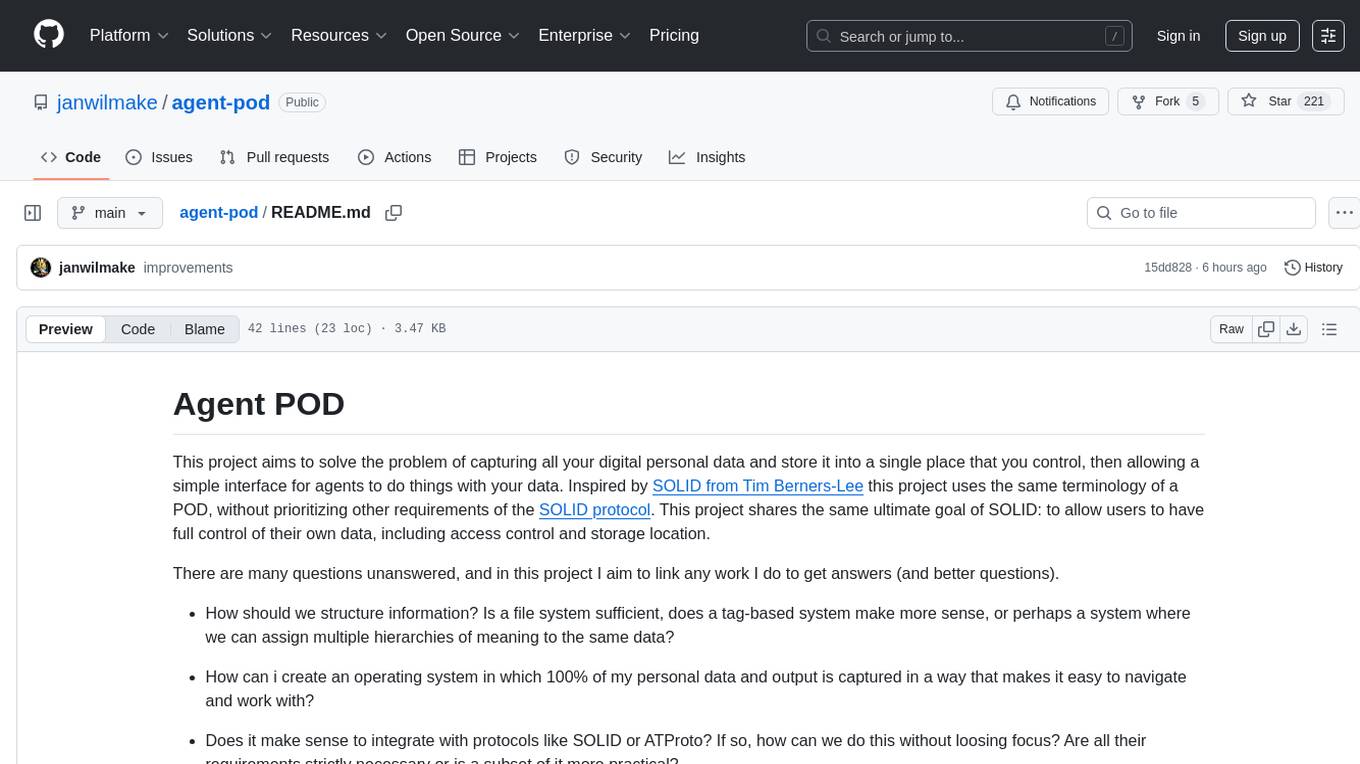
agent-pod
Agent POD is a project focused on capturing and storing personal digital data in a user-controlled environment, with the goal of enabling agents to interact with the data. It explores questions related to structuring information, creating an efficient data capture system, integrating with protocols like SOLID, and enabling data storage for groups. The project aims to transition from traditional data-storing apps to a system where personal data is owned and controlled by the user, facilitating the creation of 'solid-first' apps.
J.A.R.V.I.S.
J.A.R.V.I.S.1.0 is an advanced virtual assistant tool designed to assist users in various tasks. It provides a wide range of functionalities including voice commands, task automation, information retrieval, and communication management. With its intuitive interface and powerful capabilities, J.A.R.V.I.S.1.0 aims to enhance productivity and streamline daily activities for users.
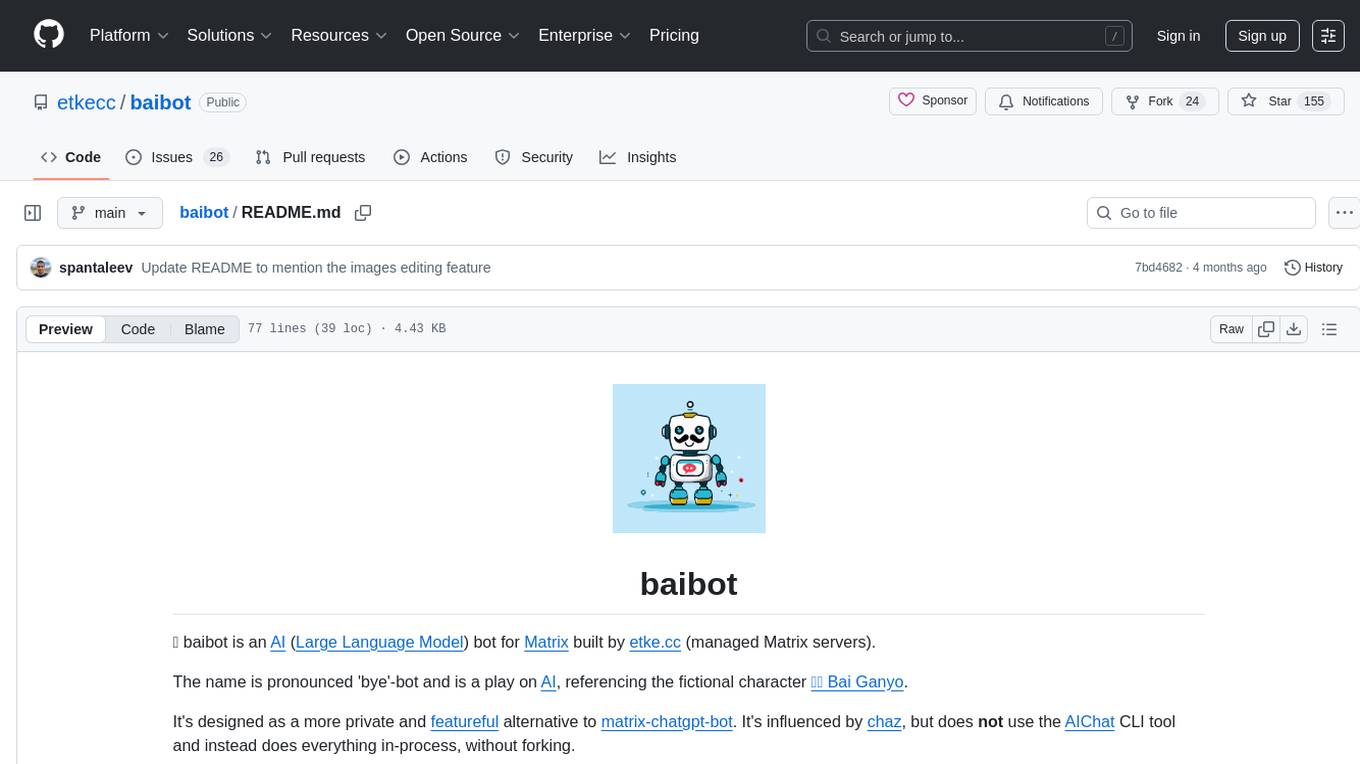
baibot
Baibot is a versatile chatbot framework designed to simplify the process of creating and deploying chatbots. It provides a user-friendly interface for building custom chatbots with various functionalities such as natural language processing, conversation flow management, and integration with external APIs. Baibot is highly customizable and can be easily extended to suit different use cases and industries. With Baibot, developers can quickly create intelligent chatbots that can interact with users in a seamless and engaging manner, enhancing user experience and automating customer support processes.
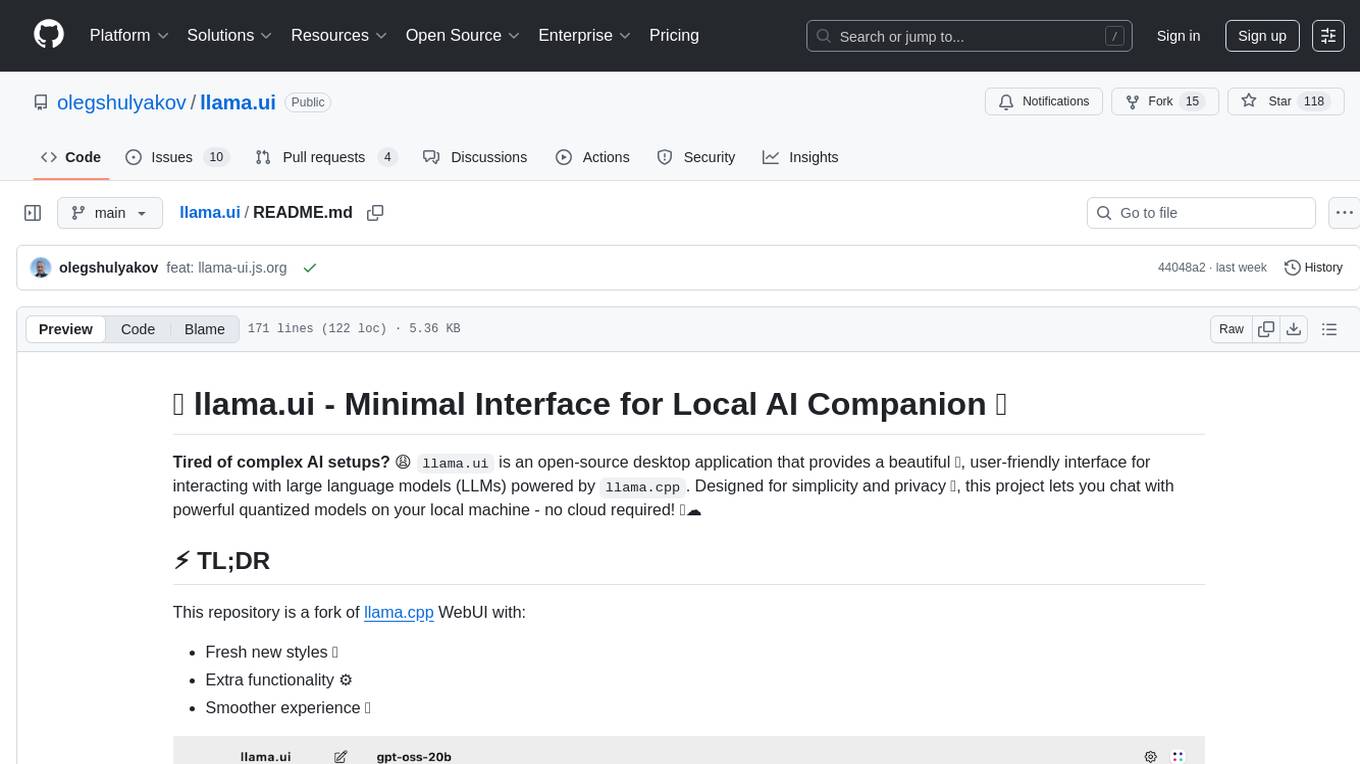
llama.ui
llama.ui is an open-source desktop application that provides a beautiful, user-friendly interface for interacting with large language models powered by llama.cpp. It is designed for simplicity and privacy, allowing users to chat with powerful quantized models on their local machine without the need for cloud services. The project offers multi-provider support, conversation management with indexedDB storage, rich UI components including markdown rendering and file attachments, advanced features like PWA support and customizable generation parameters, and is privacy-focused with all data stored locally in the browser.
For similar tasks
nexus-ai-chat-importer
Nexus AI Chat Importer is a tool designed to streamline the process of importing chat data into the Nexus platform. It provides a user-friendly interface for uploading chat logs, extracting relevant information, and organizing the data for analysis. With Nexus AI Chat Importer, users can easily import chat conversations from various sources and formats, enabling them to gain valuable insights and improve customer service efficiency.
phospho
Phospho is a text analytics platform for LLM apps. It helps you detect issues and extract insights from text messages of your users or your app. You can gather user feedback, measure success, and iterate on your app to create the best conversational experience for your users.
Awesome-Segment-Anything
Awesome-Segment-Anything is a powerful tool for segmenting and extracting information from various types of data. It provides a user-friendly interface to easily define segmentation rules and apply them to text, images, and other data formats. The tool supports both supervised and unsupervised segmentation methods, allowing users to customize the segmentation process based on their specific needs. With its versatile functionality and intuitive design, Awesome-Segment-Anything is ideal for data analysts, researchers, content creators, and anyone looking to efficiently extract valuable insights from complex datasets.
mslearn-knowledge-mining
The mslearn-knowledge-mining repository contains lab files for Azure AI Knowledge Mining modules. It provides resources for learning and implementing knowledge mining techniques using Azure AI services. The repository is designed to help users explore and understand how to leverage AI for knowledge mining purposes within the Azure ecosystem.
summarize
The 'summarize' tool is designed to transcribe and summarize videos from various sources using AI models. It helps users efficiently summarize lengthy videos, take notes, and extract key insights by providing timestamps, original transcripts, and support for auto-generated captions. Users can utilize different AI models via Groq, OpenAI, or custom local models to generate grammatically correct video transcripts and extract wisdom from video content. The tool simplifies the process of summarizing video content, making it easier to remember and reference important information.
docq
Docq is a private and secure GenAI tool designed to extract knowledge from business documents, enabling users to find answers independently. It allows data to stay within organizational boundaries, supports self-hosting with various cloud vendors, and offers multi-model and multi-modal capabilities. Docq is extensible, open-source (AGPLv3), and provides commercial licensing options. The tool aims to be a turnkey solution for organizations to adopt AI innovation safely, with plans for future features like more data ingestion options and model fine-tuning.
towhee
Towhee is a cutting-edge framework designed to streamline the processing of unstructured data through the use of Large Language Model (LLM) based pipeline orchestration. It can extract insights from diverse data types like text, images, audio, and video files using generative AI and deep learning models. Towhee offers rich operators, prebuilt ETL pipelines, and a high-performance backend for efficient data processing. With a Pythonic API, users can build custom data processing pipelines easily. Towhee is suitable for tasks like sentence embedding, image embedding, video deduplication, question answering with documents, and cross-modal retrieval based on CLIP.
codellm-devkit
Codellm-devkit (CLDK) is a Python library that serves as a multilingual program analysis framework bridging traditional static analysis tools and Large Language Models (LLMs) specialized for code (CodeLLMs). It simplifies the process of analyzing codebases across multiple programming languages, enabling the extraction of meaningful insights and facilitating LLM-based code analysis. The library provides a unified interface for integrating outputs from various analysis tools and preparing them for effective use by CodeLLMs. Codellm-devkit aims to enable the development and experimentation of robust analysis pipelines that combine traditional program analysis tools and CodeLLMs, reducing friction in multi-language code analysis and ensuring compatibility across different tools and LLM platforms. It is designed to seamlessly integrate with popular analysis tools like WALA, Tree-sitter, LLVM, and CodeQL, acting as a crucial intermediary layer for efficient communication between these tools and CodeLLMs. The project is continuously evolving to include new tools and frameworks, maintaining its versatility for code analysis and LLM integration.
For similar jobs
databerry
Chaindesk is a no-code platform that allows users to easily set up a semantic search system for personal data without technical knowledge. It supports loading data from various sources such as raw text, web pages, files (Word, Excel, PowerPoint, PDF, Markdown, Plain Text), and upcoming support for web sites, Notion, and Airtable. The platform offers a user-friendly interface for managing datastores, querying data via a secure API endpoint, and auto-generating ChatGPT Plugins for each datastore. Chaindesk utilizes a Vector Database (Qdrant), Openai's text-embedding-ada-002 for embeddings, and has a chunk size of 1024 tokens. The technology stack includes Next.js, Joy UI, LangchainJS, PostgreSQL, Prisma, and Qdrant, inspired by the ChatGPT Retrieval Plugin.
OAD
OAD is a powerful open-source tool for analyzing and visualizing data. It provides a user-friendly interface for exploring datasets, generating insights, and creating interactive visualizations. With OAD, users can easily import data from various sources, clean and preprocess data, perform statistical analysis, and create customizable visualizations to communicate findings effectively. Whether you are a data scientist, analyst, or researcher, OAD can help you streamline your data analysis workflow and uncover valuable insights from your data.
sqlcoder
Defog's SQLCoder is a family of state-of-the-art large language models (LLMs) designed for converting natural language questions into SQL queries. It outperforms popular open-source models like gpt-4 and gpt-4-turbo on SQL generation tasks. SQLCoder has been trained on more than 20,000 human-curated questions based on 10 different schemas, and the model weights are licensed under CC BY-SA 4.0. Users can interact with SQLCoder through the 'transformers' library and run queries using the 'sqlcoder launch' command in the terminal. The tool has been tested on NVIDIA GPUs with more than 16GB VRAM and Apple Silicon devices with some limitations. SQLCoder offers a demo on their website and supports quantized versions of the model for consumer GPUs with sufficient memory.
TableLLM
TableLLM is a large language model designed for efficient tabular data manipulation tasks in real office scenarios. It can generate code solutions or direct text answers for tasks like insert, delete, update, query, merge, and chart operations on tables embedded in spreadsheets or documents. The model has been fine-tuned based on CodeLlama-7B and 13B, offering two scales: TableLLM-7B and TableLLM-13B. Evaluation results show its performance on benchmarks like WikiSQL, Spider, and self-created table operation benchmark. Users can use TableLLM for code and text generation tasks on tabular data.
mlcraft
Synmetrix (prev. MLCraft) is an open source data engineering platform and semantic layer for centralized metrics management. It provides a complete framework for modeling, integrating, transforming, aggregating, and distributing metrics data at scale. Key features include data modeling and transformations, semantic layer for unified data model, scheduled reports and alerts, versioning, role-based access control, data exploration, caching, and collaboration on metrics modeling. Synmetrix leverages Cube (Cube.js) for flexible data models that consolidate metrics from various sources, enabling downstream distribution via a SQL API for integration into BI tools, reporting, dashboards, and data science. Use cases include data democratization, business intelligence, embedded analytics, and enhancing accuracy in data handling and queries. The tool speeds up data-driven workflows from metrics definition to consumption by combining data engineering best practices with self-service analytics capabilities.
data-scientist-roadmap2024
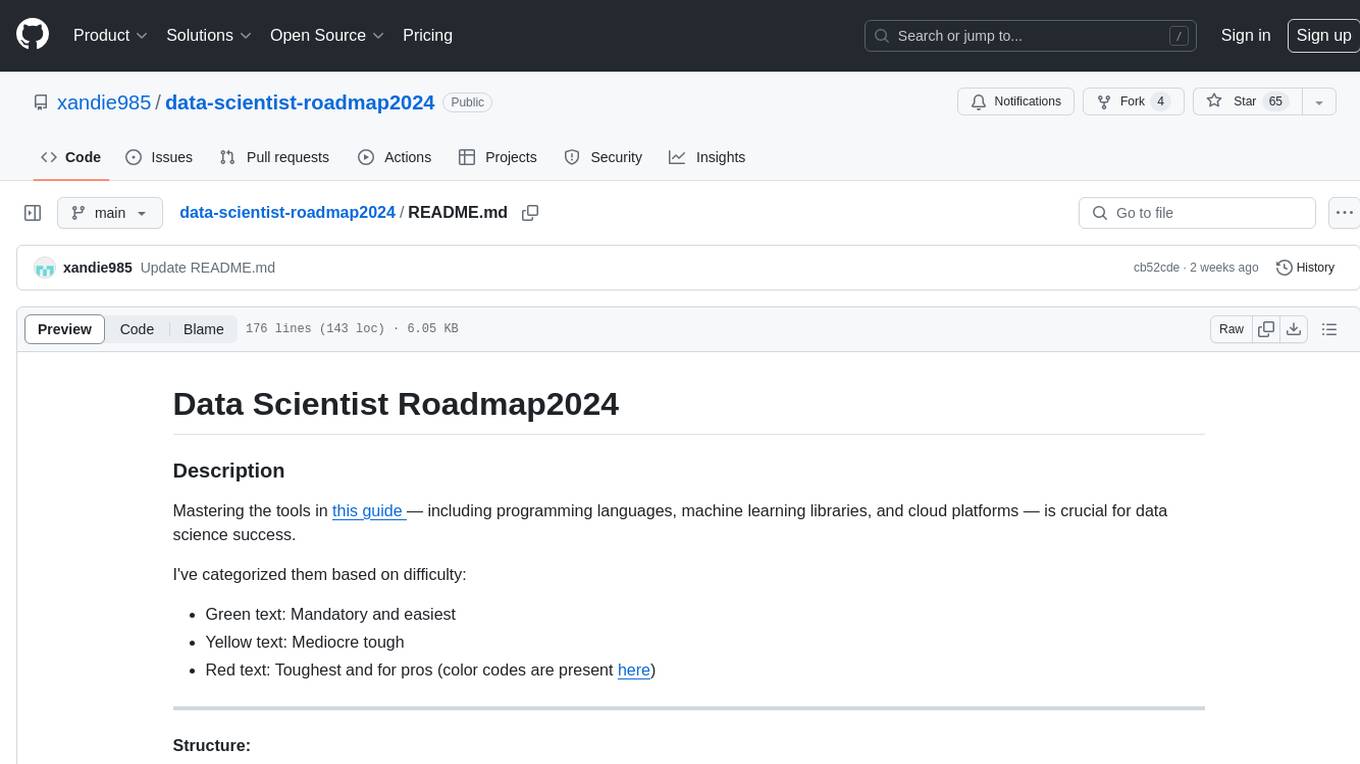
The Data Scientist Roadmap2024 provides a comprehensive guide to mastering essential tools for data science success. It includes programming languages, machine learning libraries, cloud platforms, and concepts categorized by difficulty. The roadmap covers a wide range of topics from programming languages to machine learning techniques, data visualization tools, and DevOps/MLOps tools. It also includes web development frameworks and specific concepts like supervised and unsupervised learning, NLP, deep learning, reinforcement learning, and statistics. Additionally, it delves into DevOps tools like Airflow and MLFlow, data visualization tools like Tableau and Matplotlib, and other topics such as ETL processes, optimization algorithms, and financial modeling.
VMind
VMind is an open-source solution for intelligent visualization, providing an intelligent chart component based on LLM by VisActor. It allows users to create chart narrative works with natural language interaction, edit charts through dialogue, and export narratives as videos or GIFs. The tool is easy to use, scalable, supports various chart types, and offers one-click export functionality. Users can customize chart styles, specify themes, and aggregate data using LLM models. VMind aims to enhance efficiency in creating data visualization works through dialogue-based editing and natural language interaction.
quadratic
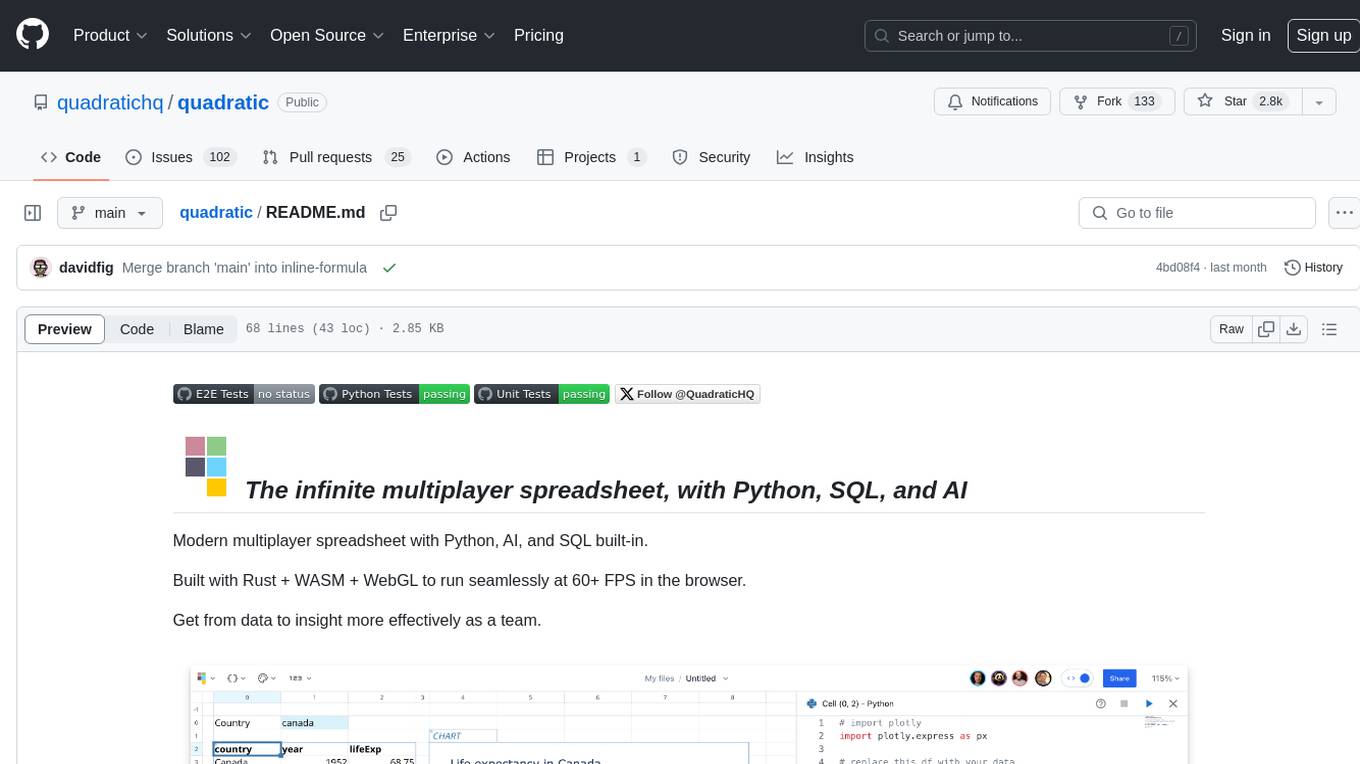
Quadratic is a modern multiplayer spreadsheet application that integrates Python, AI, and SQL functionalities. It aims to streamline team collaboration and data analysis by enabling users to pull data from various sources and utilize popular data science tools. The application supports building dashboards, creating internal tools, mixing data from different sources, exploring data for insights, visualizing Python workflows, and facilitating collaboration between technical and non-technical team members. Quadratic is built with Rust + WASM + WebGL to ensure seamless performance in the browser, and it offers features like WebGL Grid, local file management, Python and Pandas support, Excel formula support, multiplayer capabilities, charts and graphs, and team support. The tool is currently in Beta with ongoing development for additional features like JS support, SQL database support, and AI auto-complete.