


Unreal_mcp
A comprehensive Model Context Protocol (MCP) server that enables AI assistants to control Unreal Engine through the native C++ Automation Bridge plugin. Built with TypeScript, C++, and Rust (WebAssembly) for ultra-high-performance game development automation.
Stars: 275
Unreal Engine MCP Server is a comprehensive Model Context Protocol (MCP) server that allows AI assistants to control Unreal Engine through a native C++ Automation Bridge plugin. It is built with TypeScript, C++, and Rust (WebAssembly). The server provides various features for asset management, actor control, editor control, level management, animation & physics, visual effects, sequencer, graph editing, audio, system operations, and more. It offers dynamic type discovery, graceful degradation, on-demand connection, command safety, asset caching, metrics rate limiting, and centralized configuration. Users can install the server using NPX or by cloning and building it. Additionally, the server supports WebAssembly acceleration for computationally intensive operations and provides an optional GraphQL API for complex queries. The repository includes documentation, community resources, and guidelines for contributing.
README:







A comprehensive Model Context Protocol (MCP) server that enables AI assistants to control Unreal Engine through a native C++ Automation Bridge plugin. Built with TypeScript, C++, and Rust (WebAssembly).
- Features
- Getting Started
- Configuration
- Available Tools
- WebAssembly Acceleration
- GraphQL API
- Docker
- Documentation
- Community
- Development
- Contributing
| Category | Capabilities |
|---|---|
| Asset Management | Browse, import, duplicate, rename, delete assets; create materials |
| Actor Control | Spawn, delete, transform, physics, tags, components |
| Editor Control | PIE sessions, camera, viewport, screenshots, bookmarks |
| Level Management | Load/save levels, streaming, World Partition, data layers |
| Animation & Physics | Animation BPs, state machines, ragdolls, vehicles, constraints |
| Visual Effects | Niagara particles, GPU simulations, procedural effects, debug shapes |
| Sequencer | Cinematics, timeline control, camera animations, keyframes |
| Graph Editing | Blueprint, Niagara, Material, and Behavior Tree graph manipulation |
| Audio | Sound cues, audio components, sound mixes, ambient sounds |
| System | Console commands, UBT, tests, logs, project settings, CVars |
- Native C++ Automation — All operations route through the MCP Automation Bridge plugin
- Dynamic Type Discovery — Runtime introspection for lights, debug shapes, and sequencer tracks
- Graceful Degradation — Server starts even without an active Unreal connection
- On-Demand Connection — Retries automation handshakes with exponential backoff
- Command Safety — Blocks dangerous console commands with pattern-based validation
- Asset Caching — 10-second TTL for improved performance
- Metrics Rate Limiting — Per-IP rate limiting (60 req/min) on Prometheus endpoint
- Centralized Configuration — Unified class aliases and type definitions
- Node.js 18+
- Unreal Engine 5.0–5.7
Option A: NPX (Recommended)
npx unreal-engine-mcp-serverOption B: Clone & Build
git clone https://github.com/ChiR24/Unreal_mcp.git
cd Unreal_mcp
npm install
npm run build
node dist/cli.jsThe MCP Automation Bridge plugin is included at Unreal_mcp/plugins/McpAutomationBridge.
Method 1: Copy Folder
Copy:  Unreal_mcp/plugins/McpAutomationBridge/
To:    YourUnrealProject/Plugins/McpAutomationBridge/
Regenerate project files after copying.
Method 2: Add in Editor
- Open Unreal Editor → Edit → Plugins
- Click "Add" → Browse to
Unreal_mcp/plugins/ - Select the
McpAutomationBridgefolder
Video Guide:
https://github.com/user-attachments/assets/d8b86ebc-4364-48c9-9781-de854bf3ef7d
Enable via Edit → Plugins, then restart the editor:
| Plugin | Required For |
|---|---|
| MCP Automation Bridge | All automation operations |
| Editor Scripting Utilities | Asset/Actor subsystem operations |
| Sequencer | Sequencer tools |
| Level Sequence Editor |
manage_sequence operations |
| Control Rig |
animation_physics operations |
| Subobject Data Interface | Blueprint components (UE 5.7+) |
| Geometry Script |
manage_geometry operations (procedural mesh) |
Add to your Claude Desktop / Cursor config file:
Using Clone/Build:
{
  "mcpServers": {
    "unreal-engine": {
      "command": "node",
      "args": ["path/to/Unreal_mcp/dist/cli.js"],
      "env": {
        "UE_PROJECT_PATH": "C:/Path/To/YourProject",
        "MCP_AUTOMATION_PORT": "8091"
      }
    }
  }
}
Using NPX:
{
  "mcpServers": {
    "unreal-engine": {
      "command": "npx",
      "args": ["unreal-engine-mcp-server"],
      "env": {
        "UE_PROJECT_PATH": "C:/Path/To/YourProject"
      }
    }
  }
}# Required
UE_PROJECT_PATH="C:/Path/To/YourProject"
# Automation Bridge
MCP_AUTOMATION_HOST=127.0.0.1
MCP_AUTOMATION_PORT=8091
# LAN Access (optional)
# SECURITY: Set to true to allow binding to non-loopback addresses (e.g., 0.0.0.0)
# Only enable if you understand the security implications.
MCP_AUTOMATION_ALLOW_NON_LOOPBACK=false
# Logging
LOG_LEVEL=info # debug | info | warn | error
# Optional
WASM_ENABLED=true
MCP_AUTOMATION_REQUEST_TIMEOUT_MS=120000
ASSET_LIST_TTL_MS=10000By default, the automation bridge only binds to loopback addresses (127.0.0.1) for security. To enable access from other machines on your network:
TypeScript (MCP Server):
MCP_AUTOMATION_ALLOW_NON_LOOPBACK=true
MCP_AUTOMATION_HOST=0.0.0.0
Unreal Engine Plugin:
- Go to Edit → Project Settings → Plugins → MCP Automation Bridge
- Under Security, enable "Allow Non Loopback"
- Under Connection, set "Listen Host" to
0.0.0.0 - Restart the editor
| Tool | Description |
|---|---|
manage_asset |
Assets, Materials, Render Targets, Behavior Trees |
control_actor |
Spawn, delete, transform, physics, tags |
control_editor |
PIE, Camera, viewport, screenshots |
manage_level |
Load/Save, World Partition, streaming |
manage_lighting |
Spawn lights, GI, shadows, build lighting, list_light_types |
manage_performance |
Profiling, optimization, scalability |
animation_physics |
Animation BPs, Vehicles, Ragdolls, Control Rig, IK, Blend Spaces |
manage_effect |
Niagara, Particles, Debug Shapes, Niagara authoring, GPU sim |
manage_blueprint |
Create, SCS, Graph Editing, Node manipulation |
build_environment |
Landscape, Foliage, Procedural |
system_control |
UBT, Tests, Logs, Project Settings, CVars |
manage_sequence |
Sequencer / Cinematics, list_track_types |
inspect |
Object Introspection |
manage_audio |
Audio Assets, Components, Sound Cues, MetaSounds, Attenuation |
manage_behavior_tree |
Behavior Tree Graph Editing |
manage_input |
Enhanced Input Actions & Contexts |
manage_geometry |
Procedural mesh creation (Geometry Script) |
manage_skeleton |
Skeleton, sockets, physics assets, cloth binding |
manage_material_authoring |
Material creation, expressions, landscape layers |
manage_texture |
Texture creation, modification, compression settings |
manage_gas |
Gameplay Ability System: abilities, effects, attributes |
manage_character |
Character creation, movement, advanced locomotion |
manage_combat |
Weapons, projectiles, damage, melee combat |
manage_ai |
AI controllers, EQS, perception, State Trees, Smart Objects |
manage_inventory |
Items, equipment, loot tables, crafting |
manage_interaction |
Interactables, destructibles, triggers |
manage_widget_authoring |
UMG widget creation, layout, styling, animations |
manage_networking |
Replication, RPCs, network prediction |
manage_game_framework |
Game modes, game states, player controllers, match flow |
manage_sessions |
Sessions, split-screen, LAN, voice chat |
manage_level_structure |
Level creation, sublevels, World Partition, data layers, HLOD |
manage_volumes |
Trigger volumes, blocking, physics, audio, navigation volumes |
manage_navigation |
NavMesh settings, nav modifiers, nav links, smart links, pathfinding |
Blueprints • Materials • Textures • Static Meshes • Skeletal Meshes • Levels • Sounds • Particles • Niagara Systems • Behavior Trees
Optional WASM acceleration for computationally intensive operations. Enabled by default when available, falls back to TypeScript automatically.
| Operation | Speedup |
|---|---|
| JSON parsing | 5–8x |
| Transform calculations | 5–10x |
| Vector/matrix math | 5x |
| Dependency resolution | 3–5x |
cargo install wasm-pack  # Once per machine
npm run build:wasm       # Builds  WASM
To disable: WASM_ENABLED=false
Optional GraphQL endpoint for complex queries. Disabled by default.
GRAPHQL_ENABLED=true
GRAPHQL_PORT=4000
See GraphQL API Documentation.
docker build -t unreal-mcp .
docker run -it --rm -e UE_PROJECT_PATH=/project unreal-mcp| Document | Description |
|---|---|
| Handler Mappings | TypeScript to C++ routing |
| GraphQL API | Query and mutation reference |
| WebAssembly Integration | WASM performance guide |
| Plugin Extension | C++ plugin architecture |
| Testing Guide | How to run and write tests |
| Migration Guide v0.5.0 | Upgrade to v0.5.0 |
| Roadmap | Development phases |
| Automation Progress | Implementation status |
npm run build       # Build TypeScript + WASM
npm run lint        # Run ESLint
npm run test:unit   # Run unit tests
npm run test:all # Run all tests| Resource | Description |
|---|---|
| Project Roadmap | Track development progress across 47 phases |
| Discussions | Ask questions, share ideas, get help |
| Issues | Report bugs and request features |
Contributions welcome! Please:
- Include reproduction steps for bugs
- Keep PRs focused and small
- Follow existing code style
MIT — See LICENSE
For Tasks:
Click tags to check more tools for each tasksFor Jobs:
Alternative AI tools for Unreal_mcp
Similar Open Source Tools
Unreal_mcp
Unreal Engine MCP Server is a comprehensive Model Context Protocol (MCP) server that allows AI assistants to control Unreal Engine through a native C++ Automation Bridge plugin. It is built with TypeScript, C++, and Rust (WebAssembly). The server provides various features for asset management, actor control, editor control, level management, animation & physics, visual effects, sequencer, graph editing, audio, system operations, and more. It offers dynamic type discovery, graceful degradation, on-demand connection, command safety, asset caching, metrics rate limiting, and centralized configuration. Users can install the server using NPX or by cloning and building it. Additionally, the server supports WebAssembly acceleration for computationally intensive operations and provides an optional GraphQL API for complex queries. The repository includes documentation, community resources, and guidelines for contributing.
claude-talk-to-figma-mcp
A Model Context Protocol (MCP) plugin named Claude Talk to Figma MCP that enables Claude Desktop and other AI tools to interact directly with Figma for AI-assisted design capabilities. It provides document interaction, element creation, smart modifications, text mastery, and component integration. Users can connect the plugin to Figma, start designing, and utilize various tools for document analysis, element creation, modification, text manipulation, and component management. The project offers installation instructions, AI client configuration options, usage patterns, command references, troubleshooting support, testing guidelines, architecture overview, contribution guidelines, version history, and licensing information.
axonhub
AxonHub is an all-in-one AI development platform that serves as an AI gateway allowing users to switch between model providers without changing any code. It provides features like vendor lock-in prevention, integration simplification, observability enhancement, and cost control. Users can access any model using any SDK with zero code changes. The platform offers full request tracing, enterprise RBAC, smart load balancing, and real-time cost tracking. AxonHub supports multiple databases, provides a unified API gateway, and offers flexible model management and API key creation for authentication. It also integrates with various AI coding tools and SDKs for seamless usage.
ruby_llm-agents
RubyLLM::Agents is a production-ready Rails engine for building, managing, and monitoring LLM-powered AI agents. It seamlessly integrates with Rails apps, providing features like automatic execution tracking, cost analytics, budget controls, and a real-time dashboard. Users can build intelligent AI agents in Ruby using a clean DSL and support various LLM providers like OpenAI GPT-4, Anthropic Claude, and Google Gemini. The engine offers features such as agent DSL configuration, execution tracking, cost analytics, reliability with retries and fallbacks, budget controls, multi-tenancy support, async execution with Ruby fibers, real-time dashboard, streaming, conversation history, image operations, alerts, and more.
ai-dev-kit
The AI Dev Kit is a comprehensive toolkit designed to enhance AI-driven development on Databricks. It provides trusted sources for AI coding assistants like Claude Code and Cursor to build faster and smarter on Databricks. The kit includes features such as Spark Declarative Pipelines, Databricks Jobs, AI/BI Dashboards, Unity Catalog, Genie Spaces, Knowledge Assistants, MLflow Experiments, Model Serving, Databricks Apps, and more. Users can choose from different adventures like installing the kit, using the visual builder app, teaching AI assistants Databricks patterns, executing Databricks actions, or building custom integrations with the core library. The kit also includes components like databricks-tools-core, databricks-mcp-server, databricks-skills, databricks-builder-app, and ai-dev-project.
sf-skills
sf-skills is a collection of reusable skills for Agentic Salesforce Development, enabling AI-powered code generation, validation, testing, debugging, and deployment. It includes skills for development, quality, foundation, integration, AI & automation, DevOps & tooling. The installation process is newbie-friendly and includes an installer script for various CLIs. The skills are compatible with platforms like Claude Code, OpenCode, Codex, Gemini, Amp, Droid, Cursor, and Agentforce Vibes. The repository is community-driven and aims to strengthen the Salesforce ecosystem.
nothumanallowed
NotHumanAllowed is a security-first platform built exclusively for AI agents. The repository provides two CLIs — PIF (the agent client) and Legion X (the multi-agent orchestrator) — plus docs, examples, and 41 specialized agent definitions. Every agent authenticates via Ed25519 cryptographic signatures, ensuring no passwords or bearer tokens are used. Legion X orchestrates 41 specialized AI agents through a 9-layer Geth Consensus pipeline, with zero-knowledge protocol ensuring API keys stay local. The system learns from each session, with features like task decomposition, neural agent routing, multi-round deliberation, and weighted authority synthesis. The repository also includes CLI commands for orchestration, agent management, tasks, sandbox execution, Geth Consensus, knowledge search, configuration, system health check, and more.

motia
Motia is an AI agent framework designed for software engineers to create, test, and deploy production-ready AI agents quickly. It provides a code-first approach, allowing developers to write agent logic in familiar languages and visualize execution in real-time. With Motia, developers can focus on business logic rather than infrastructure, offering zero infrastructure headaches, multi-language support, composable steps, built-in observability, instant APIs, and full control over AI logic. Ideal for building sophisticated agents and intelligent automations, Motia's event-driven architecture and modular steps enable the creation of GenAI-powered workflows, decision-making systems, and data processing pipelines.
paiml-mcp-agent-toolkit
PAIML MCP Agent Toolkit (PMAT) is a zero-configuration AI context generation system with extreme quality enforcement and Toyota Way standards. It allows users to analyze any codebase instantly through CLI, MCP, or HTTP interfaces. The toolkit provides features such as technical debt analysis, advanced monitoring, metrics aggregation, performance profiling, bottleneck detection, alert system, multi-format export, storage flexibility, and more. It also offers AI-powered intelligence for smart recommendations, polyglot analysis, repository showcase, and integration points. PMAT enforces quality standards like complexity ≤20, zero SATD comments, test coverage >80%, no lint warnings, and synchronized documentation with commits. The toolkit follows Toyota Way development principles for iterative improvement, direct AST traversal, automated quality gates, and zero SATD policy.
sktime
sktime is a Python library for time series analysis that provides a unified interface for various time series learning tasks such as classification, regression, clustering, annotation, and forecasting. It offers time series algorithms and tools compatible with scikit-learn for building, tuning, and validating time series models. sktime aims to enhance the interoperability and usability of the time series analysis ecosystem by empowering users to apply algorithms across different tasks and providing interfaces to related libraries like scikit-learn, statsmodels, tsfresh, PyOD, and fbprophet.
everything-claude-code
The 'Everything Claude Code' repository is a comprehensive collection of production-ready agents, skills, hooks, commands, rules, and MCP configurations developed over 10+ months. It includes guides for setup, foundations, and philosophy, as well as detailed explanations of various topics such as token optimization, memory persistence, continuous learning, verification loops, parallelization, and subagent orchestration. The repository also provides updates on bug fixes, multi-language rules, installation wizard, PM2 support, OpenCode plugin integration, unified commands and skills, and cross-platform support. It offers a quick start guide for installation, ecosystem tools like Skill Creator and Continuous Learning v2, requirements for CLI version compatibility, key concepts like agents, skills, hooks, and rules, running tests, contributing guidelines, OpenCode support, background information, important notes on context window management and customization, star history chart, and relevant links.
gpt-load
GPT-Load is a high-performance, enterprise-grade AI API transparent proxy service designed for enterprises and developers needing to integrate multiple AI services. Built with Go, it features intelligent key management, load balancing, and comprehensive monitoring capabilities for high-concurrency production environments. The tool serves as a transparent proxy service, preserving native API formats of various AI service providers like OpenAI, Google Gemini, and Anthropic Claude. It supports dynamic configuration, distributed leader-follower deployment, and a Vue 3-based web management interface. GPT-Load is production-ready with features like dual authentication, graceful shutdown, and error recovery.
mindnlp
MindNLP is an open-source NLP library based on MindSpore. It provides a platform for solving natural language processing tasks, containing many common approaches in NLP. It can help researchers and developers to construct and train models more conveniently and rapidly. Key features of MindNLP include: * Comprehensive data processing: Several classical NLP datasets are packaged into a friendly module for easy use, such as Multi30k, SQuAD, CoNLL, etc. * Friendly NLP model toolset: MindNLP provides various configurable components. It is friendly to customize models using MindNLP. * Easy-to-use engine: MindNLP simplified complicated training process in MindSpore. It supports Trainer and Evaluator interfaces to train and evaluate models easily. MindNLP supports a wide range of NLP tasks, including: * Language modeling * Machine translation * Question answering * Sentiment analysis * Sequence labeling * Summarization MindNLP also supports industry-leading Large Language Models (LLMs), including Llama, GLM, RWKV, etc. For support related to large language models, including pre-training, fine-tuning, and inference demo examples, you can find them in the "llm" directory. To install MindNLP, you can either install it from Pypi, download the daily build wheel, or install it from source. The installation instructions are provided in the documentation. MindNLP is released under the Apache 2.0 license. If you find this project useful in your research, please consider citing the following paper: @misc{mindnlp2022, title={{MindNLP}: a MindSpore NLP library}, author={MindNLP Contributors}, howpublished = {\url{https://github.com/mindlab-ai/mindnlp}}, year={2022} }
actor-core
Actor-core is a lightweight and flexible library for building actor-based concurrent applications in Java. It provides a simple API for creating and managing actors, as well as handling message passing between actors. With actor-core, developers can easily implement scalable and fault-tolerant systems using the actor model.
pai-opencode
PAI-OpenCode is a complete port of Daniel Miessler's Personal AI Infrastructure (PAI) to OpenCode, an open-source, provider-agnostic AI coding assistant. It brings modular capabilities, dynamic multi-agent orchestration, session history, and lifecycle automation to personalize AI assistants for users. With support for 75+ AI providers, PAI-OpenCode offers dynamic per-task model routing, full PAI infrastructure, real-time session sharing, and multiple client options. The tool optimizes cost and quality with a 3-tier model strategy and a 3-tier research system, allowing users to switch presets for different routing strategies. PAI-OpenCode's architecture preserves PAI's design while adapting to OpenCode, documented through Architecture Decision Records (ADRs).
eko
Eko is a lightweight and flexible command-line tool for managing environment variables in your projects. It allows you to easily set, get, and delete environment variables for different environments, making it simple to manage configurations across development, staging, and production environments. With Eko, you can streamline your workflow and ensure consistency in your application settings without the need for complex setup or configuration files.
For similar tasks
Unreal_mcp
Unreal Engine MCP Server is a comprehensive Model Context Protocol (MCP) server that allows AI assistants to control Unreal Engine through a native C++ Automation Bridge plugin. It is built with TypeScript, C++, and Rust (WebAssembly). The server provides various features for asset management, actor control, editor control, level management, animation & physics, visual effects, sequencer, graph editing, audio, system operations, and more. It offers dynamic type discovery, graceful degradation, on-demand connection, command safety, asset caching, metrics rate limiting, and centralized configuration. Users can install the server using NPX or by cloning and building it. Additionally, the server supports WebAssembly acceleration for computationally intensive operations and provides an optional GraphQL API for complex queries. The repository includes documentation, community resources, and guidelines for contributing.
cli-agent
Pieces CLI for Developers is a comprehensive command-line interface (CLI) tool designed to interact seamlessly with Pieces OS. It provides functionalities such as asset management, application interaction, and integration with various Pieces OS features. The tool is compatible with Windows 10 or greater, Mac, and Windows operating systems. Users can install the tool by running 'pip install pieces-cli' or 'brew install pieces-cli'. After installation, users can access the tool's functionalities through the terminal by using the 'pieces' command followed by subcommands and options. The tool supports various commands, which can be found in the documentation. Developers can contribute to the project by forking and cloning the repository, setting up a virtual environment, installing dependencies with poetry, and running test cases with pytest and coverage.
For similar jobs
sweep
Sweep is an AI junior developer that turns bugs and feature requests into code changes. It automatically handles developer experience improvements like adding type hints and improving test coverage.
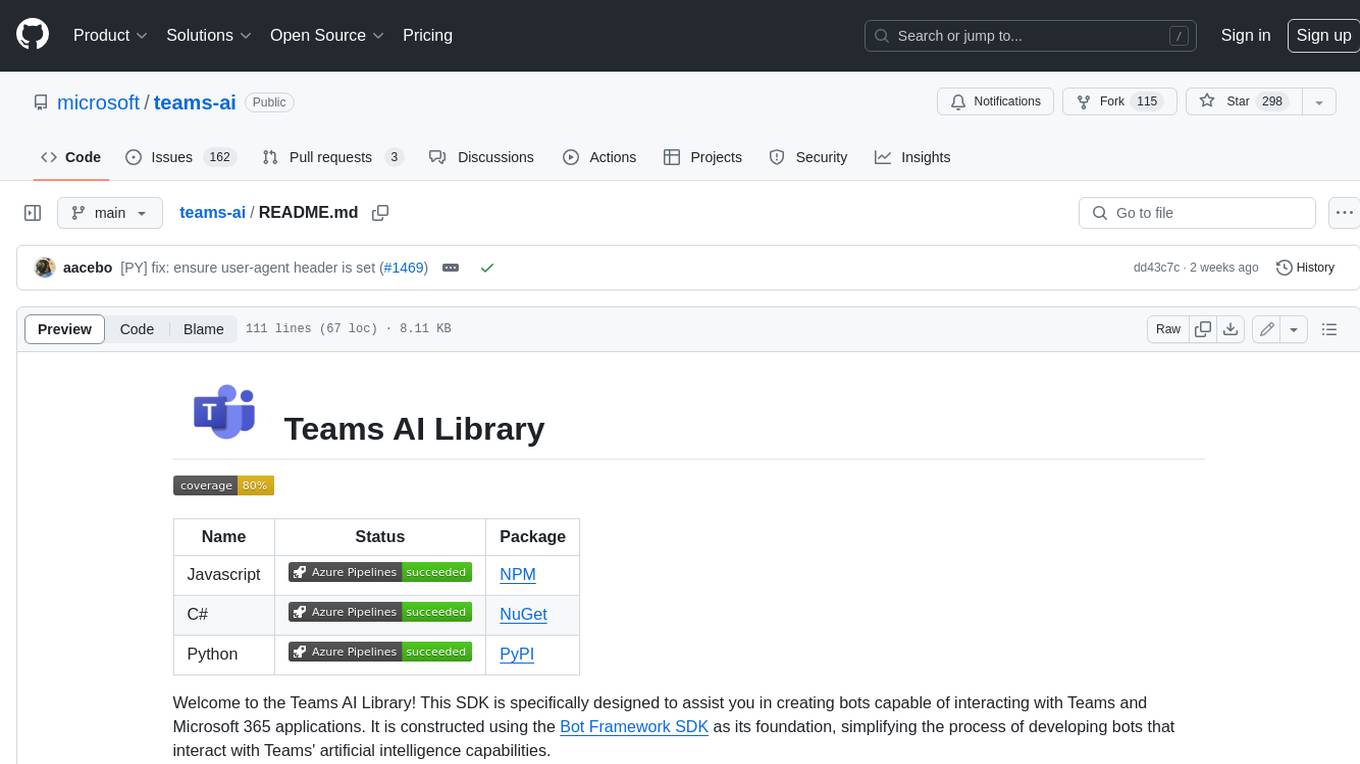
teams-ai
The Teams AI Library is a software development kit (SDK) that helps developers create bots that can interact with Teams and Microsoft 365 applications. It is built on top of the Bot Framework SDK and simplifies the process of developing bots that interact with Teams' artificial intelligence capabilities. The SDK is available for JavaScript/TypeScript, .NET, and Python.
ai-guide
This guide is dedicated to Large Language Models (LLMs) that you can run on your home computer. It assumes your PC is a lower-end, non-gaming setup.
classifai
Supercharge WordPress Content Workflows and Engagement with Artificial Intelligence. Tap into leading cloud-based services like OpenAI, Microsoft Azure AI, Google Gemini and IBM Watson to augment your WordPress-powered websites. Publish content faster while improving SEO performance and increasing audience engagement. ClassifAI integrates Artificial Intelligence and Machine Learning technologies to lighten your workload and eliminate tedious tasks, giving you more time to create original content that matters.
chatbot-ui
Chatbot UI is an open-source AI chat app that allows users to create and deploy their own AI chatbots. It is easy to use and can be customized to fit any need. Chatbot UI is perfect for businesses, developers, and anyone who wants to create a chatbot.
BricksLLM
BricksLLM is a cloud native AI gateway written in Go. Currently, it provides native support for OpenAI, Anthropic, Azure OpenAI and vLLM. BricksLLM aims to provide enterprise level infrastructure that can power any LLM production use cases. Here are some use cases for BricksLLM: * Set LLM usage limits for users on different pricing tiers * Track LLM usage on a per user and per organization basis * Block or redact requests containing PIIs * Improve LLM reliability with failovers, retries and caching * Distribute API keys with rate limits and cost limits for internal development/production use cases * Distribute API keys with rate limits and cost limits for students
uAgents
uAgents is a Python library developed by Fetch.ai that allows for the creation of autonomous AI agents. These agents can perform various tasks on a schedule or take action on various events. uAgents are easy to create and manage, and they are connected to a fast-growing network of other uAgents. They are also secure, with cryptographically secured messages and wallets.
griptape
Griptape is a modular Python framework for building AI-powered applications that securely connect to your enterprise data and APIs. It offers developers the ability to maintain control and flexibility at every step. Griptape's core components include Structures (Agents, Pipelines, and Workflows), Tasks, Tools, Memory (Conversation Memory, Task Memory, and Meta Memory), Drivers (Prompt and Embedding Drivers, Vector Store Drivers, Image Generation Drivers, Image Query Drivers, SQL Drivers, Web Scraper Drivers, and Conversation Memory Drivers), Engines (Query Engines, Extraction Engines, Summary Engines, Image Generation Engines, and Image Query Engines), and additional components (Rulesets, Loaders, Artifacts, Chunkers, and Tokenizers). Griptape enables developers to create AI-powered applications with ease and efficiency.