


whisplay-ai-chatbot
Pocket-sized AI chatbot built using a RPI Zero 2w / 5
Stars: 281
Whisplay-AI-Chatbot is a pocket-sized AI chatbot device built using a Raspberry Pi Zero 2w. It features a PiSugar Whisplay HAT with an LCD screen, on-board speaker, and microphone. Users can interact with the chatbot by pressing a button, speaking, and receiving responses, similar to a futuristic walkie-talkie. The tool supports various functionalities such as adjusting volume autonomously, resetting conversation history, local ASR and TTS capabilities, image generation, and integration with APIs like Google Gemini and Grok. It also offers support for LLM8850 AI Accelerator for offline capabilities like ASR, TTS, and LLM API. The chatbot saves conversation history and generated images in a data folder, and users can customize the tool with different enclosure cases available for Pi02 and Pi5 models.
README:

This is a pocket-sized AI chatbot device built using a Raspberry Pi Zero 2w. Just press the button, speak, and it talks back—like a futuristic walkie-talkie with a mind of its own.
Test Video Playlist: https://www.youtube.com/watch?v=lOVA0Gui-4Q
Tutorial: https://www.youtube.com/watch?v=Nwu2DruSuyI
Tutorial (offline version build on RPi 5):
- Raspberry Pi zero 2w (Recommand RRi 5, 8G RAM for offline build)
- PiSugar Whisplay HAT (including LCD screen, on-board speaker and microphone)
- PiSugar 3 1200mAh
- Please find the pre-build images in project wiki: https://github.com/PiSugar/whisplay-ai-chatbot/wiki
You need to firstly install the audio drivers for the Whisplay HAT. Follow the instructions in the Whisplay HAT repository.
- Clone the repository:
git clone https://github.com/PiSugar/whisplay-ai-chatbot.git cd whisplay-ai-chatbot - Install dependencies:
Running
bash install_dependencies.sh
source ~/.bashrc
source ~/.bashrcis necessary to load the new environment variables. - Create a
.envfile based on the.env.templatefile and fill in the necessary environment variables. - Build the project:
bash build.sh
- Start the chatbot service:
bash run_chatbot.sh
- Optionally, set up the chatbot service to start on boot:
Please note that this will disable the graphical interface and set the system to multi-user mode, which is suitable for headless operation. You can find the output logs at
sudo bash startup.sh
chatbot.log. Runningtail -f chatbot.logwill also display the logs in real-time.
If you make changes to the node code or just pull the new code from this repository, you need to rebuild the project. You can do this by running:
bash build.shIf If you encounter ModuleNotFoundError or there's new third-party libraries to the python code, please run the following command to update the dependencies for python:
cd python
pip install -r requirements.txt --break-system-packages
The env template may be updated from time to time. If you want to upgrade your existing .env file based on the latest .env.template, you can run the following command:
bash upgrade-env.shIf you need to update the environment variables, you can edit the .env file directly. After making changes, please restart the chatbot service with:
sudo systemctl restart chatbot.serviceYou can enable image generation by setting the IMAGE_GENERATION_SERVER variable in the .env file. Options include: OPENAI, GEMINI, VOLCENGINE.
Then you can use prompts like "A children's book drawing of a veterinarian using a stethoscope to listen to the heartbeat of a baby otter." to generate images.
The generated images will be displayed on the screen and saved in the data/images folder.
The battery level display depends on the pisugar-power-manager. If you are using PiSugar2 or PiSugar3, you need to install the pisugar-power-manager first. You can find the installation instructions in the PiSugar Power Manager repository.
Or use the following command to install it:
wget https://cdn.pisugar.com/release/pisugar-power-manager.sh
bash pisugar-power-manager.sh -c releaseThe chatbot saves conversation history and generated images in the data folder. It's a temporal folder and can be deleted if you want to clear the history.
Whisplay Chatbot Case for Pi02
Whisplay Chatbot Case (FDM) for Pi02
Whisplay Chatbot Case (FDM) for Pi5
Whisplay Chatbot Case (FDM) for Pi5 & LLM8850
If you have a LLM8850 AI Accelerator, you can set up the LLM8850 services for local ASR, TTS, and LLM API to enable offline capabilities.
Please refer to the LLM8850 Integration Guide for detailed setup instructions.
- Integrate the tool with the API ✅
- Enable the AI assistant to adjust the volume autonomously ✅
- Reset the conversation history if there is no speech for five minutes ✅
- Support local llm server ✅
- Support local asr (whisper/vosk) ✅
- Support local tts (piper) ✅
- Support image generation (openai/gemini/volcengine) ✅
- Refactor python render thread, better performance ✅
- Add Google Gemini API support ✅
- Add Grok API support ✅
- RPI camera support ✅
- Support LLM8850 whisper ✅
- Support LLM8850 melottsTTS ✅
- Support LLM8850 Qwen3 llm api (not support tool) ✅
- Support LLM8850 FastVLM
- Support LLM8850 image generation
- Support speaker recognition
For Tasks:
Click tags to check more tools for each tasksFor Jobs:
Alternative AI tools for whisplay-ai-chatbot
Similar Open Source Tools
For similar tasks
ESP32_AI_LLM
ESP32_AI_LLM is a project that uses ESP32 to connect to Xunfei Xinghuo, Dou Bao, and Tongyi Qianwen large models to achieve voice chat functions, supporting online voice wake-up, continuous conversation, music playback, and real-time display of conversation content on an external screen. The project requires specific hardware components and provides functionalities such as voice wake-up, voice conversation, convenient network configuration, music playback, volume adjustment, LED control, model switching, and screen display. Users can deploy the project by setting up Xunfei services, cloning the repository, configuring necessary parameters, installing drivers, compiling, and burning the code.
py-xiaozhi
py-xiaozhi is a Python-based XiaoZhi voice client designed for learning through code and experiencing AI XiaoZhi's voice functions without hardware conditions. The repository is based on the xiaozhi-esp32 port. It supports AI voice interaction, visual multimodal capabilities, IoT device integration, online music playback, voice wake-up, automatic conversation mode, graphical user interface, command-line mode, cross-platform support, volume control, session management, encrypted audio transmission, automatic captcha handling, automatic MAC address retrieval, code modularization, and stability optimization.
whisplay-ai-chatbot
Whisplay-AI-Chatbot is a pocket-sized AI chatbot device built using a Raspberry Pi Zero 2w. It features a PiSugar Whisplay HAT with an LCD screen, on-board speaker, and microphone. Users can interact with the chatbot by pressing a button, speaking, and receiving responses, similar to a futuristic walkie-talkie. The tool supports various functionalities such as adjusting volume autonomously, resetting conversation history, local ASR and TTS capabilities, image generation, and integration with APIs like Google Gemini and Grok. It also offers support for LLM8850 AI Accelerator for offline capabilities like ASR, TTS, and LLM API. The chatbot saves conversation history and generated images in a data folder, and users can customize the tool with different enclosure cases available for Pi02 and Pi5 models.
h2ogpt
h2oGPT is an Apache V2 open-source project that allows users to query and summarize documents or chat with local private GPT LLMs. It features a private offline database of any documents (PDFs, Excel, Word, Images, Video Frames, Youtube, Audio, Code, Text, MarkDown, etc.), a persistent database (Chroma, Weaviate, or in-memory FAISS) using accurate embeddings (instructor-large, all-MiniLM-L6-v2, etc.), and efficient use of context using instruct-tuned LLMs (no need for LangChain's few-shot approach). h2oGPT also offers parallel summarization and extraction, reaching an output of 80 tokens per second with the 13B LLaMa2 model, HYDE (Hypothetical Document Embeddings) for enhanced retrieval based upon LLM responses, a variety of models supported (LLaMa2, Mistral, Falcon, Vicuna, WizardLM. With AutoGPTQ, 4-bit/8-bit, LORA, etc.), GPU support from HF and LLaMa.cpp GGML models, and CPU support using HF, LLaMa.cpp, and GPT4ALL models. Additionally, h2oGPT provides Attention Sinks for arbitrarily long generation (LLaMa-2, Mistral, MPT, Pythia, Falcon, etc.), a UI or CLI with streaming of all models, the ability to upload and view documents through the UI (control multiple collaborative or personal collections), Vision Models LLaVa, Claude-3, Gemini-Pro-Vision, GPT-4-Vision, Image Generation Stable Diffusion (sdxl-turbo, sdxl) and PlaygroundAI (playv2), Voice STT using Whisper with streaming audio conversion, Voice TTS using MIT-Licensed Microsoft Speech T5 with multiple voices and Streaming audio conversion, Voice TTS using MPL2-Licensed TTS including Voice Cloning and Streaming audio conversion, AI Assistant Voice Control Mode for hands-free control of h2oGPT chat, Bake-off UI mode against many models at the same time, Easy Download of model artifacts and control over models like LLaMa.cpp through the UI, Authentication in the UI by user/password via Native or Google OAuth, State Preservation in the UI by user/password, Linux, Docker, macOS, and Windows support, Easy Windows Installer for Windows 10 64-bit (CPU/CUDA), Easy macOS Installer for macOS (CPU/M1/M2), Inference Servers support (oLLaMa, HF TGI server, vLLM, Gradio, ExLLaMa, Replicate, OpenAI, Azure OpenAI, Anthropic), OpenAI-compliant, Server Proxy API (h2oGPT acts as drop-in-replacement to OpenAI server), Python client API (to talk to Gradio server), JSON Mode with any model via code block extraction. Also supports MistralAI JSON mode, Claude-3 via function calling with strict Schema, OpenAI via JSON mode, and vLLM via guided_json with strict Schema, Web-Search integration with Chat and Document Q/A, Agents for Search, Document Q/A, Python Code, CSV frames (Experimental, best with OpenAI currently), Evaluate performance using reward models, and Quality maintained with over 1000 unit and integration tests taking over 4 GPU-hours.
serverless-chat-langchainjs
This sample shows how to build a serverless chat experience with Retrieval-Augmented Generation using LangChain.js and Azure. The application is hosted on Azure Static Web Apps and Azure Functions, with Azure Cosmos DB for MongoDB vCore as the vector database. You can use it as a starting point for building more complex AI applications.
react-native-vercel-ai
Run Vercel AI package on React Native, Expo, Web and Universal apps. Currently React Native fetch API does not support streaming which is used as a default on Vercel AI. This package enables you to use AI library on React Native but the best usage is when used on Expo universal native apps. On mobile you get back responses without streaming with the same API of `useChat` and `useCompletion` and on web it will fallback to `ai/react`
LLamaSharp
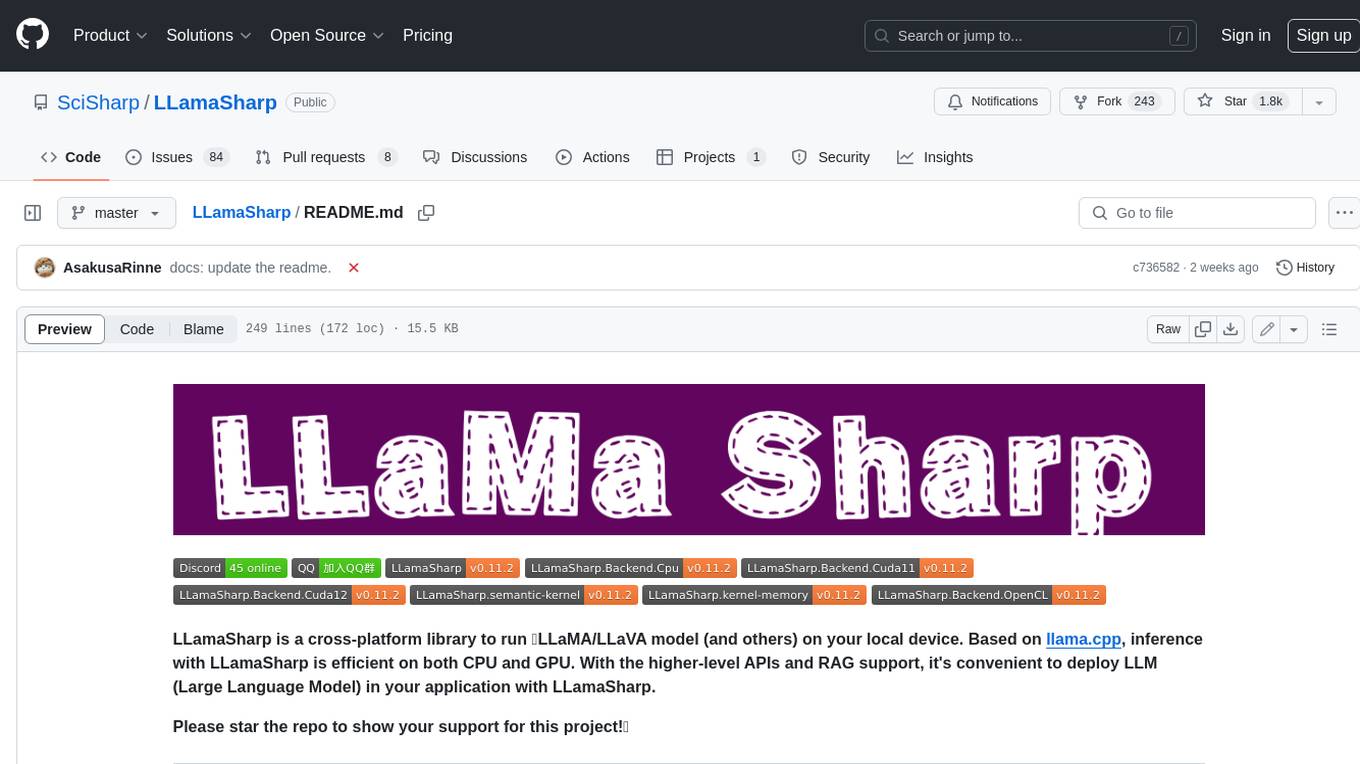
LLamaSharp is a cross-platform library to run 🦙LLaMA/LLaVA model (and others) on your local device. Based on llama.cpp, inference with LLamaSharp is efficient on both CPU and GPU. With the higher-level APIs and RAG support, it's convenient to deploy LLM (Large Language Model) in your application with LLamaSharp.
gpt4all
GPT4All is an ecosystem to run powerful and customized large language models that work locally on consumer grade CPUs and any GPU. Note that your CPU needs to support AVX or AVX2 instructions. Learn more in the documentation. A GPT4All model is a 3GB - 8GB file that you can download and plug into the GPT4All open-source ecosystem software. Nomic AI supports and maintains this software ecosystem to enforce quality and security alongside spearheading the effort to allow any person or enterprise to easily train and deploy their own on-edge large language models.
For similar jobs
sweep
Sweep is an AI junior developer that turns bugs and feature requests into code changes. It automatically handles developer experience improvements like adding type hints and improving test coverage.
teams-ai
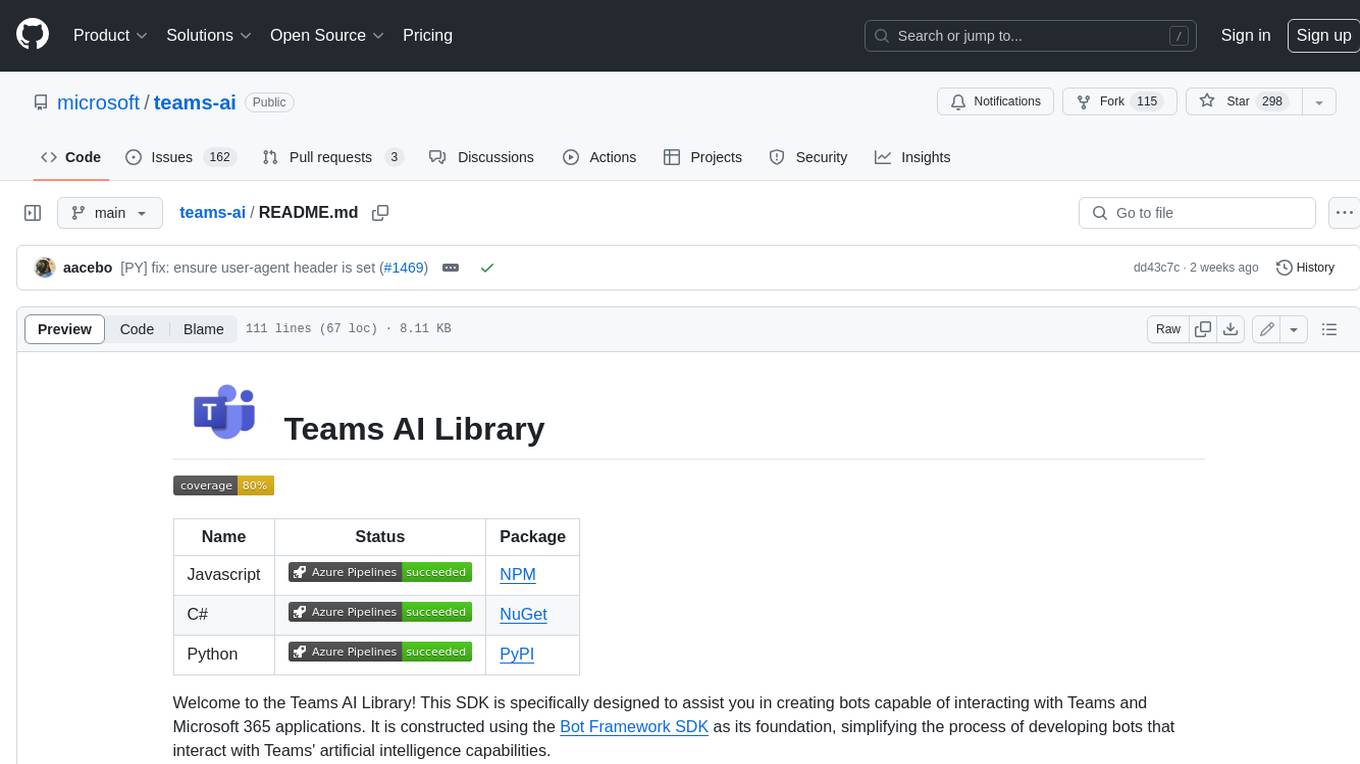
The Teams AI Library is a software development kit (SDK) that helps developers create bots that can interact with Teams and Microsoft 365 applications. It is built on top of the Bot Framework SDK and simplifies the process of developing bots that interact with Teams' artificial intelligence capabilities. The SDK is available for JavaScript/TypeScript, .NET, and Python.
ai-guide
This guide is dedicated to Large Language Models (LLMs) that you can run on your home computer. It assumes your PC is a lower-end, non-gaming setup.
classifai
Supercharge WordPress Content Workflows and Engagement with Artificial Intelligence. Tap into leading cloud-based services like OpenAI, Microsoft Azure AI, Google Gemini and IBM Watson to augment your WordPress-powered websites. Publish content faster while improving SEO performance and increasing audience engagement. ClassifAI integrates Artificial Intelligence and Machine Learning technologies to lighten your workload and eliminate tedious tasks, giving you more time to create original content that matters.
chatbot-ui
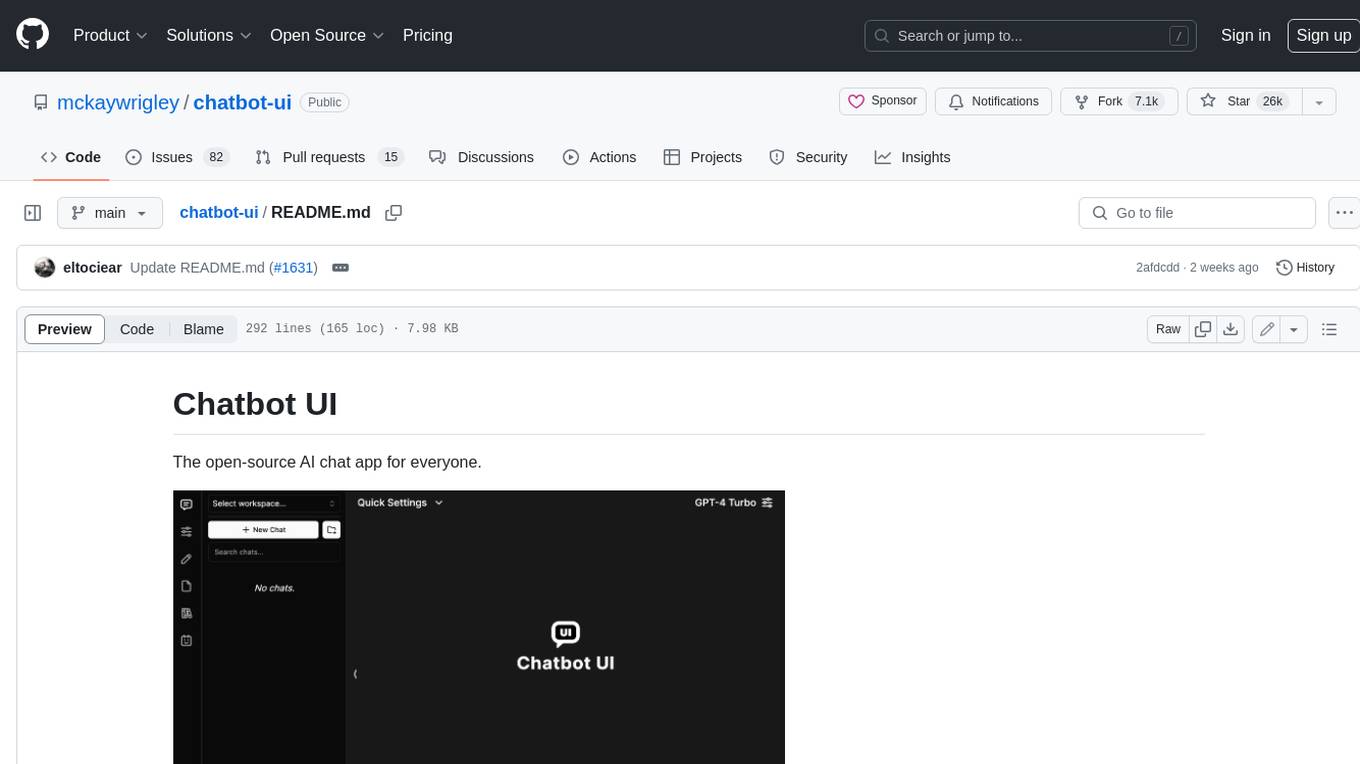
Chatbot UI is an open-source AI chat app that allows users to create and deploy their own AI chatbots. It is easy to use and can be customized to fit any need. Chatbot UI is perfect for businesses, developers, and anyone who wants to create a chatbot.
BricksLLM
BricksLLM is a cloud native AI gateway written in Go. Currently, it provides native support for OpenAI, Anthropic, Azure OpenAI and vLLM. BricksLLM aims to provide enterprise level infrastructure that can power any LLM production use cases. Here are some use cases for BricksLLM: * Set LLM usage limits for users on different pricing tiers * Track LLM usage on a per user and per organization basis * Block or redact requests containing PIIs * Improve LLM reliability with failovers, retries and caching * Distribute API keys with rate limits and cost limits for internal development/production use cases * Distribute API keys with rate limits and cost limits for students
uAgents
uAgents is a Python library developed by Fetch.ai that allows for the creation of autonomous AI agents. These agents can perform various tasks on a schedule or take action on various events. uAgents are easy to create and manage, and they are connected to a fast-growing network of other uAgents. They are also secure, with cryptographically secured messages and wallets.
griptape
Griptape is a modular Python framework for building AI-powered applications that securely connect to your enterprise data and APIs. It offers developers the ability to maintain control and flexibility at every step. Griptape's core components include Structures (Agents, Pipelines, and Workflows), Tasks, Tools, Memory (Conversation Memory, Task Memory, and Meta Memory), Drivers (Prompt and Embedding Drivers, Vector Store Drivers, Image Generation Drivers, Image Query Drivers, SQL Drivers, Web Scraper Drivers, and Conversation Memory Drivers), Engines (Query Engines, Extraction Engines, Summary Engines, Image Generation Engines, and Image Query Engines), and additional components (Rulesets, Loaders, Artifacts, Chunkers, and Tokenizers). Griptape enables developers to create AI-powered applications with ease and efficiency.